User Interface
R&S
®
GP-E/GP-S
84User Manual v16.2.1 ─ 01
●
OK (green) – the connection is working
●
WARNING (yellow) – the connection attempt failed
●
CRITICAL (red) – at least three connection attempts failed
●
PENDING (gray) – the connection setup is still in progress
Manual Failover
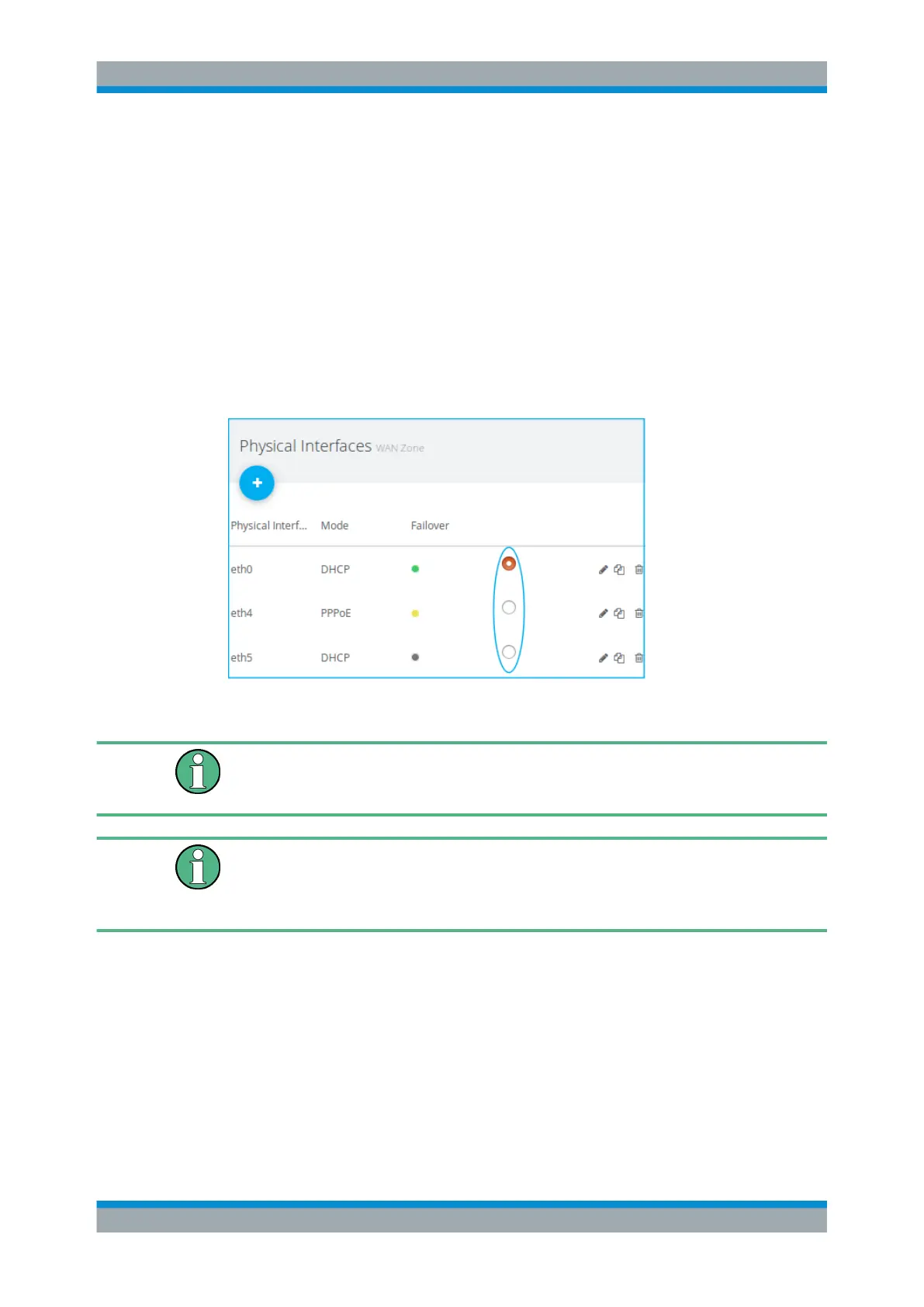
To initiate failover manually, navigate to "WAN > WAN Zone > Physical Interfaces"
(see also "Physical Interfaces" on page 85).
In the item list bar, you can see the status of the physical interfaces that have been
connected to the WAN zone in the "Failover" column. To activate an interface for fail-
over manually, click the respective radio button in the fourth column.
Figure 3-15: Initiating failover manually.
Interfaces can only be used for manual failover and their status is only displayed if they
have been set up in the "Failover" editor panel (see above), even if automatic failover
is disabled.
When an interface is set up as a failover interface in the WAN zone, the system auto-
matically creates a connection monitoring profile for this interface using default values.
Navigate to "WAN > Connection Monitoring" to customize connection monitoring pro-
files.
3.4.4.4 WAN Zone
Use the "WAN Zone" settings to configure the WAN settings of your gateprotect Fire-
wall and the physical interfaces connected to it to set up multi-WAN.
Navigate to "WAN > WAN Zone" to display the WAN zone that is defined on the sys-
tem in the item list bar.
Menu Reference



 To Next Page