User Interface
R&S
®
GP-E/GP-S
85User Manual v16.2.1 ─ 01
In the expanded view, the "Interface" column of the table displays the name of the
WAN zone. The button in the right column allows you to view and adjust the settings of
the WAN zone.
For further information, see Chapter 3.2, "Icons and Buttons", on page 21.
WAN Zone Settings
The "WAN Zone" settings determine how gateprotect Firewall connects to the wide
area network, typically the Internet.
Under "WAN > WAN Zone" , you can edit the WAN zone.
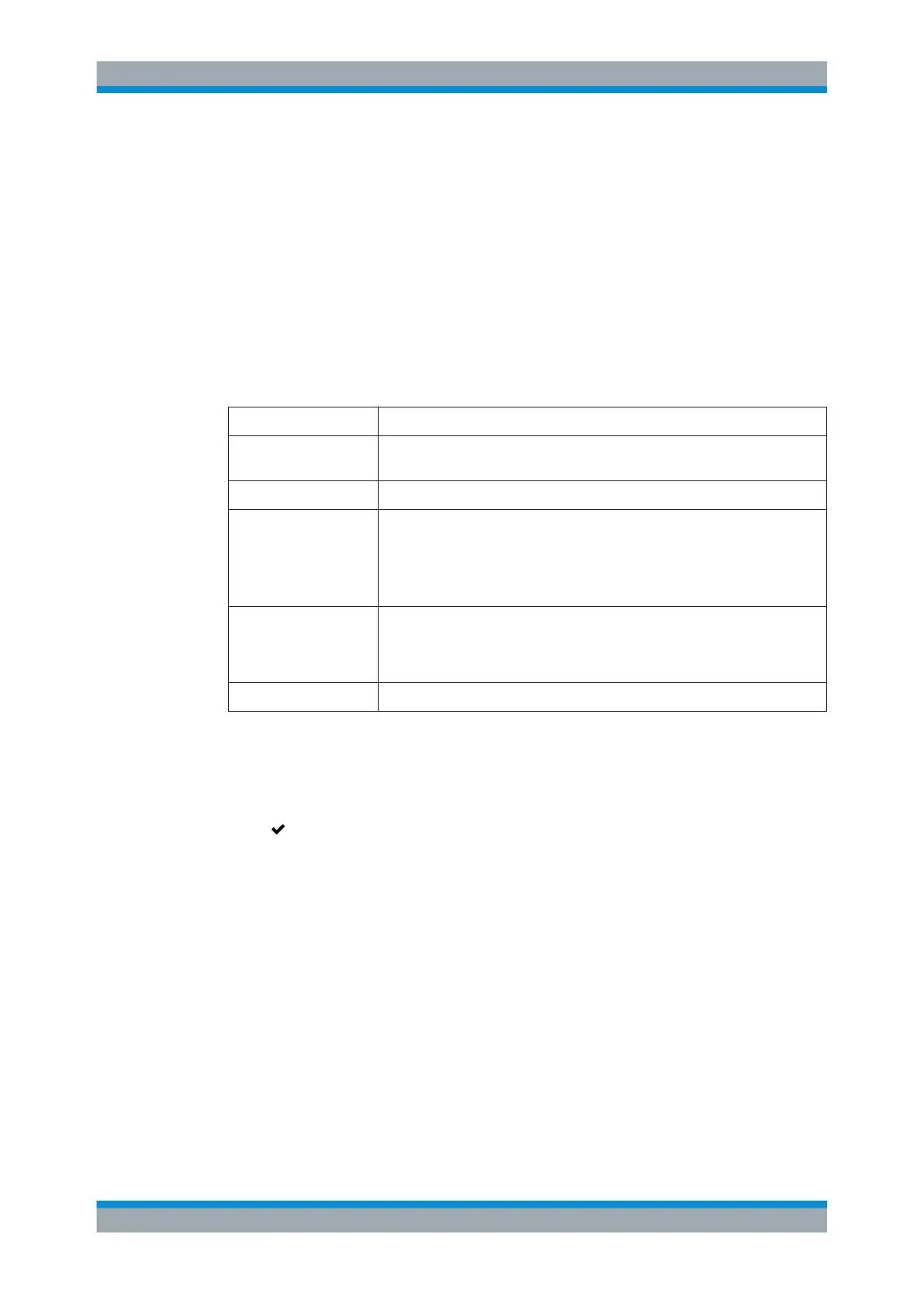
The "WAN Zone" settings allow you to configure the following elements:
Field Description
"Name" Enter a name for the WAN zone (allowed are letters of the English alphabet,
integers, dashes, underscores and dots). The name is set to WAN by default.
"Comment" Optional: You can enter a comment if you wish.
"NAT" NAT provides IP address masquerading to secure the Internet connection for
clients on the internal network by hiding their private IP addresses behind the
public IP address of gateprotect Firewall.
This checkbox is pre-selected by default. Clear the checkbox to disable network
address translation.
"Log Refused Connec-
tion Attempts"
Optional: Select this checkbox to create an entry in the System log (see "Sys-
tem Log" on page 41) whenever a connection attempt from the outside to the
WAN zone of your gateprotect Firewall fails. Filtering the System log by "Pro-
gram" ulogd, the log entries for refused connection attempts are displayed.
"IP Address" Displays the IP address of the WAN zone.
The buttons at the bottom right of the editor panel depend on whether you change the
settings of the WAN zone or not. Click "Close" to shut the editor panel as long as no
changes have been made on it. When all settings are configured as required, click
"Save" to store your changes. Otherwise, click "Reset" to discard all changes.
Click " Activate" in the toolbar at the top of the desktop to apply your configuration
changes.
Physical Interfaces
Navigate to "WAN > WAN Zone > Physical Interfaces" to display and configure the
physical interfaces connected to the WAN zone.
Multiple interfaces can be connected to the WAN zone to set up multi-WAN (see also
Chapter 3.4.4.3, "Failover Settings", on page 82).
In the expanded view, the columns of the table display the "Physical Interface" that is
connected to the WAN zone (for example eth0) and the "Mode" used to establish the
connection (PPPoE, DHCP or Static). The "Failover" column indicates whether an
interface is configured for failover. For more information, see Chapter 3.4.4.3, "Failover
Settings", on page 82. The buttons in the last column allow you to view and adjust the
settings for a physical interface, create an interface based on a copy of an existing
physical interface or delete an interface from the WAN zone.
Menu Reference



 To Next Page