User Interface
R&S
®
GP-E/GP-S
18User Manual v16.2.1 ─ 01
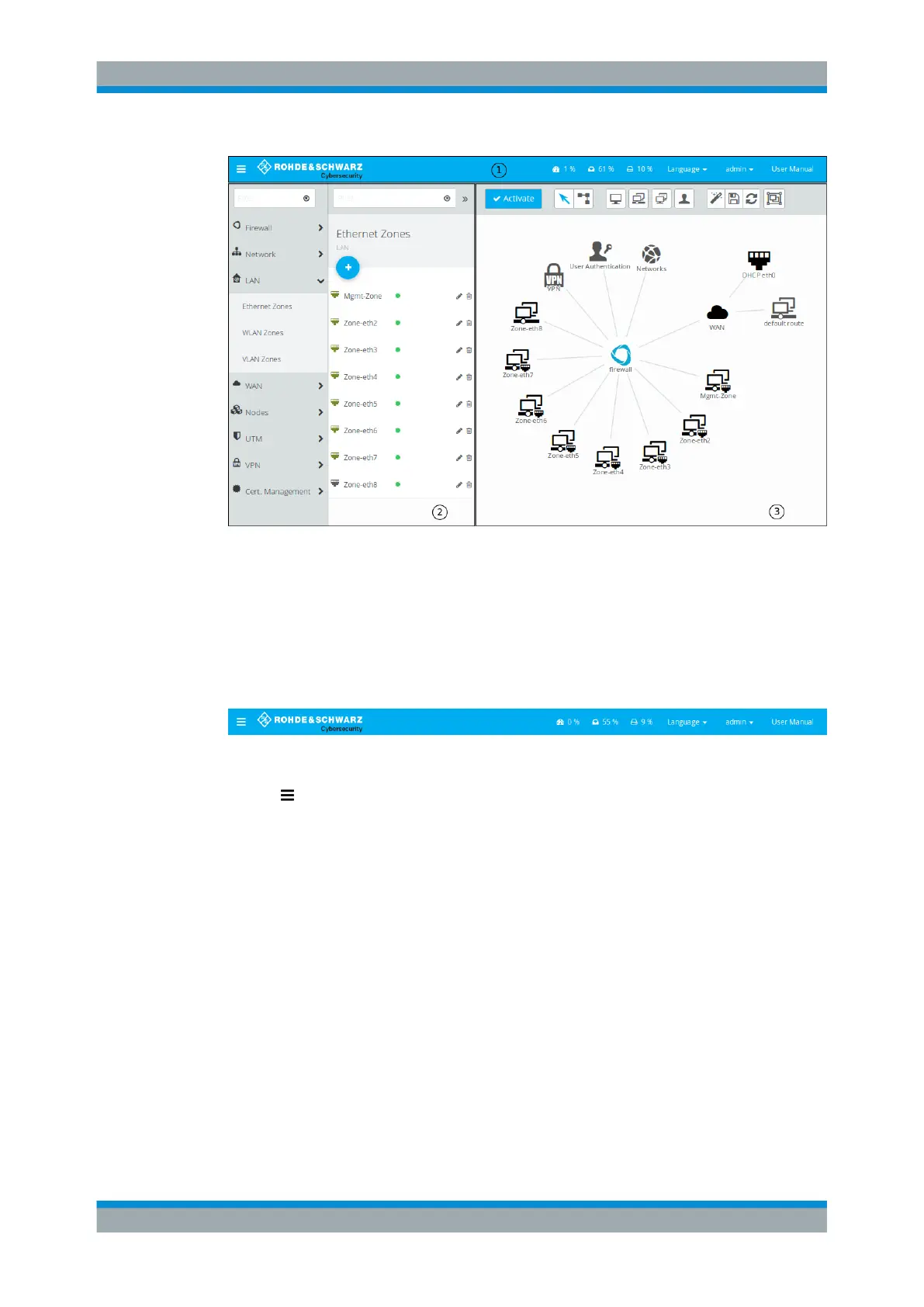
Figure 3-1: gateprotect Firewall web interface.
The information displayed in each area is described in the following sections.
3.1.1 Header Area
The header area (1) contains the following elements (from left to right):
Figure 3-2: gateprotect Firewall web interface header area.
●
the button to hide or show the navigation bar (the navigation bar is displayed by
default, see Chapter 3.1.2, "Navigation Pane", on page 19),
●
the Rohde & Schwarz Cybersecurity logo,
●
the current system status information, expressing the system load and the memory
and disk usage as a percentage, so you can quickly spot system performance bot-
tlenecks,
●
a user menu that allows you to select the language to be used in the web interface,
●
a menu to change the current user's password (the new password has to be at
least eight characters long and cannot be identical with the current password) and
to end the current user session and return to the login dialog and
●
a link which provides access to a PDF version of the gateprotect Firewall User
Manual. Depending on your browser settings, the PDF file is either displayed in a
new tab or window, or downloaded.
In addition, the header area displays unsaved configuration changes if you close an
editor panel by pressing the Esc key on your computer keyboard (unsaved changes
Web Interface Components



 To Next Page