User Interface
R&S
®
GP-E/GP-S
105User Manual v16.2.1 ─ 01
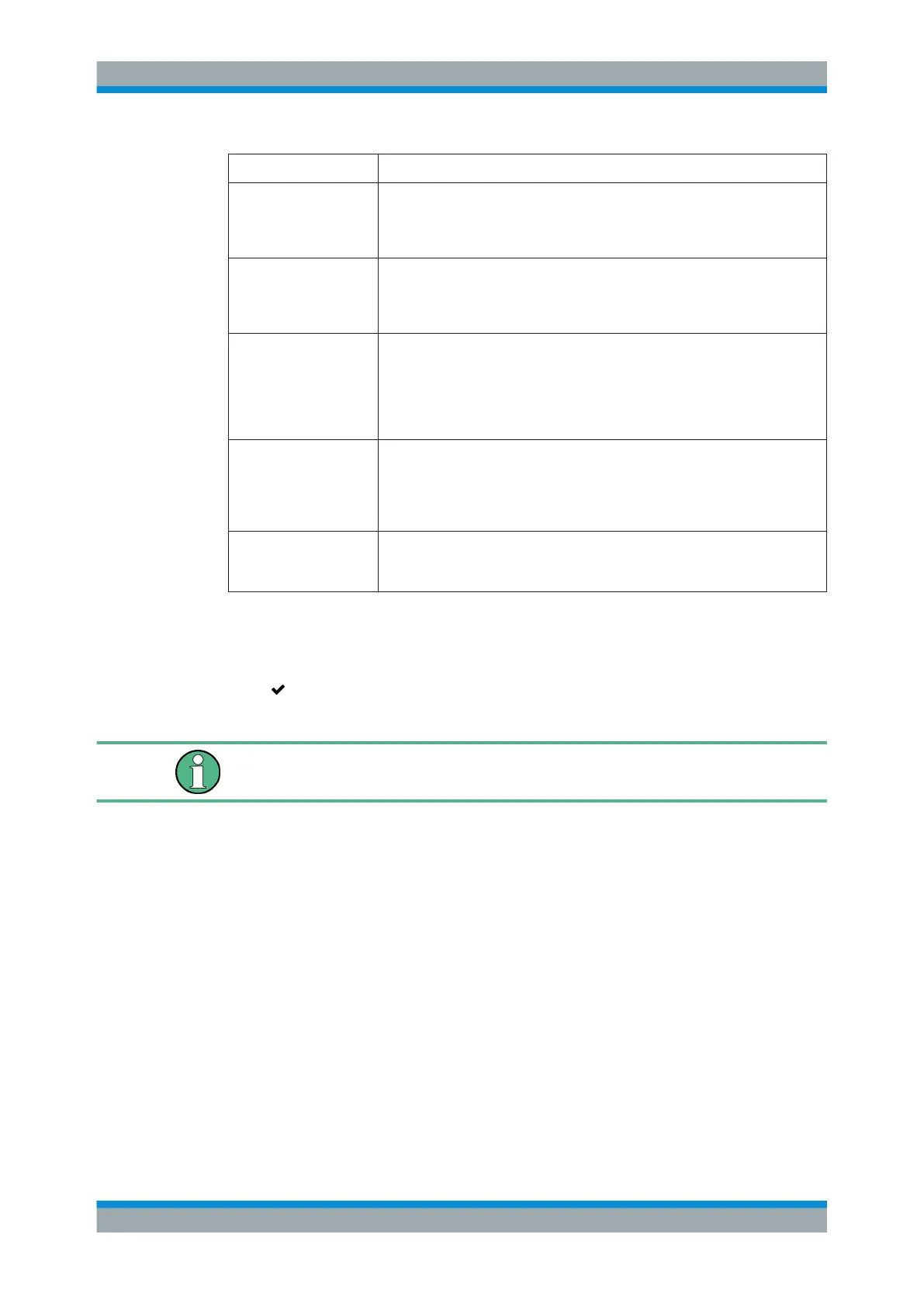
Field Description
"Block files containing
viruses"
Optional: Select this checkbox to scan attachments in emails and to block files
with clearly identified viruses. If a virus is detected, the recipient will receive the
email without the attachment but with the notification that the attachment was
infected.
"Block suspicious files" Optional: Select this checkbox to scan attachments in emails and to block files
which the antivirus scanner cannot allocate, unpack or analyze. If an attach-
ment looks suspicious, the recipient will receive the email without the attach-
ment but with the notification that the attachment might be infected.
"Block erroneously scan-
ned files"
Optional: Select this checkbox to block emails if the scan with the antivirus
scanner was not completed successfully. If an error occurs during the scan, the
email will be blocked and the recipient will receive a notification. If this check-
box is cleared, the recipient will receive a replacement email that contains the
original email as an encrypted attachment and the password required to decrypt
it.
"Heuristic analysis" Optional: Activate the heuristic analysis by selecting an option other than Off
(default setting) from the drop-down list. Binary data are checked for code
which has similar characteristics to a virus or could cause other damage. This
method enables recognition of sub variations of viruses which have no signa-
ture of their own under certain circumstances.
"Max. size of files to be
scanned"
Define the maximum size (in megabyte) for an attachment to be scanned. Files
exceeding the limit are not scanned. The default maximum file size is set to 15
megabytes.
The buttons at the bottom right of the editor panel allow you to shut ( "Close" ) the edi-
tor panel as long as no changes have been made and to store ( "Save" ) or to discard
( "Reset" ) your changes.
Click " Activate" in the toolbar at the top of the desktop to apply your configuration
changes.
The antivirus settings defined here are applied only after the mail proxy has been acti-
vated as described under Chapter 3.4.6.6, "Mail Filter Settings", on page 105.
3.4.6.6 Mail Filter Settings
With the "Mail Filter" settings, you can activate the mail proxy on your gateprotect Fire-
wall. Once the mail proxy is enabled, you can filter emails by their destination address.
If filtered, these mails do not reach the recipient and/or the mail server.
Under "UTM > Mail Filter" , you can activate the mail proxy (using the POP3/POP3s
and the SMTP/SMTPs slider switches) and configure a mail filter. POP3 email servers
store incoming emails until they are forwarded to the recipient and SMTP servers han-
dle outgoing emails.
The "Mail Filter" settings allow you to configure the following elements:
Menu Reference



 To Next Page