User Interface
R&S
®
GP-E/GP-S
21User Manual v16.2.1 ─ 01
It is possible to customize the desktop layout by dragging the objects to the desired
positions where they are automatically pinned. Use the buttons in the toolbar to save
and restore your customized layout or to arrange the objects automatically.
For further information, see Chapter 3.2, "Icons and Buttons", on page 21.
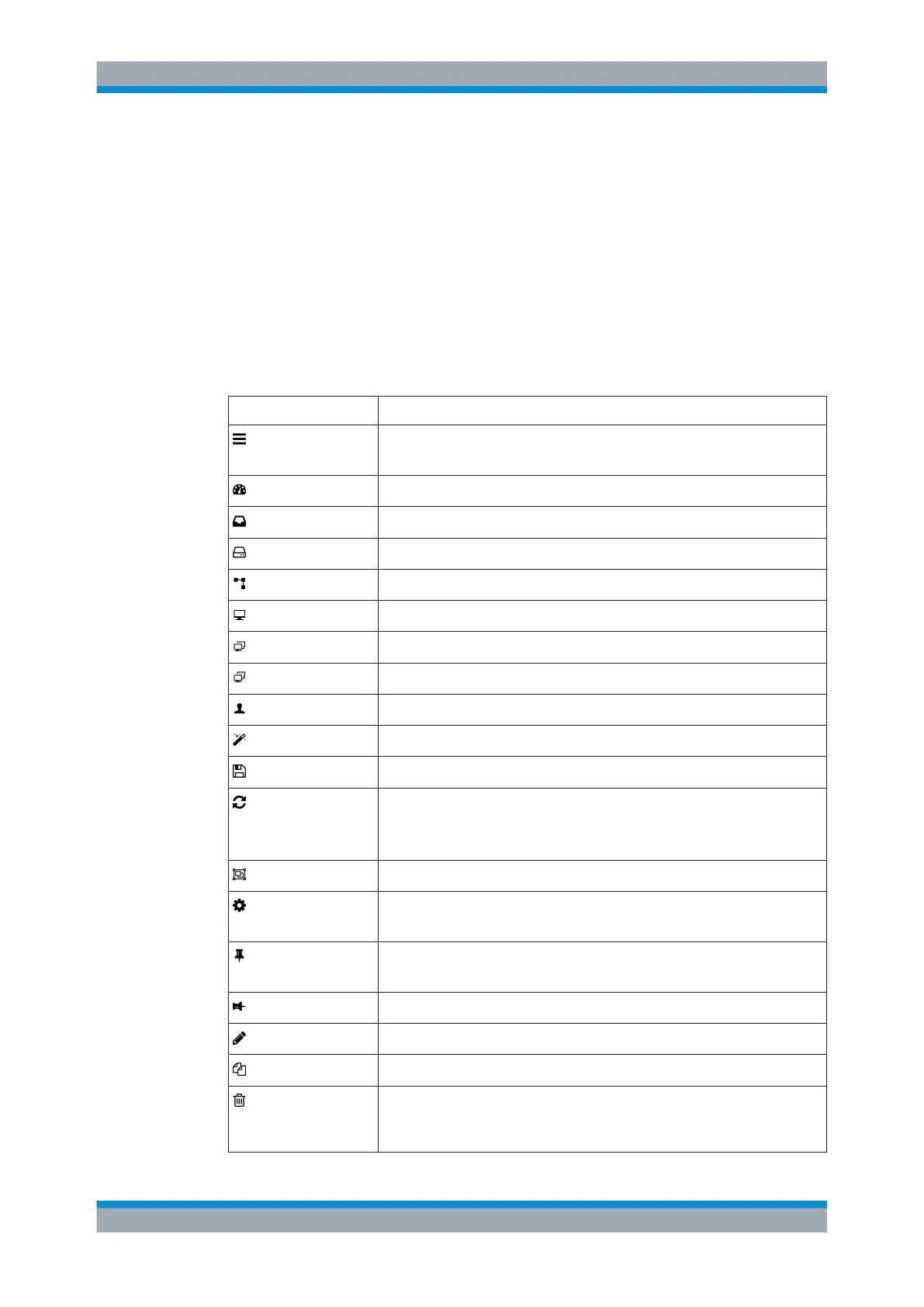
3.2 Icons and Buttons
This topic explains the icons and buttons commonly used on the user interface and
throughout this manual.
Icon/Button Description
Hide and show the navigation bar.
Indicates that firewall rules can be rearranged in the "Firewall Rules" list.
Reflects the total percentage of system load.
Reflects the total percentage of memory usage.
Reflects the total percentage of disk usage.
Create or edit a connection between two desktop objects.
Create a host.
Create a network.
Create a network group.
Create a user.
Discard all manual desktop layout changes and apply an automatic layout.
Save the current desktop layout.
Restore the last saved desktop layout.
Restore a backup.
Replace a certificate by importing a new certificate.
Fit the entire network to the desktop.
Marks a menu item with settings to configure in the navigation bar.
Marks a table column with actions available for a table entry.
Unpin the desktop object to be able to move it via drag & drop on the desktop.
Pin individual or all LDAP users to the desktop.
Remove an individual LDAP user from the desktop.
View and adjust the settings for a desktop object, a list item or a table entry.
Create a list item or a table entry based on a copy of an existing entry.
Delete a desktop object, a list item or a table entry from the system after a posi-
tive response to the confirmation request popping up.
Permanently revoke a certificate.
Icons and Buttons



 To Next Page