User Interface
R&S
®
GP-E/GP-S
20User Manual v16.2.1 ─ 01
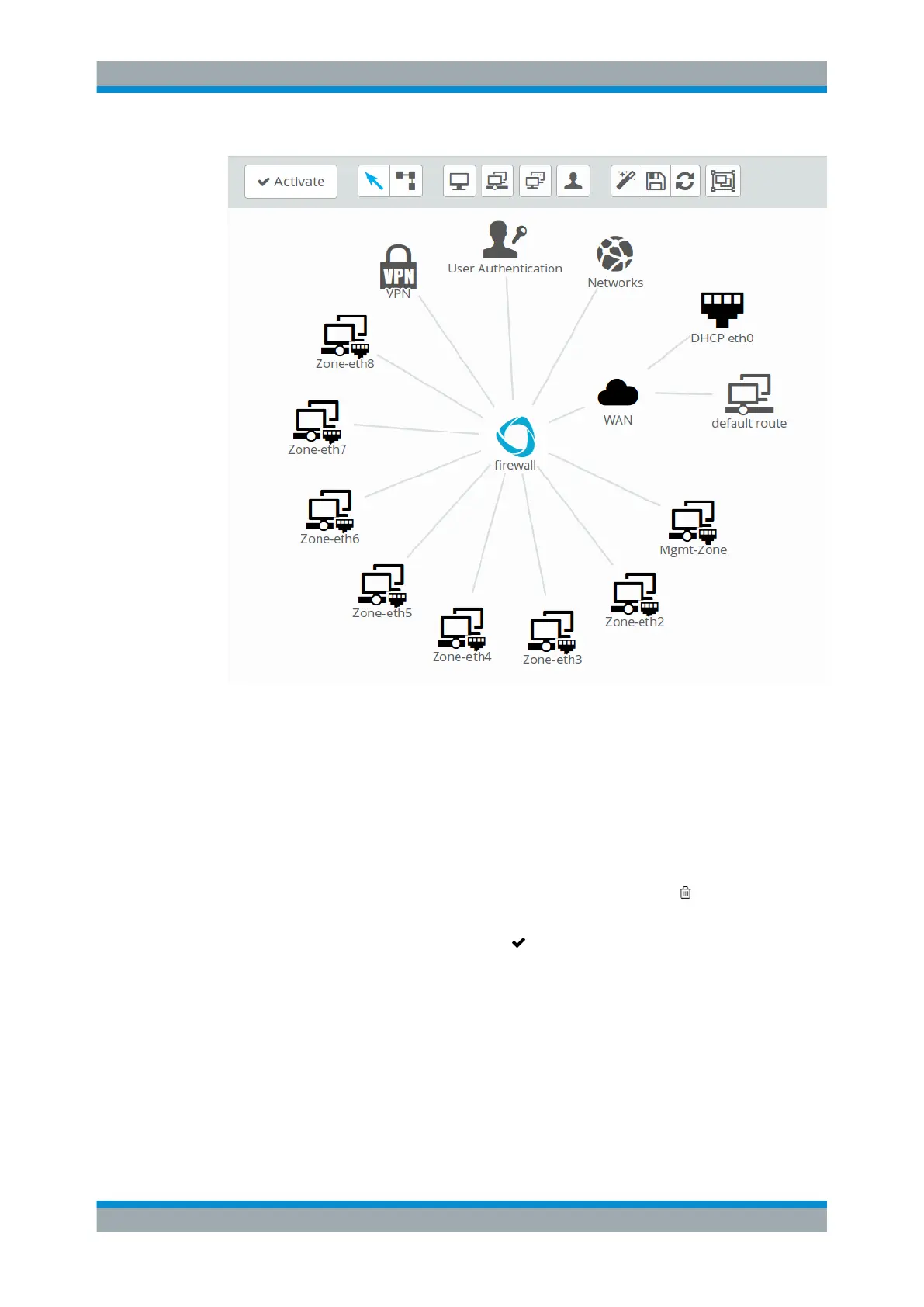
Figure 3-3: gateprotect Firewall desktop.
On the desktop you always have a complete overview of your entire configured net-
work. You can edit various settings in this pane or view the details of a configuration.
A toolbar at the top of the desktop allows you to create and edit objects or connections.
To create an object on the desktop, click with the left mouse button on the desired but-
ton in the toolbar, keep the mouse button pressed and drag the object onto the desk-
top. Depending on the type of object you are creating, an editor panel automatically
opens where you can enter the required data for the object. To delete an object from
the desktop, click the object with the left mouse button and select
from the circular
menu.
If the system configuration changes, the "
Activate" button is highlighted, prompting
you to update your configuration. Click this button to save your current desktop config-
uration changes and to activate them on the firewall.
The buttons that appear in the circular menu when you click an object with the left
mouse button allow you to adjust the settings for an existing object, to create a connec-
tion between two existing objects, to hide or display objects attached to the object, to
unpin an object from a specific location on the desktop or to remove it from the desk-
top.
Web Interface Components



 To Next Page