User Interface
R&S
®
GP-E/GP-S
116User Manual v16.2.1 ─ 01
Field Description
"Remote Address" Enter a valid public IP address in CIDR notation (IP address followed by a
slash »/« and the number of bits set in the subnet mask, for example
192.168.50.1/24) or the fully qualified domain name (FQDN) at which the
remote end is reachable from the outside.
"Remote Subnets" If you wish to set up the IPsec S2S connection in full tunnel mode, select
default route (0.0.0.0/24). Otherwise, select the desired subnets for
split tunnel mode. Click the link below the input field or navigate to "Nodes >
Custom Networks" to configure new subnets. See Chapter 3.4.5.3, "Custom
Networks", on page 96 for more information.
If you want to create an IPsec connection which terminates in a non-WAN zone,
a static network route from your subnet to the remote subnet has to be defined.
This is necessary because all other zones on the gateprotect Firewall have to
know that the packets from your subnet are routed to a non-WAN zone through
an IPsec tunnel. Therefore, you have to add the remote subnet as described
under Chapter 3.4.5.3, "Custom Networks", on page 96 first.
"Exclude Subnets" Optional: Select those parts of the remote subnets previously selected that
should not be routed through the IPsec tunnel.
"Use Remote Identity" Select this checkbox to be able to choose a "Remote Identity Type" determining
the type of identity to be entered in the "Remote Identity" field.
Note: If you set up more than one IPsec connection in the same access zone,
this option is mandatory for all IPsec connections in this zone.
"Remote Identity Type" The type of identity can be selected from:
●
Mail – an email address
●
Hostname – a fully qualified domain or host name (this name will not be
resolved via DNS)
●
IP – an IP address or a DNS name which will be resolved via local DNS
●
KeyID – an alphanumeric string without spaces
"Remote Identity" The remote identity identifies the remote end of the connection and works simi-
lar to the "Local Identity" . Define a value in accordance with the selected
remote identity type.
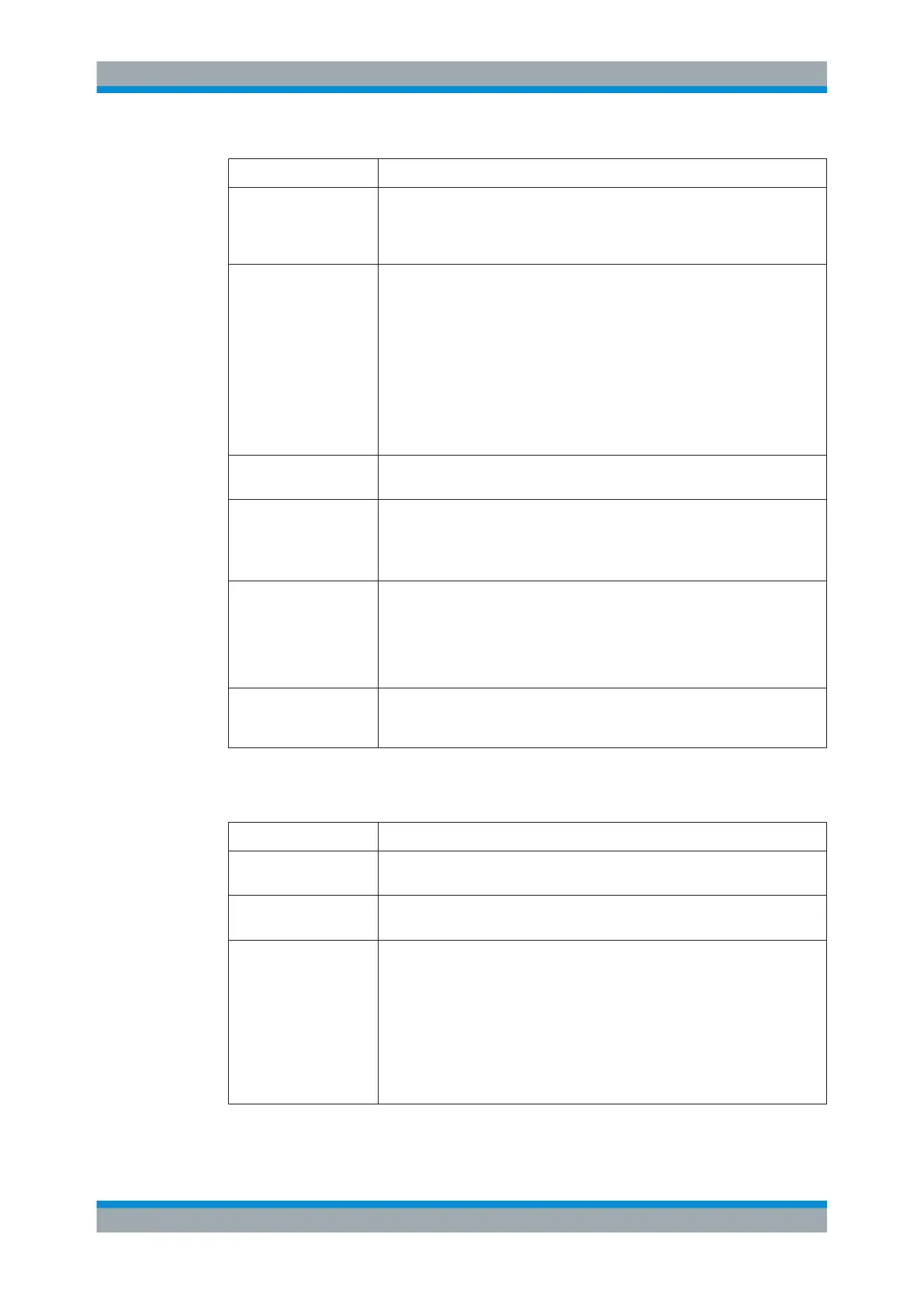
On the "Remote Ports/Protocols" tab, you can specify which ports and protocols should
be routed through the IPsec tunnel:
Mode Description
"Any" Select this radio button if you do not wish to restrict routing through the IPsec
tunnel by ports or protocols.
"Web Traffic only" Select this radio button if you want to route packets meant for remote TCP port
numbers 80, 8080 or 443 through the IPsec tunnel.
"Custom" Select this radio button to define your own routing rules. You can choose
between:
●
"TCP Ports" – Traffic for remote TCP port numbers entered here will be
routed through the IPsec tunnel. If left blank, no TCP traffic will be routed
through the tunnel.
●
"UDP Ports" – Traffic for remote UDP port numbers entered here will be
routed through the IPsec tunnel. If left blank, no UDP traffic will be routed
through the tunnel.
●
"ICMP" – Select this checkbox to route ICMP messages through the IPsec
tunnel.
Menu Reference



 To Next Page