User Interface
R&S
®
GP-E/GP-S
123User Manual v16.2.1 ─ 01
Signing Request (CSR) from a certificate and verifying, temporarily suspending or
renewing the validity of a certificate.
For further information, see Chapter 3.2, "Icons and Buttons", on page 21 and Chap-
ter 4.10, "Handling Certificates", on page 153.
Certificates Settings
The "Certificates" settings control the certificates used by the gateprotect Firewall.
The plus button
in the element list header allows you to add new certificates.
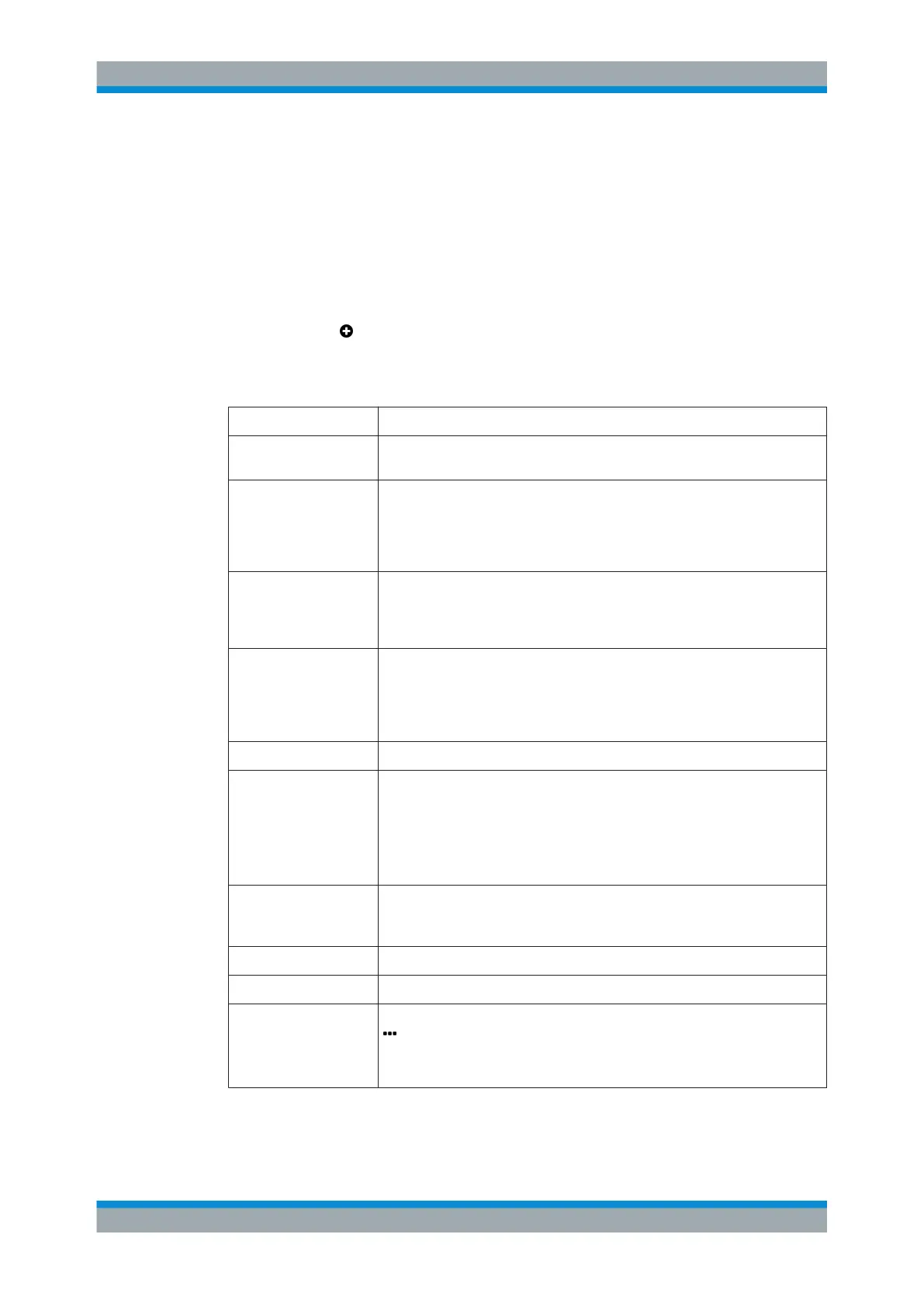
The certificate settings allow you to configure the following elements (some fields are
only displayed for certain certificate types):
Field Description
"Type" From the drop-down list, select what kind of certificate to create. For further
information, see "Types of Certificates" on page 124.
"Validity" Define the initial period of time for which the certificate should be considered
valid. The input fields are pre-filled with the current date as the date issued and
the same day one year later as the date of expiry. To define a different period of
time, enter the new date in the following format: MM/DD/YYYY (for example
04/20/2017).
"Signing CA" If the certificate type was set to Authentication, Authentication and
VPN or Subordinate Certificate Authority, you can now select the
certificate authority that is to be used to sign the new certificate. This CA will be
the parent CA that is used to verify or to revoke the certificate.
"CA Password" Optional: Enter a password for the private key of the signing CA if the certificate
type was set to Authentication, Authentication and VPN or
Subordinate Certificate Authority. The password is necessary as
the signing of the public key of the new certificate is done with the private key of
the signing certificate authority.
"Show CA Password" Optional: Select this checkbox to verify the signing CA's password.
"PK Encryption" Decide whether to use the pre-selected RSA (Rivest-Shamir-Adleman) or the
selectable DSA (Digital Signature Algorithm) as the encryption algorithm for the
private key. (DSA is not available for VPN certificates due to limitations of
OpenVPN.)
Note: DSA with a private key size of 1024 bits or lower is not accepted by most
clients.
"PK Size" Decide whether to use the default value (2048 Bit) or to select a different bit
length for the private key. Longer keys are more secure but they take longer to
create.
"PK Password" Optional: Enter a password to secure the private key.
"Show PK Password" Optional: Select the checkbox to verify the private key password.
"Distinguished Name
(DN)"
Manually enter the subject of the certificate, or use the assistant by clicking the
button on the right of the input field to edit all available fields separately or to
select one of the templates.
For more information, see Chapter 3.4.8.2, "Templates", on page 125.
Menu Reference


 To Next Page