Application Examples
R&S
®
GP-E/GP-S
133User Manual v16.2.1 ─ 01
3. Enter a suitable name for the profile.
4. Go to the "Categories" tab and open the category Interests.
5. Select the sub-category Educational.
6. Optional: If you wish to get an alert when the web filter is triggered, open the
"Warning Page and Alerts" tab. Select the desired "Alert Level" , such as info,
and enter an "Alert Message" . The alert will be displayed in the "Alert Log" , but
only for those websites which are not contained in the Educational subcategory.
7. Optional: If you wish to add an additional custom website to the web filter profile,
use the "Exception Lists" tab. To block a site, add the URL to the "Hostname
Blacklist" (e. g. wiki.example.com). To allow a website, add the URL to the
"Hostname Whitelist" (e. g. wiki.intern.com). The wiki.example.com web-
site will be blocked by the web filter even though it is contained in the
Educational sub-category. The wiki.intern.com website will be accepted by
the web filter even though this website is not contained in the Educational sub-
category. The custom "Exception Lists" have higher priority than the "Categories" .
8. Click "Create" to save your changes.
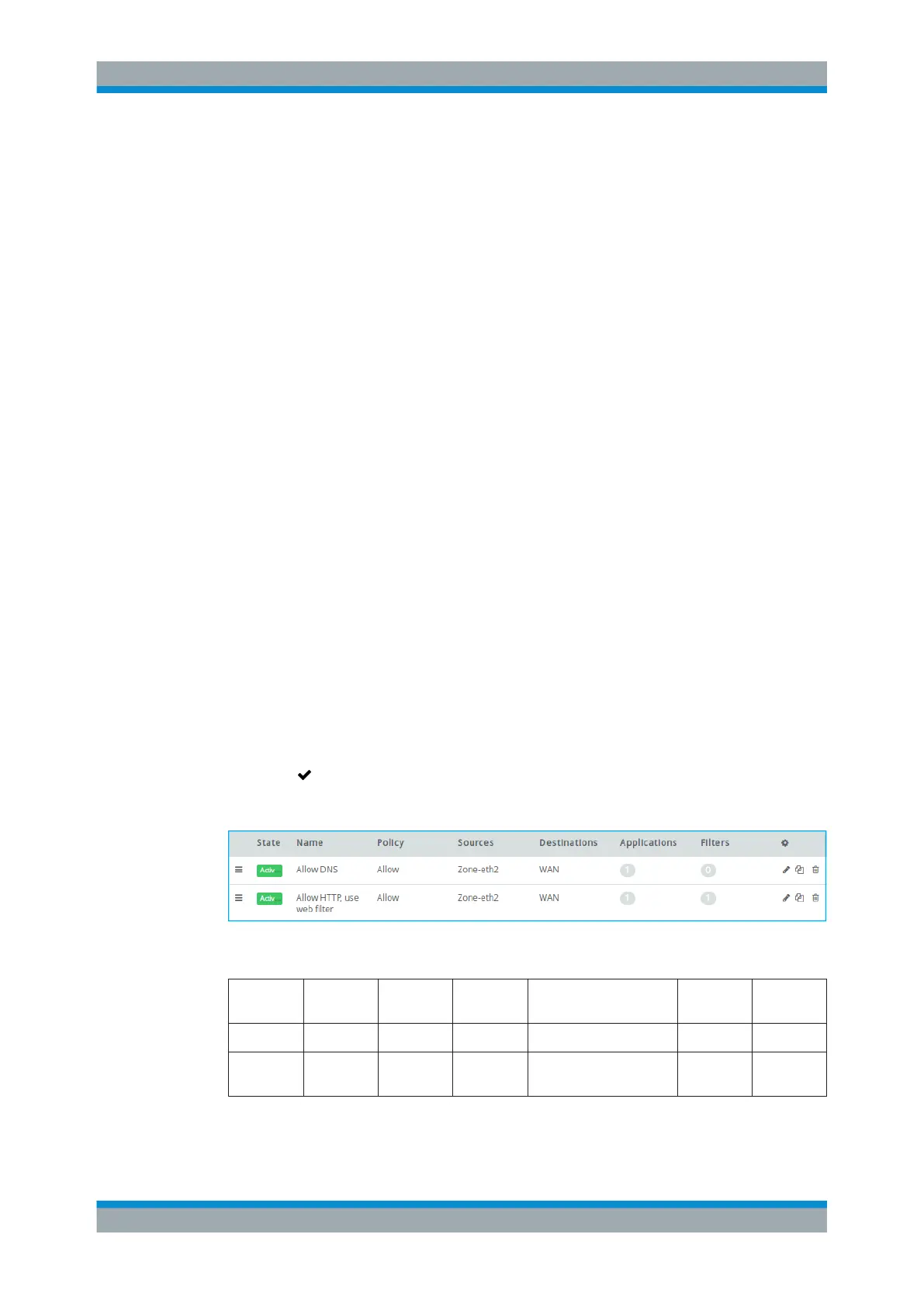
9. Create a new connection or open an existing connection and add two firewall rules
(refer to Chapter 3.3, "Firewall Rule Settings", on page 22 for more details):
a) The first rule permits DNS. Specify a name for the rule and select DNS under
"Applications / Protocols" .
b) For the second rule, select HTTP under "Applications / Protocols" and activate
"SSL Inspection" . In the "Application Filters" section, select the created "Web
Filter Profile" .
10. Click "Save" to store your changes made to the connection.
11.
Click "
Activate" in the toolbar at the top of the desktop to apply your configura-
tion changes.
Figure 4-6: Sample firewall rules settings to allow certain websites.
Position Policy Source Destina-
tion
Applications/Protocols Filter Enabled
Options
1 Allow Zone-eth2 WAN DNS
2 Allow Zone-eth2 WAN HTTP Web Filter
Profile
SSL
Inspection
Firewall Rule Examples



 To Next Page