Application Examples
R&S
®
GP-E/GP-S
138User Manual v16.2.1 ─ 01
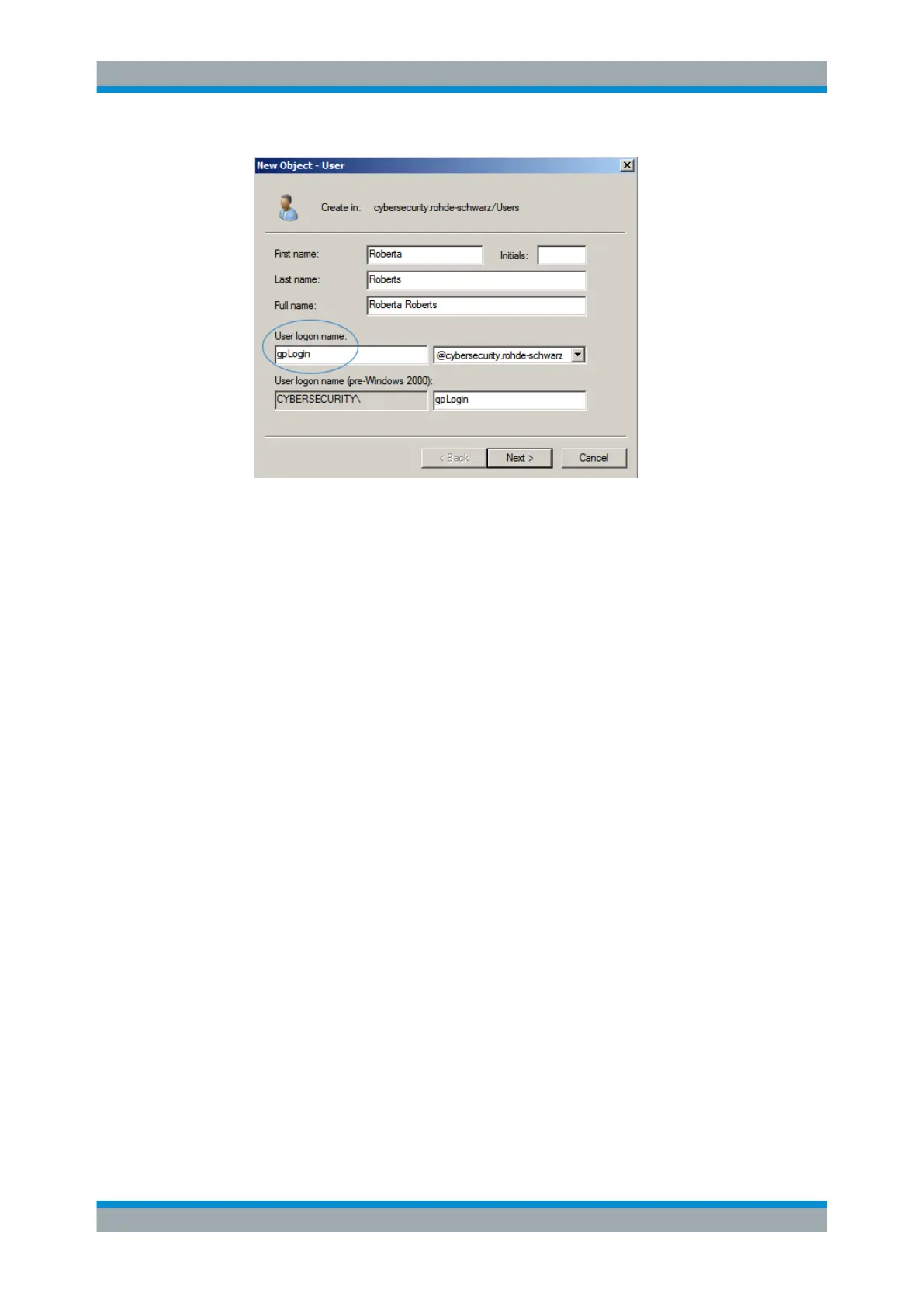
Figure 4-12: Creating a new user.
Note: Make sure that the user logon name is spelled exactly as indicated.
3. The remaining information, such as first name, last name and so on, can be
chosen at will.
Generating a Keytab File
1. Open the command line interface with admin rights.
2. Enter the following command: ktpass -out [file name] -princ
gpLogin/[firewall hostname]@[DOMAIN NAME] -pass [user's
password] -crypto ALL -ptype KRB5_NT_PRINCIPAL -mapuser
gpLogin
Explanation of the parameters:
● out – name of the keytab file
Enter a name for the keytab file and add the file extension .fw or .keytab.
● princ – principal combination of user/firewall hostname@DOMAIN NAME
Important: Enter the domain name in upper case.
● pass – user password of gpLogin
● crypto – encryption type (e.g. AES256-SHA1, ALL)
If you enter ALL, the domain controller will select the most suitable encryption
type itself.
● ptype – principal type
Important: Always enter KRB5_NT_PRINCIPAL.
● mapuser – user linked to the principal
3. Export the keytab file to your local disk.
Setting Up Single Sign-On



 To Next Page