Application Examples
R&S
®
GP-E/GP-S
186User Manual v16.2.1 ─ 01
a) Navigate to "Nodes > Custom Networks" .
b)
Click the plus button in the item list bar header.
c) Specify a "Name" for the new custom network.
d) Enter the IP address in CIDR notation, 10.10.10.0/24 in this example.
2. Add the custom network under "Local Subnets" in the "Local Configuration" tab to
the IPsec connection (refer to Chapter 4.12.2.2, "Setting Up the VPN Connection",
on page 181).
3. Create a static route between the headquarters and the remote network.
a) Navigate to "Network > Static Routes" .
b)
Click the plus button
in the item list bar header.
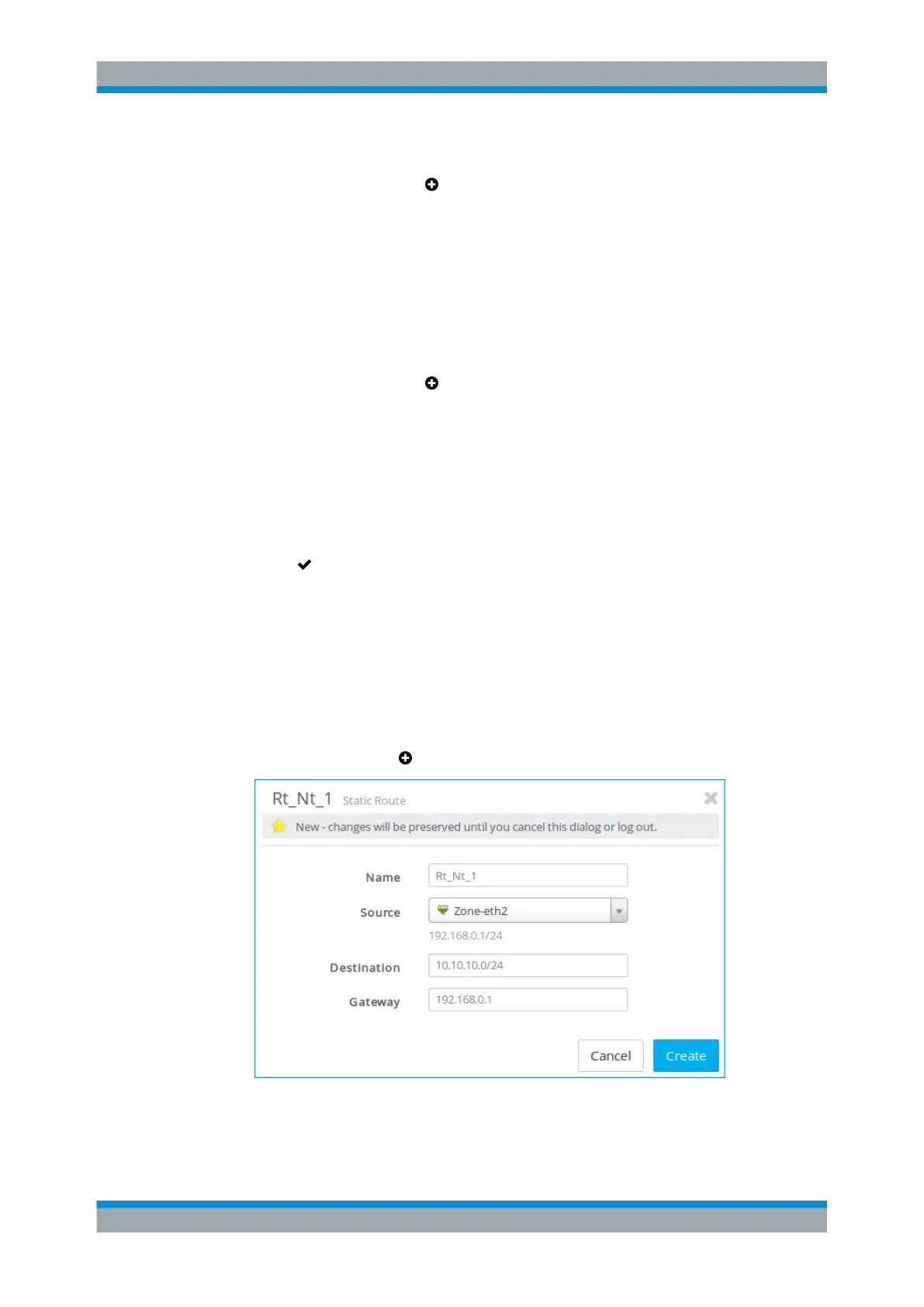
c) Specify a "Name" for the new static route.
d) From the "Source" drop-down list, select the network zone in which the IPsec
tunnel terminates.
e) Enter the "Destination" IP address (in CIDR notation) of the remote network
which you want to reach via the IPsec tunnel.
f) Set the IP address of the selected zone as "Gateway" .
g) Click "Create" to add the route to the list of available static routes.
4.
Click "
Activate" in the toolbar at the top of the desktop to apply your configura-
tion changes.
Setting up the Firewall of the Subsidiary
Set up the firewall of the subsidiary.
The following steps show how to set up a static route on the firewall of the subsidiary.
1. Navigate to "Network > Static Routes" .
2.
Click the plus button
in the item list bar header.
Figure 4-54: Sample static route settings.
3. Specify a "Name" for the new static route.
VPN Setup Examples



 To Next Page