Application Examples
R&S
®
GP-E/GP-S
189User Manual v16.2.1 ─ 01
2.
Click the plus button in the item list header.
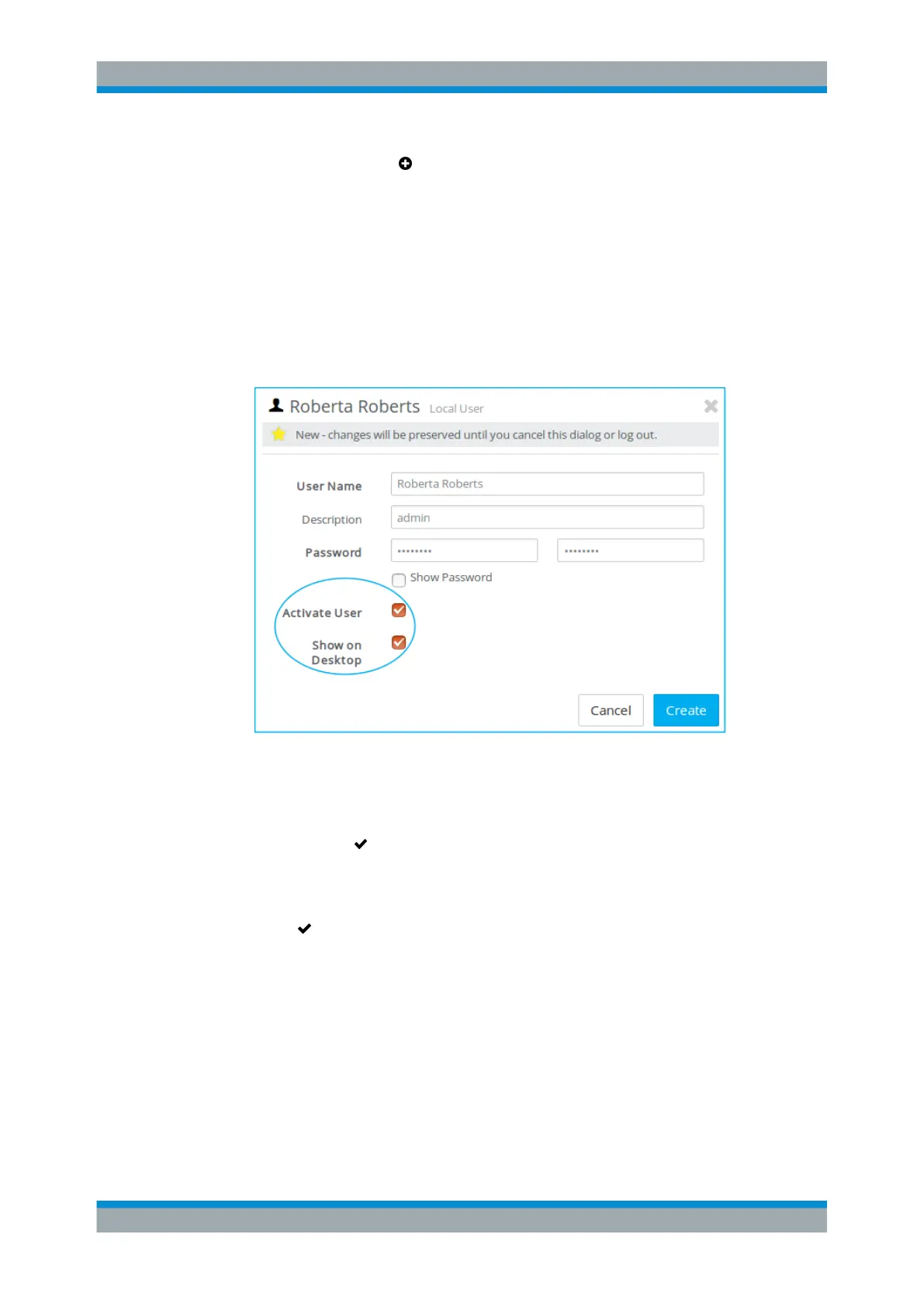
3. Enter a "User Name" and a "Password" and confirm the password.
Note: The user's login name has to exactly match the "User Name" (case-sensi-
tive). Otherwise, the name in the user-specific firewall rules does not correspond to
the user logging on to the client and the rules do not match.
4. Only users for which you select the "Activate User" checkbox can access the VPN.
5. Only users for which you select the "Show on Desktop" checkbox (in addition to
"Activate User" ) appear as nodes on the desktop and are, therefore, available for
connections and firewall rules.
Figure 4-58: Sample local user settings for internal authentication.
6. Click "Create" to add the new user to the list of available local users.
The new user appears in the list of available local users and as a node on the
desktop. The " Activate" button is highlighted in the toolbar of the desktop,
prompting you to update your configuration.
7. Repeat the process for all users that require VPN access.
8.
Click " Activate" in the toolbar at the top of the desktop to apply your configura-
tion changes.
For "LDAP" authentication:
To authorize LDAP users to connect to gateprotect Firewall, perform the following
steps:
1. Connect to an LDAP server as described under "Directory Service" on page 51.
2. From the menu in the navigation pane, select "Firewall > User Authentication >
LDAP Users" .
VPN Setup Examples



 To Next Page