Application Examples
R&S
®
GP-E/GP-S
194User Manual v16.2.1 ─ 01
3.
Click the plus button in the item list bar header to create a VPN certificate for
the »headquarters« (server).
The system prompts you to select the service that the new certificate should be
used for.
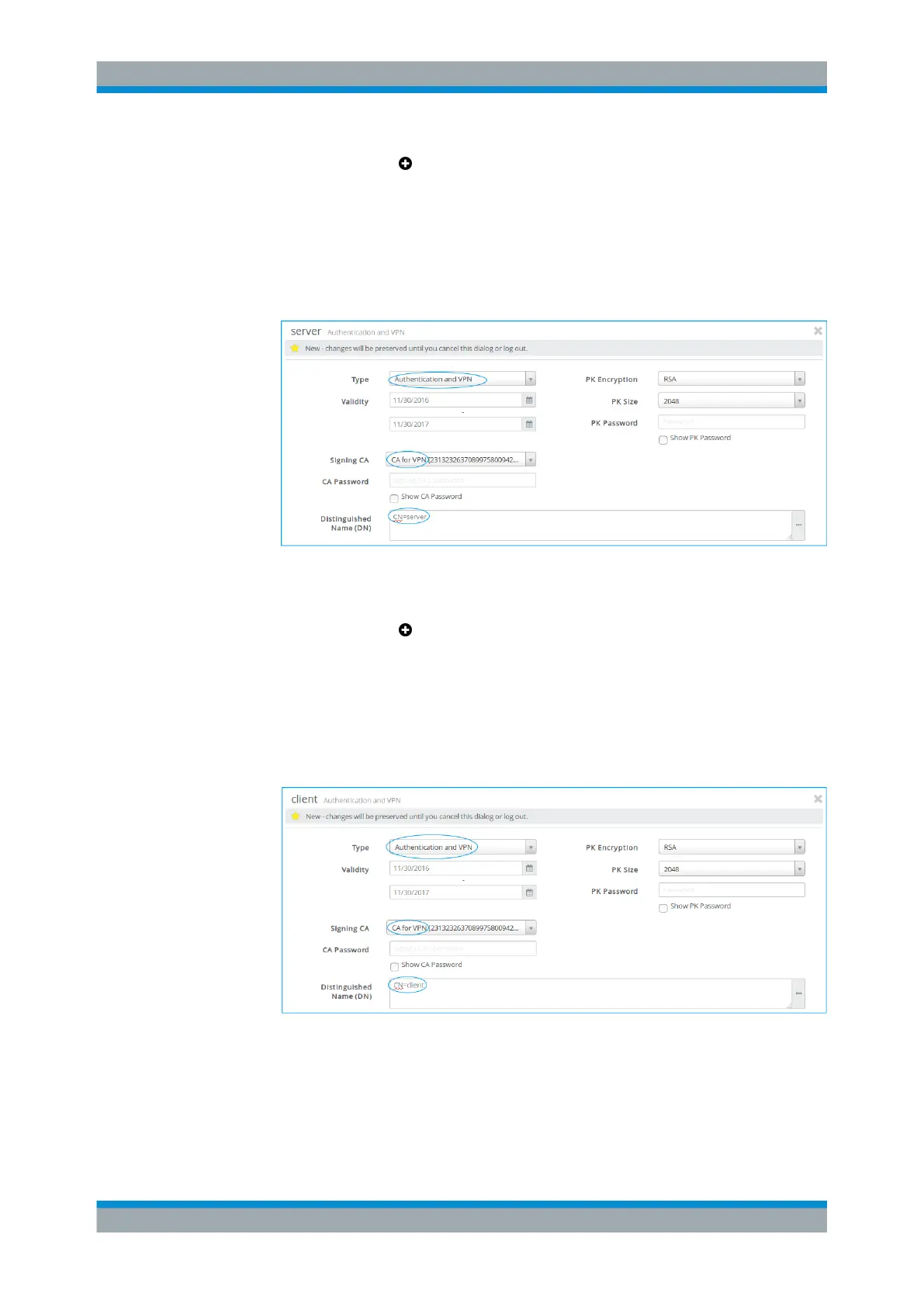
a) Under "Type" , select Authentication and VPN.
b) Under "Signing CA" , select the CA created in step 2.
c) Adjust the remaining information as necessary for your environment.
Figure 4-62: Sample VPN certificate settings for the »headquarters« (server).
d) Click "Create" to add the new certificate to the list of available certificates.
4.
Click the plus button in the item list bar header to create a VPN certificate for
the »subsidiary« (client).
The system prompts you to select the service that the new certificate should be
used for.
a) Under "Type" , select Authentication and VPN.
b) Under "Signing CA" , select the CA created in step 2.
c) Adjust the remaining information as necessary for your environment.
Figure 4-63: Sample VPN certificate settings for the »subsidiary« (client).
d) Click "Create" to add the new certificate to the list of available certificates.
5. Export the CA created in step 2 and the VPN certificates created in steps 3 and 4
as described under Chapter 4.10, "Handling Certificates", on page 153.
VPN Setup Examples



 To Next Page