User Interface
R&S
®
GP-E/GP-S
26User Manual v16.2.1 ─ 01
Field Description
"Warning Page" Optional: The Reject action can be combined with a warning page which
appears to the user in the browser window. To enable a warning page,
select this checkbox and one of the following options from the drop-down
list:
●
Show and block – a warning page which cannot be overridden is
presented
●
Show and continue – a warning page appears but it can be overrid-
den
"Web Filter Profile" Optional: This filter can only be selected if a web filter profile has been
defined as described under Chapter 3.4.6.3, "Web Filter Profiles",
on page 100. From the drop-down list, select a web filter profile to apply it
to the network traffic (available for HTTP).
"Applications / Proto-
cols"
Optional: gateprotect Firewall can detect various applications and protocols.
Select those applications and protocols to which the rule should be applied.
By clicking the input field, you are offered a selection of applications and
protocols included in the list. You can also type in the input field, getting a
list of applications and protocols whose names contain the characters you
are typing. The first option or match is highlighted in the list. Press ENTER
to select the application or protocol, or use the arrow keys on your keyboard
to select a different one. To delete an application or a protocol from the
input field, click on the left side of its name.
Important: If no applications or protocols are specified, the rule will be
applied to all traffic.
On the "Custom Decoders" tab, you can add custom search patterns that the fire-
wall rule applies to detect hash values, numeric values such as telephone num-
bers, regular expressions or text strings within the headers, payload or message
fields of supported protocols (see details below).
The buttons on the bottom right of the editor panel depend on whether you add a
new firewall rule or edit an existing rule. For a newly configured rule, click "Create"
to add the rule to the list of available firewall rules or "Cancel" to reject the creation
of a new rule. To edit an existing rule, click "Save" to store the reconfigured rule or
"Reset" to discard your changes. You can click "Close" to shut the editor panel as
long as no changes have been made on it.
3.
Click "
Activate" in the toolbar at the top of the desktop to apply your configura-
tion changes.
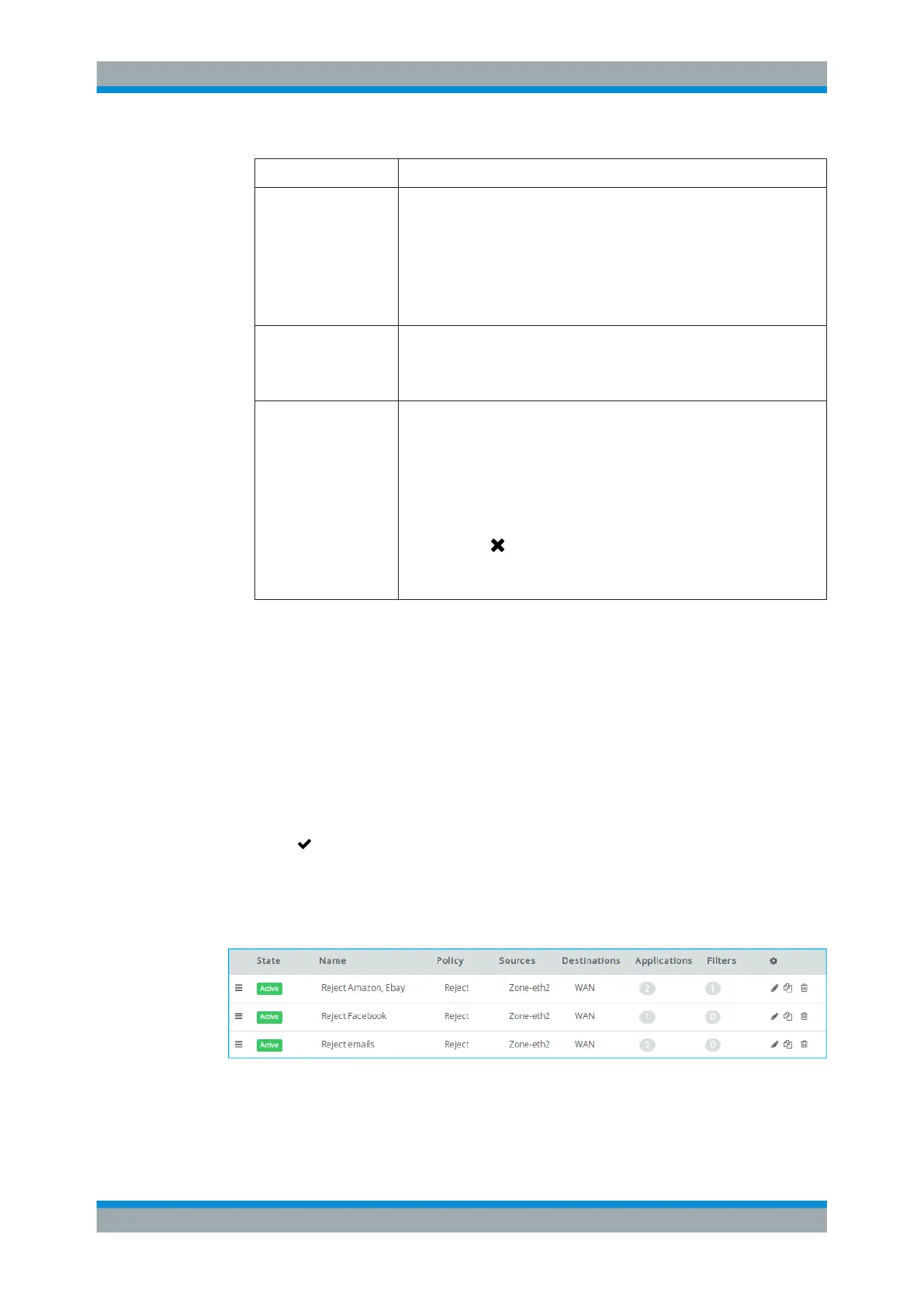
Once you have left the editor panel, the list of firewall rules that are currently defined
on the system is displayed.
Figure 3-4: Sample firewall rules list.
New rules are inserted at the top of the rule list by default (and are thus executed
before the already existing rules). For best results, the most specific rules should be
Firewall Rule Settings



 To Next Page