User Interface
R&S
®
GP-E/GP-S
57User Manual v16.2.1 ─ 01
Routes between zones are created automatically and hidden. You should not normally
need to create routes unless you have an upstream router that requires special routes.
To influence traffic between zones, create a firewall rule as described under Chap-
ter 3.3, "Firewall Rule Settings", on page 22.
For more detailed information on static routes, see the following sections.
Static Routes Overview
Navigate to "Network > Static Routes" to display the list of static routes that are cur-
rently defined on the system in the item list bar.
In the expanded view, the columns of the table display the "Name" of the static route,
the "Source" and the "Destination" network and the "Gateway" that is associated with
it. The buttons in the last column allow you to view and adjust the settings for an exist-
ing static route, create a new route based on a copy of an existing static route or delete
a route from the system.
For further information, see Chapter 3.2, "Icons and Buttons", on page 21.
Static Routes Settings
The "Static Routes" settings allow you to define custom routes that are used to reach
devices on a given destination network.
Under "Network > Static Routes" , you can add a new or edit an existing static route.
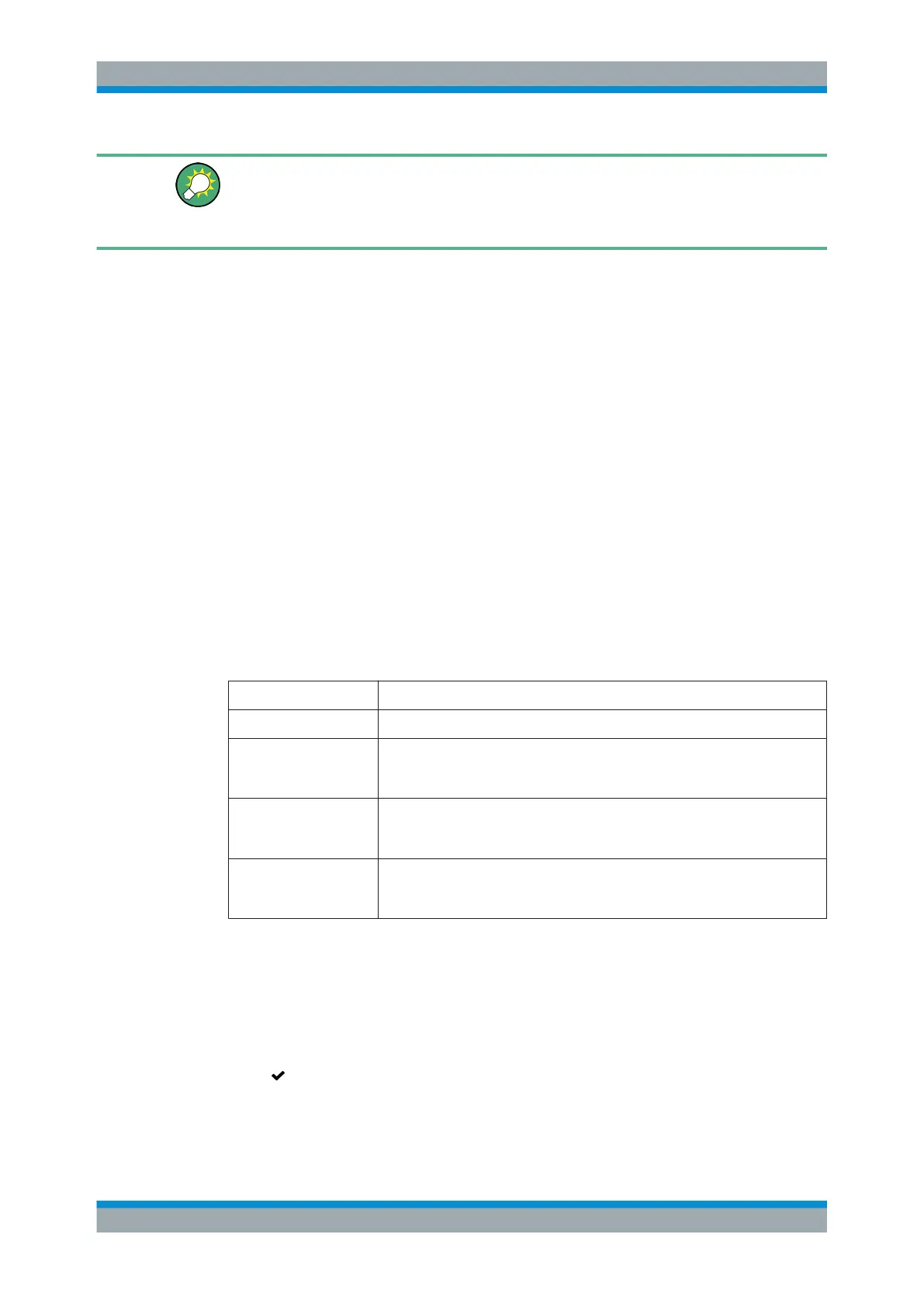
The "Static Route" settings allow you to configure the following elements:
Field Description
"Name" Enter a name for the static route.
"Source" Select a network zone from the drop-down list. This source zone determines
the point from which the network is reachable. All traffic to the destination net-
work is routed through this zone.
"Destination" Enter the IP address of the destination network in CIDR notation (IP address
followed by a slash »/« and the number of bits set in the subnet mask, for
example 192.168.50.1/24).
"Gateway" Enter an IP address as the gateway for this route. Traffic from the source zone
to the destination network will be routed via this gateway (rather than the stan-
dard gateway).
The buttons at the bottom right of the editor panel depend on whether you add a new
static route or edit an existing route. For a newly configured static route, click "Create"
to add the route to the list of available static routes or "Cancel" to discard your
changes. To edit an existing route, click "Save" to store the reconfigured route or
"Reset" to discard your changes. You can click "Close" to shut the editor panel as long
as no changes have been made on it.
Click " Activate" in the toolbar at the top of the desktop to apply your configuration
changes.
For detailed instructions, see Chapter 4.3, "Setting Up a Static Route", on page 145.
Menu Reference



 To Next Page