User Interface
R&S
®
GP-E/GP-S
65User Manual v16.2.1 ─ 01
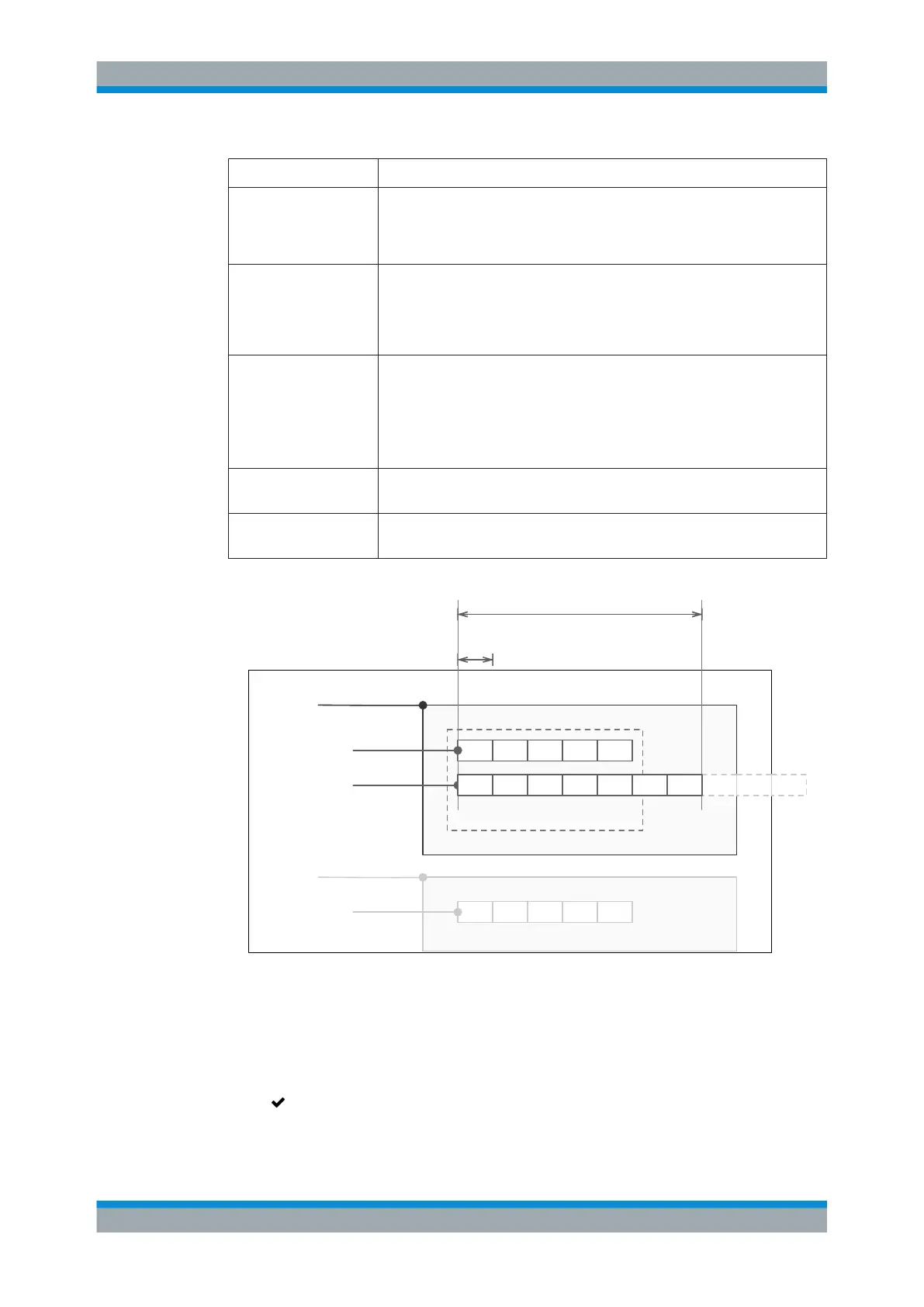
Field Description
"Max number of PCAPs" Specify the maximum number of PCAP files to be stored for all firewall rules
and flows using the FTC profile. The default maximum number is set to 500. To
separate flows from each other for a more effective analysis, PCAP files are
stored separately for each single flow.
"Queue override" A slider switch indicates whether this option is enabled ( "On" ) or disabled
( "Off" ). By clicking the slider switch, you can toggle the state of this option. If
enabled (default setting), the oldest PCAP files will be overwritten when the
maximum number of PCAP files per rule has been saved. Otherwise, no further
PCAP files will be stored when the defined maximum value is reached.
"Max disk usage" Specify the maximum storage capacity (in megabytes) to reserve for the PCAP
files captured with this profile. The default maximum storage capacity is set to
5000 megabytes.
Note: Only one storage location is set up. This local storage location is used by
the default FTC profile. The storage space for the local storage location is
restricted to five gigabytes.
"Flow depth" Define (in megabytes) how much data to store from the beginning of a flow. The
default setting is 500 megabytes.
"Max PCAP size" Set (in megabytes) the maximum size of a single PCAP file. The default maxi-
mum size is set to 10 megabytes.
Max PCAPs per Rule
PCAP
1
PCAP
2
PCAP
3
PCAP
4
PCAP
5
Max Flow Depth in MB
Max PCAP
Size in MB
Flow 1
Flow 2
FTC Profile
Rule 1
PCAP
1
PCAP
2
PCAP
3
PCAP
4
PCAP
5
Flow 1
Rule 2
Profile Quota in MB
…
PCAP
1
PCAP
2
PCAP
3
PCAP
4
PCAP
5
PCAP
6
Figure 3-12: FTC profile settings.
The buttons at the bottom right of the editor panel allow you to shut ( "Close" ) the edi-
tor panel as long as no changes have been made and to store ( "Save" ) or to discard
( "Reset" ) your changes.
Click " Activate" in the toolbar at the top of the desktop to apply your configuration
changes.
Menu Reference



 To Next Page