69 / 293 - EN -
8.1.3. Wireless network/Wi-Fi specifications to connect to the controller
Wireless network / Wi-Fi | Specifications
2.4 GHz
802.11b / 802.11g / 802.11n (at 2.4 GHz)
Supported security protocols
WEP / WPA / WPA2
Up to 150 Mbps (at 802.11n and 2.4 GHz)
Integrated single antenna
Yes
Unsupported security protocols
OpenWiFi / WPA2 Enterprise
Points to note when accessing the wireless
network/Wi-Fi:
Unable to establish connections when:
− an “acceptance page” (confirmation of
connection/terms of use) must be clicked after
establishing the connection,
− or a username and password are required to
establish the connection.
8.1.4. Establishing a connection via a wireless network router using the WPS function
The following description explains how to connect the kiln controller to a wireless network (Wi-Fi). This connection is
required so that they can see the data of your controller with the smartphone, tablet or computer in the ROHDE myKiln
app.
Establishing a connection:
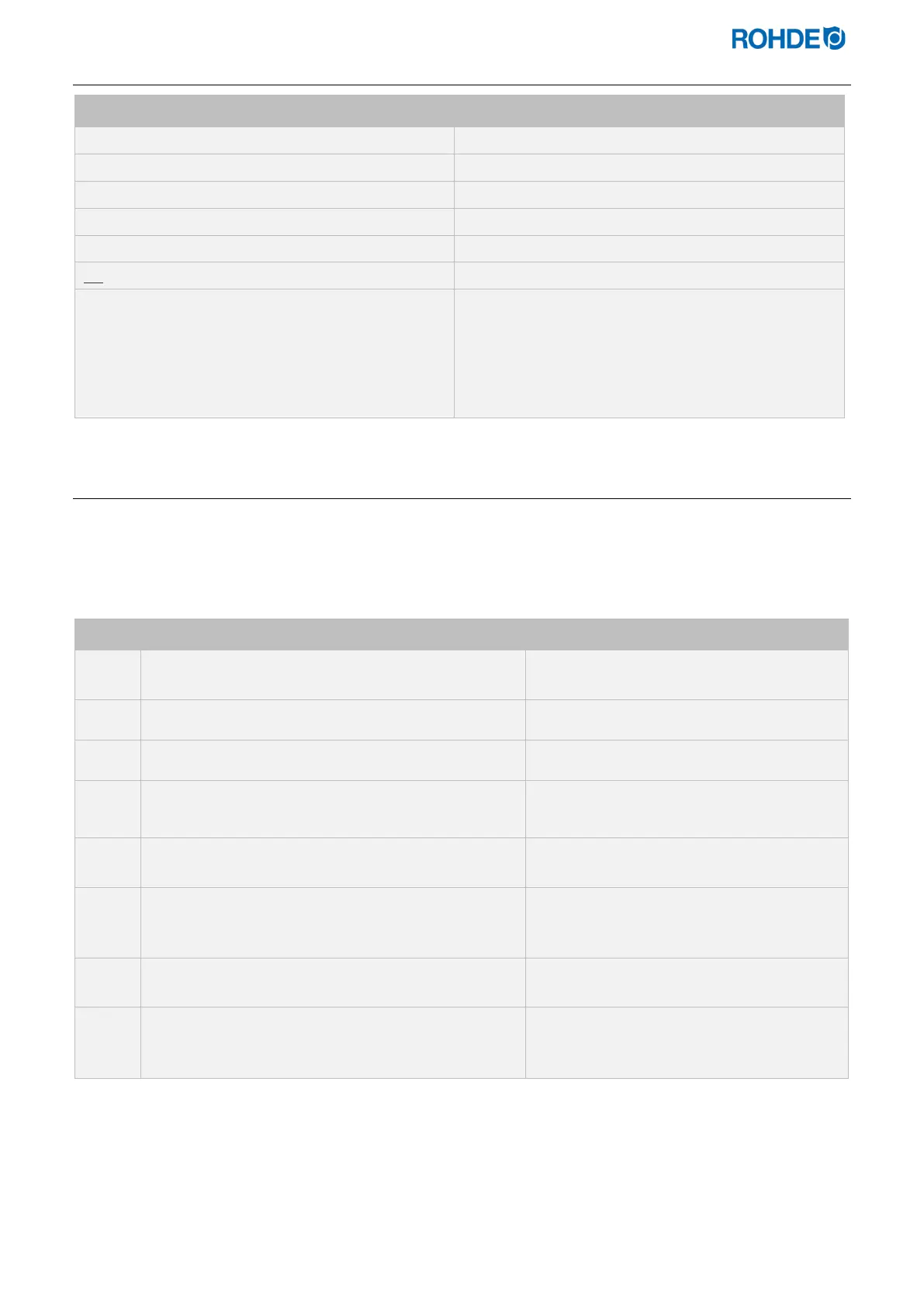
Step Description Remark
Switch off the control unit.
If your router does not have a WPS button,
please proceed to the following section.
Press the d key and switch on the control system.
Press and hold the d key when switching on.
Press and hold the d key until “PAIR” appears on the
main display.
Release the d key.
The control system is now ready to connect
to a wireless network (Wi-Fi).
Press the WPS button on the wireless router.
Information on the WPS key on the wireless
router can be found in the router’s instruction
manual and generally on the Internet.
After a few seconds, “PAIR” disappears from the main
display, and it returns to normal.
The control system is now permanently connected to
the wireless network (Wi-Fi).
If this procedure is unsuccessful, repeat the
steps starting at step 1 or try to connect as
described in the following section.



 To Next Page
 Loading...