Alpha 1000ML User's Guide 22
Setting Alphanumeric Descriptions
To change the power saving time
Programming More Options Config Power Saving
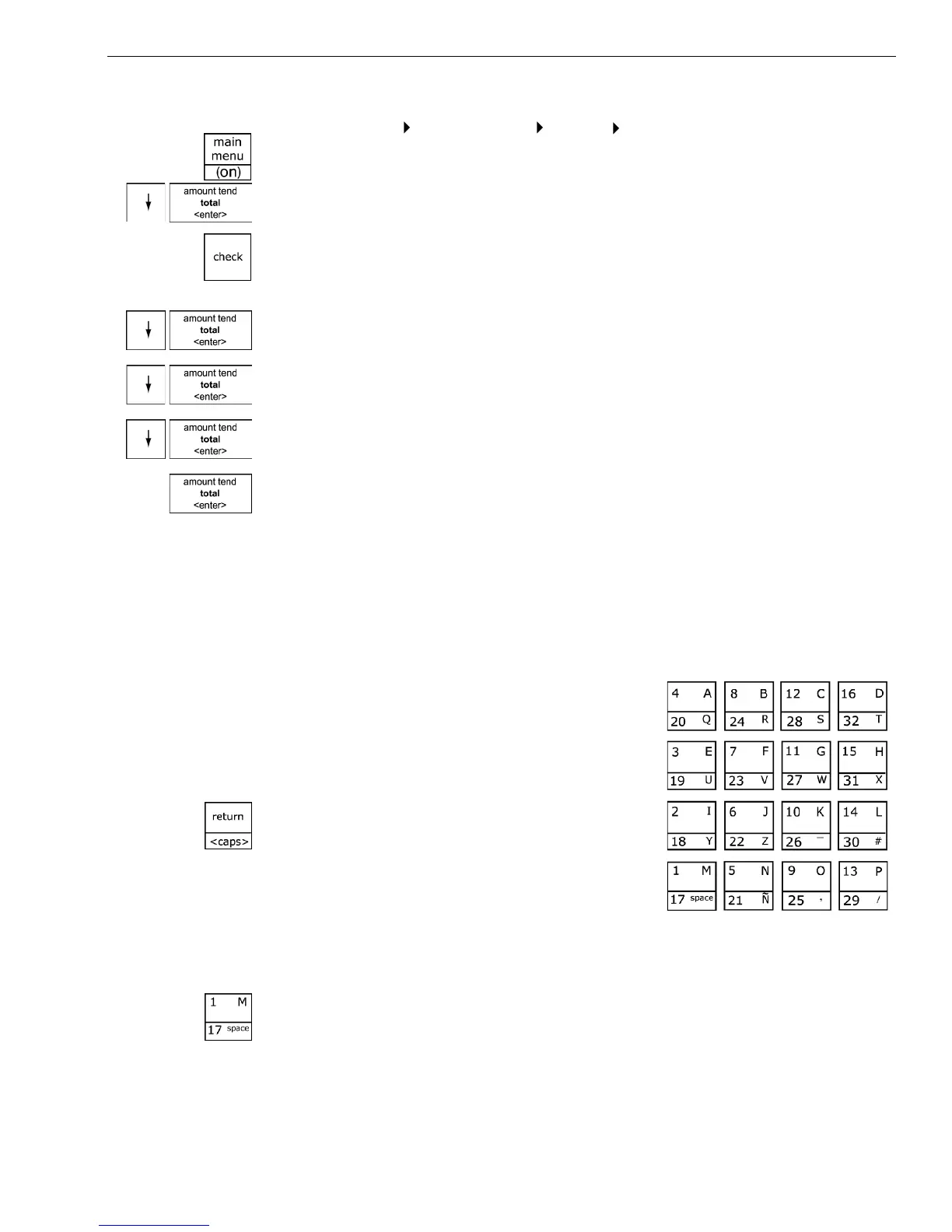
1 Press the Main menu (on) key.
2 Press the Arrow Down key to select Programming. Press the Amount
Tend Total <Enter> key.
3 I f you are prompted for a M anager Passcode, type the passcode number
and then press the Check key. I f you did not program a M anager
Passcode, go to the next step.
4 Press the Arrow Down key to select M ore O ptions. Press the Amount
Tend Total <Enter> key.
5 Press the Arrow Down key to select C onfig. Press the Amount Tend Total
<Enter> key.
6 Press the Arrow Down key to select Power Saving. Press the Amount
Tend Total <Enter> key.
7 M ake your selection. W hen you are done, press the Amount Tend Total
<Enter> key.
Setting Alphanumeric Descriptions
You can program custom header and footer messages, clerk names,
departments, and item descriptions. T hese text messages and descriptions
appear on the receipt and on the customer display.
W hen you are programming the alpha
descriptions for D epartments, PL U s, C lerks,
the H eader and Footer messages, use the
A lpha K eyboard.
Note
Only capital letters of the alphabet are on the
Alpha Keyboard. To use lower case letters,
press the Return <caps> key.
T he department keys are clearly labeled
with all the letters needed to program these
descriptions. W hen you are programming alpha descriptions, use the
department keys to spell out the words you want.
To use the letters in the white part of the D epartment keys, simply press
the Department key.



 To Next Page