Chapter 8 Running and Saving Reports
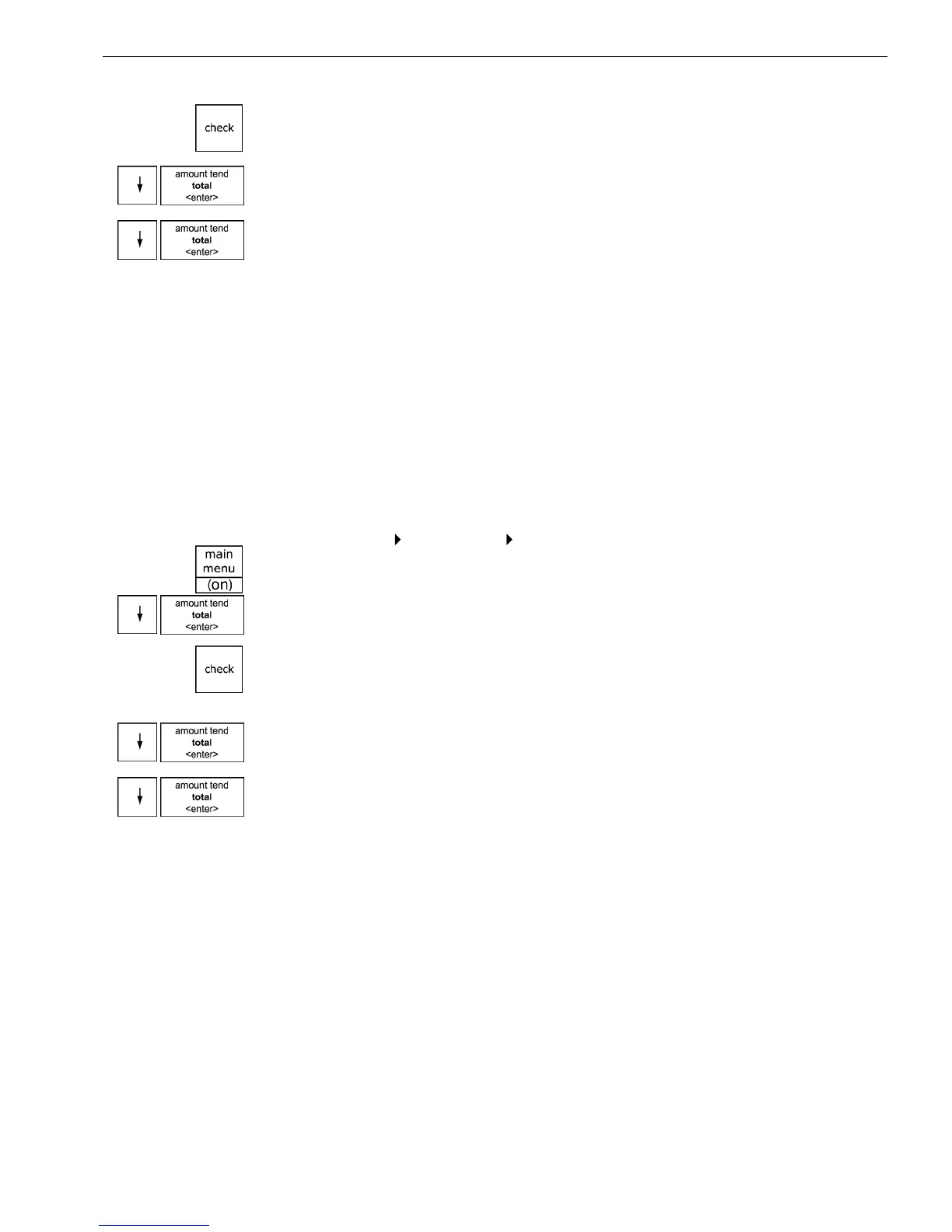
3 I f you are prompted for a M anager Passcode, type the passcode number
and then press the Check key. I f you did not program a M anager
Passcode, go to the next step.
4 Press the Arrow Down key to select D epartment Set up. Press the
Amount Tend Total <Enter> key.
5 Press the Arrow Down key to select D epart C onf R eport. Press the
Amount Tend Total <Enter> key.
6 Select how you want to see the report. I f you select D isplay, use the
arrow keys to review the report in the clerk screen.
Running the PLU Confirmation Report
T he PL U C onfirmation R eport allows you to check all PL U s programmed
or a range of P L Us by PL U numbers or by the linked department. For
more information about programming P L U s, see Programming PL U
D escriptions on page 42.
To run the PLU confirmation report
Programming PLU Set Up Dump Report
1 Press the Main menu (on) key.
2 Press the Arrow Down key to select Programming. Press the Amount
Tend Total <Enter> key.
3 I f you are prompted for a M anager Passcode, type the passcode number
and then press the Check key. I f you did not program a M anager
Passcode, go to the next step.
4 Press the Arrow Down key to select PL U Set U p. Press the Amount Tend
Total <Enter> key.
5 Press the Arrow Down key to select D ump R eport. Press the Amount
Tend Total <Enter> key.
6 Select A ll PL U , PL U R ange, or L inked Department.
7 Select how you want to see the report. I f you select Display, use the
arrow keys to review the report in the clerk display.
48 1000ML User's GuideahplA



 To Next Page