Using VAT Tax Rates
Using VAT Tax Rates
T he V alue A dded Tax is commonly used in M exico and E urope but other
locations use it as well.
To set a VAT tax
Programming Tax Set Up
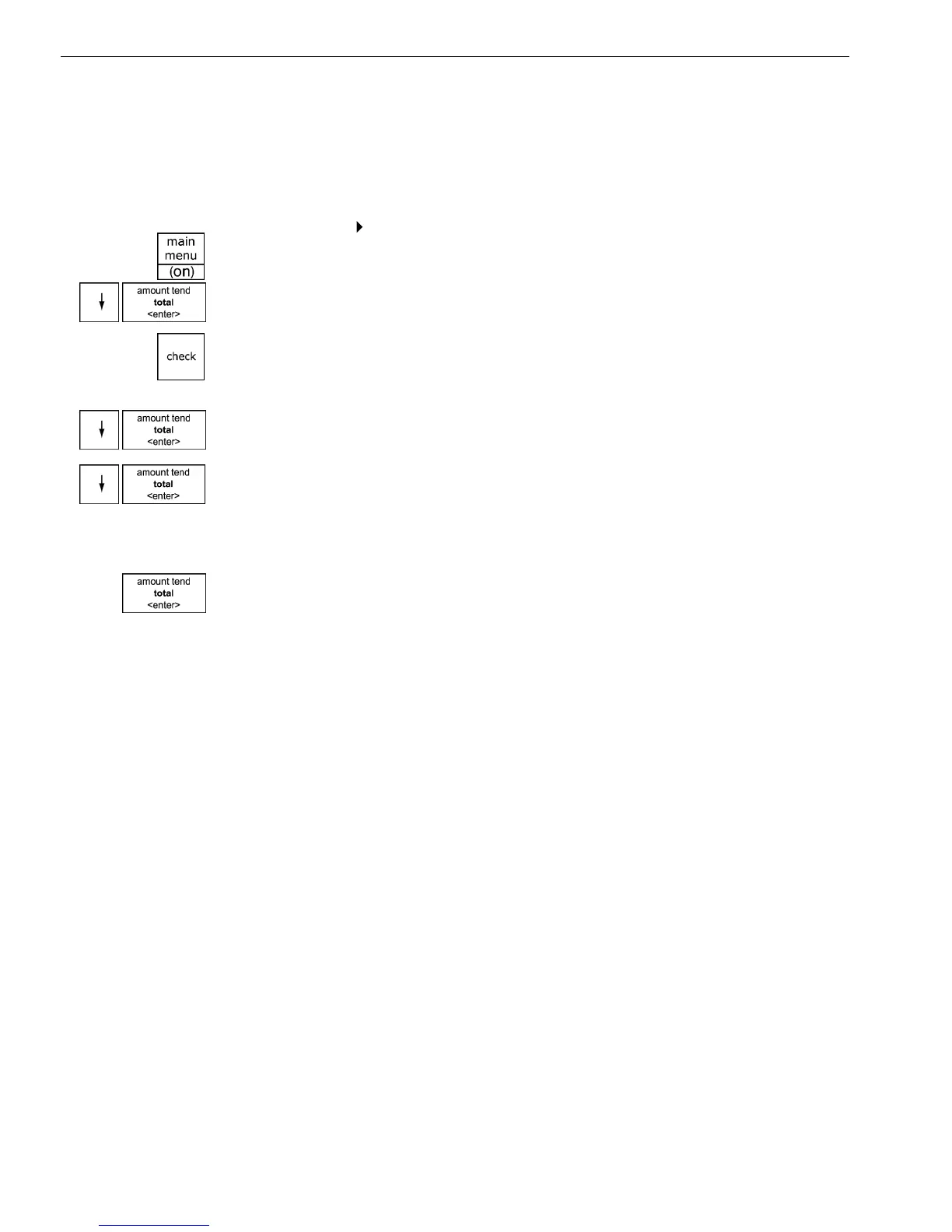
1 Press the Main menu (on) key.
2 Press the Arrow Down key to select Programming. Press the Amount
Tend Total <Enter> key.
3 I f you are prompted for a M anager Passcode, type the passcode number
and then press the Check key. I f you did not program a M anager
Passcode, go to the next step.
4 Press the Arrow Down key to select Tax Setup. Press the Amount Tend
Total <Enter> key.
5 Press the Arrow Down key to select the tax you want to change. Press the
Amount Tend Total <Enter> key.
6 Using the round N umber keys area, enter the tax you want to add. You
must use a 5 digit number.
7 W hen you are done, press the Amount Tend Total <Enter> key.
8 R epeat for each tax you want to set.
Printing a Confirmation Report
To check your results, see R unning the O ptions D ump R eport on page 82.
1000ML User's GuideahplA18



 To Next Page