Alpha 1000ML User's Guide 32
Programming Department Keys
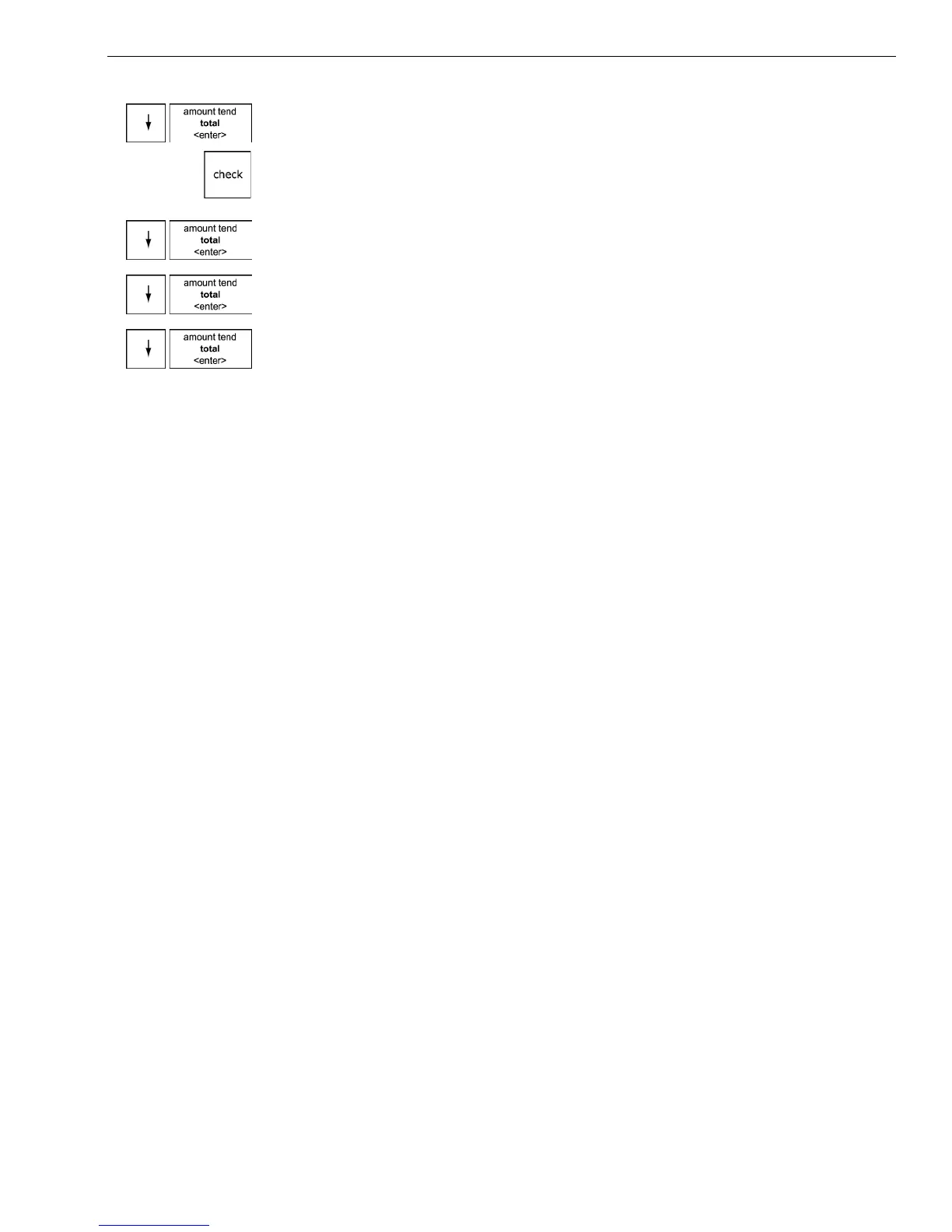
2 Press the Arrow Down key to select Programming. Press the Amount
Tend Total <Enter> key.
3 I f you are prompted for a M anager Passcode, type the passcode number
and then press the Check key. I f you did not program a M anager
Passcode, go to the next step.
4 Press the Arrow Down key to select M ore O ptions. Press the Amount
Tend Total <Enter> key.
5 Press the Arrow Down key to select O thers Set U p. Press the Amount
Tend Total <Enter> key.
6 Press the Arrow Down key to select M achine N umber. Press the Amount
Tend Total <Enter> key.
7 Follow the instructions on the display.
Programming Department Keys
Departments are a category of merchandise. For example, Department 1
can be H ousewares, Department 2 can be Food, Department 3 can be
Womens C lothing, and so on. T his helps you track what you are selling.
E ach department can be programmed as taxable or non-taxable, so that if
an item needs to be taxed, the proper tax amount is added automatically
when you ring up an item in a taxable department.
You can have as many as 200 departments on your cash register. I f you
have many departments, you may want to make a list so other people who
use the cash register can correctly use the department keys.
Programming departments includes up to 8 steps. Not all steps listed
below may apply to your specific needs.
1 Setting Department numbers and assigning to a Department N umber key
(for Department numbers 1 through 32)
2 Programming Department Names
3 Programming Department Preset Price
4 Programming Tax Status
5 Setting Standard, G allonage or Negative M ode
6 Setting Department Type
7 Setting H igh A mount L ock-out (H A L O )
8 Programming A ge Verification
For specific information about each of the items above, see the next
sections.



 To Next Page