Chapter 4 Setting Up Your Cash Register - the Basics
1000ML User's GuideahplA54
Editing a PLU
A fter you create a PL U , you may want to edit it. U se the following
instructions.
To edit a PLU
Programming PLU Set Up
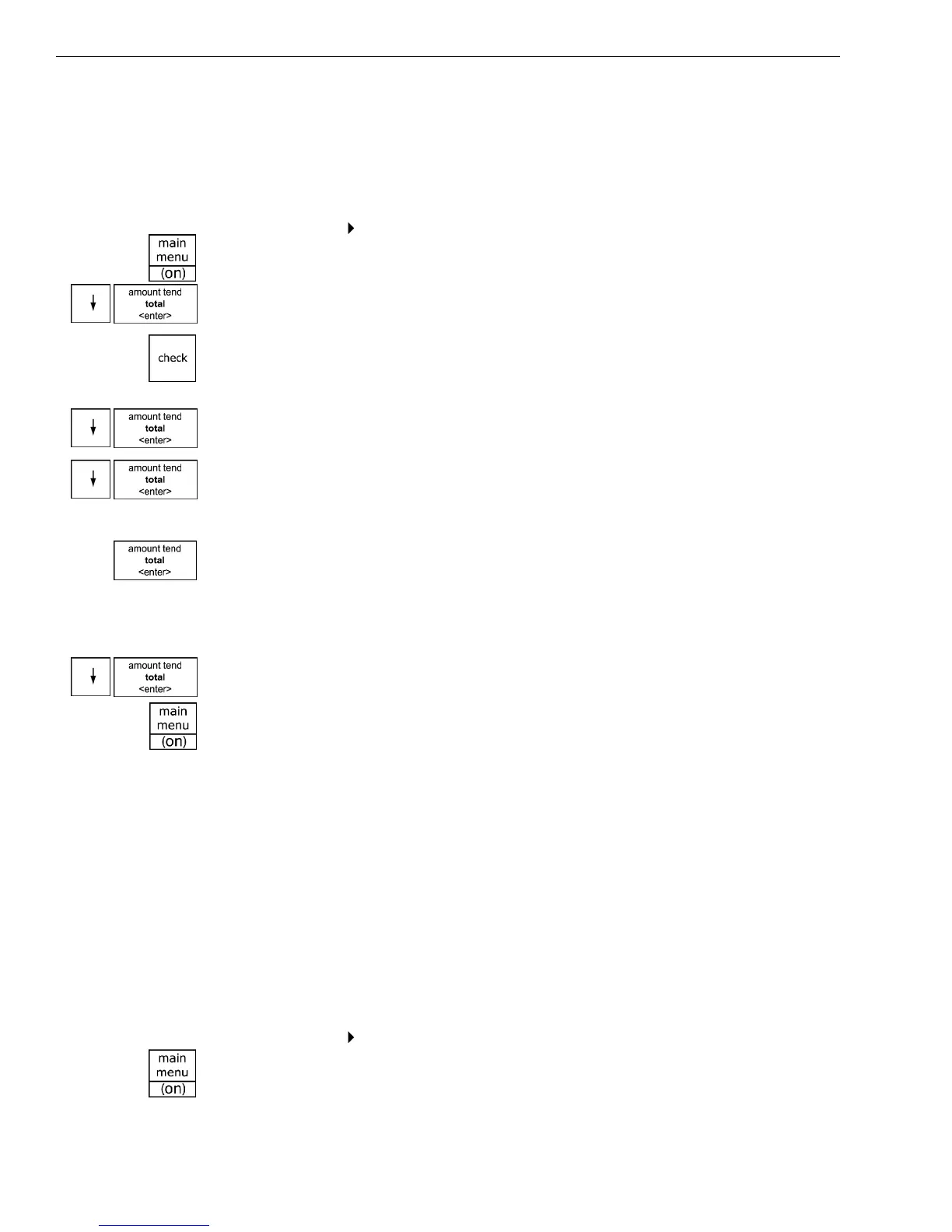
1 Press the Main menu (on) key.
2 Press the Arrow Down key to select Programming. Press the Amount
Tend Total <Enter> key.
3 I f you are prompted for a M anager Passcode, type the passcode number
and then press the Check key. I f you did not program a M anager
Passcode, go to the next step.
4 Press the Arrow Down key to select PL U Set U p. Press the Amount Tend
Total <Enter> key.
5 Press the Arrow Down key to select New & E dit. Press the Amount Tend
Total <Enter> key.
6 Do one of the following:
• U sing the R ound N umber keys, enter the PL U number you want to
edit and press the Amount Tend Total <Enter> key.
• U sing the barcode reader, scan the barcode you want edit.
7 M ake your changes to the PL U information.
8 To edit the next PL U , go to Ne
xt PL U and press the Amount Tend Total
<Enter> key.
9 W hen you are done programming, press the Main menu (on) key.
Deleting a PLU
You can delete a PL U if you no longer want to use it. Before you delete a
PL U , make sure you select the correct PL U to delete. A fter you delete a
PL U , you cannot undelete it; you must recreate the PL U .
To delete a PLU
Programming
PLU Set Up
1 Press the Main menu (on) key.
Note
Before deleting PL U s, you must clear your sales data. Switch to Z mode and print
or save your D aily R eport before deleting. For more information on Z reports, see
chapter 8: R unning and Saving R eports.



 To Next Page