Chapter 4 Setting Up Your Cash Register - the Basics
a 1000ML User's GuidehplA33
A fter you are done, you can check your results. See R unning the
D epartment C onfirmation R eport on page 83.
To program department keys
Programming Department Set Up
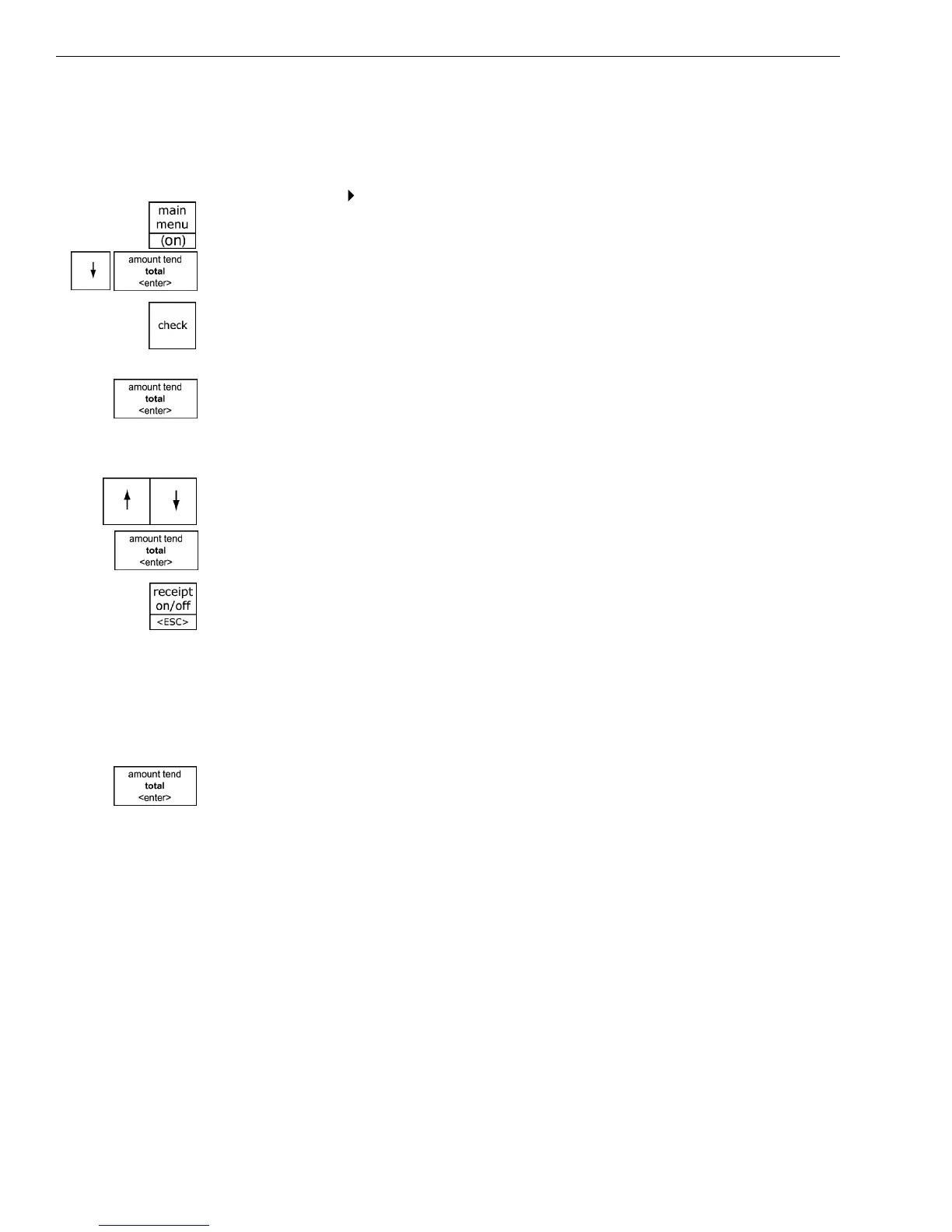
1 Press the Main menu (on) key.
2 Press the Arrow Down key to select Programming. Press the Amount
Tend Total <Enter> key.
3 I f you are prompted for a M anager Passcode, type the passcode number
and then press the Check key. I f you did not program a M anager
Passcode, go to the next step.
4 Select D epartment Set U p and press the Amount Tend Total <Enter>
key.
5 Follow the prompts on the screen to program the information for your
departments.
Use the Arrow Up and Arrow Down keys to highlight items on the
screen. Press the Amount Tend Total <Enter> key to enter your
selections.
T he next sections explain what you can program for each department.
6 W hen you are done programming all departments, press the Receipt
on\off <esc> key. To add another department, press the Arrow Down
key to select Next D epartment.
Setting Department Number Keys
You must assign a department number. You can specify up to 200
D epartment numbers. A t the prompt, use the round N umber keys to enter
the department number you want to program. Press the Amount
Tend/Total <enter> key to save your programming.
Programming Department Names
A name or description can be assigned to each department key. T his name
appears on the clerk screen and prints when ringing up sales.
For example, Clothing can print on the receipt in place of Dept 1,
Shoes can print on the receipt in place of Dept 2, Sportswear can
print on the receipt in place of Department 3, and so on.



 To Next Page