Chapter 4 Setting Up Your Cash Register - the Basics
37 Alpha 1000ML User’s Guide
inappropriate customers; it simply provides a reminder to the clerk that
this is an age-controlled item.
You have 3 default options:
You can change the exact ages for A ge 1 and A ge 2.
To change the default ages for Age 1 and Age 2
Programming More Options Others Set Up
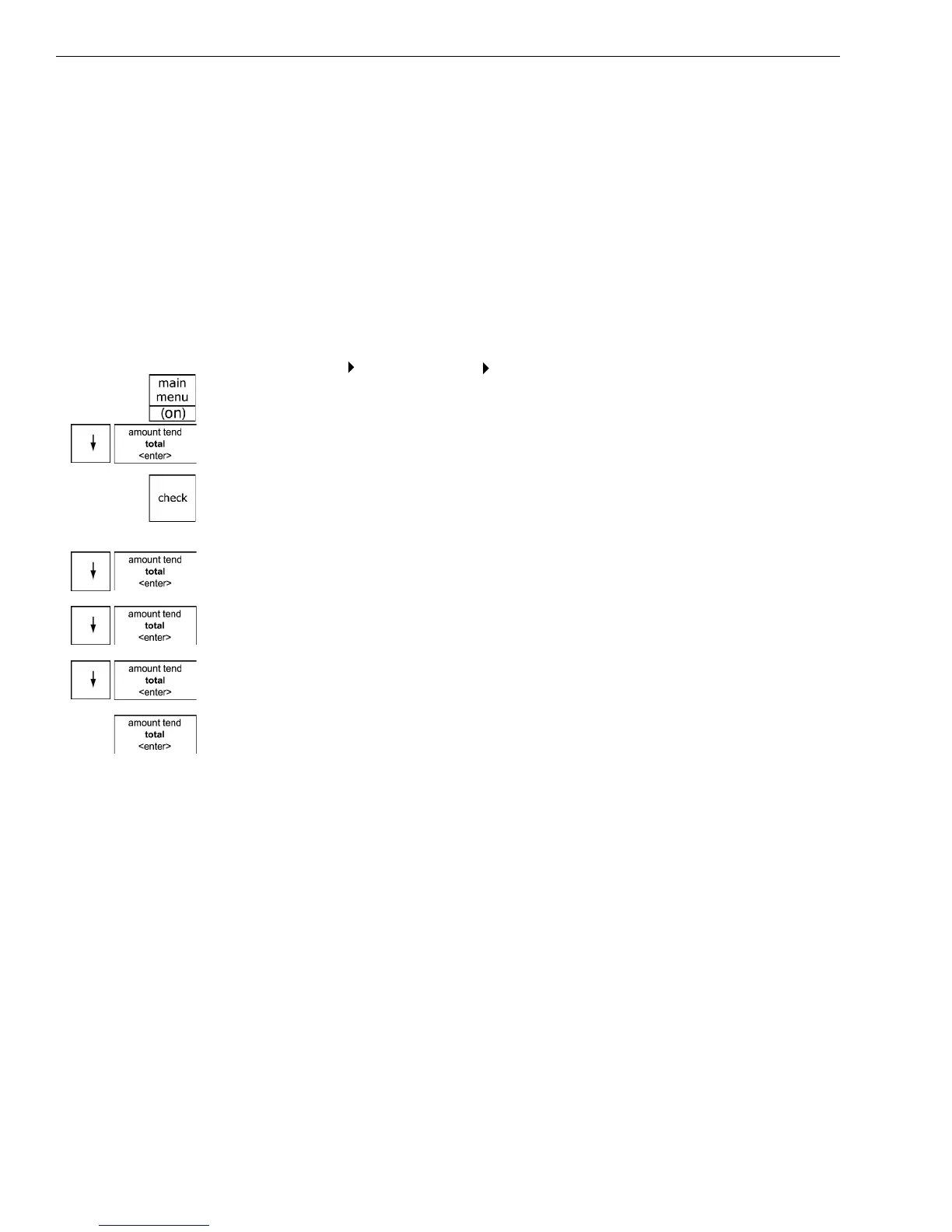
1 Press the Main menu (on) key.
2 Press the A rrow Down key to select Programming. Press the Amount
Tend Total <Enter> key.
3 I f you are prompted for a M anager Passcode, type the passcode number
and then press the Check key. I f you did not program a M anager
Passcode, go to the next step.
4 Press the A rrow Down key to select M ore O ptions. Press the Amount
Tend Total <Enter> key.
5 Press the A rrow Down key to select O thers Setup. Press the Amount
Tend Total <Enter> key.
6 Press the A rrow Down key to select either A ge 1 Setup or A ge 2 Setup.
Press the Amount Tend Total <Enter> key.
7 Using the rounded N umber keys, enter the age you want. Press the
Amount Tend Total <Enter> key.
Scrolling Messages
Your cash register shows messages that move across the customer display
when the register is not in use. You can use the pre-programmed default
messages or you can program your own.
You can change one or more messages at any time. For example, if you
have a new promotion, you can change the I dle 1 message to say
something about the promotion. You can also specify if the messages
scroll slow, medium or fast across the customer display.
• No age No age validation (the default setting for each department.)
• A ge 1 Prompts the clerk with a date 18 years ago from date of sale.
• A ge 2 Prompts the clerk with a date 21 years ago from date of sale.



 To Next Page