Chapter 4 Setting Up Your Cash Register - the Basics
41 Alpha 1000ML User’s Guide
W hen you ring up a sale, you can use Department 15 and/or Department
16 to finalize the credit card sale, open the cash drawer, and print the
receipt or journal tape.
Note
If you want to use Departments 15 and/or 16 as credit card keys, they no
longer work as department keys until you reset the department keys to be
Normal Layout.
To program a credit key description
Programming More Options Others Set Up
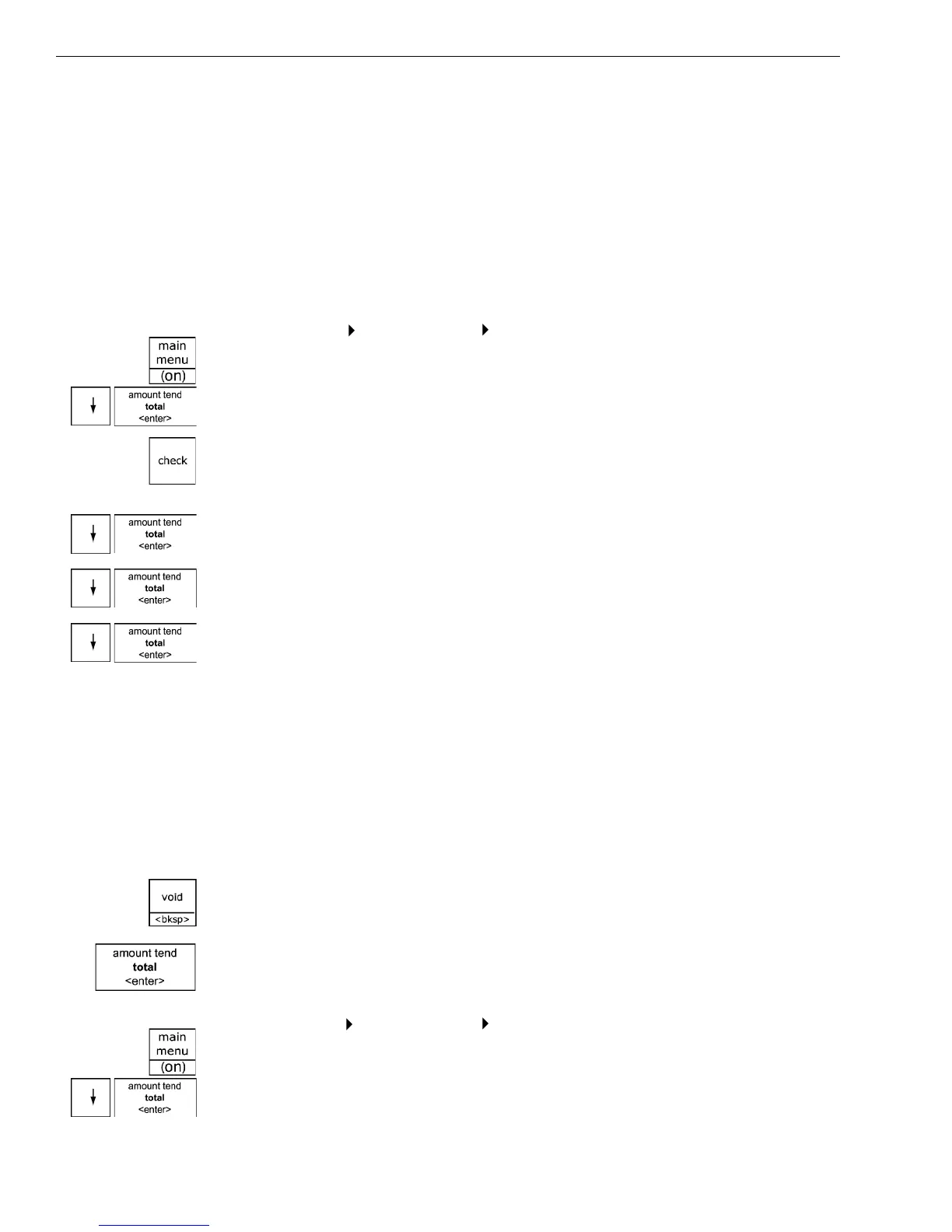
1 Press the Main menu (on) key.
2 Press the Arrow Down key to select Programming. Press the Amount
Tend Total <Enter> key.
3 I f you are prompted for a M anager Passcode, type the passcode number
and then press the Check key. I f you did not program a M anager
Passcode, go to the next step.
4 Press the Arrow Down key to select M ore O ptions. Press the Amount
Tend Total <Enter> key.
5 Press the Arrow Down key to select O thers Setup. Press the Amount
Tend Total <Enter> key.
6 Press the Arrow Down key to select the C redit Name you want to
change. Press the Amount Tend Total <Enter> key.
7 Type the name of the credit card just as you did when you programmed
Department names. You can type up to 12 characters and spaces.
• For more information about using the Department keys to type letters,
see Programming Department K eys on page 32.
Important
If you enter the wrong character, press the Void <bksp> key to delete the
character. Now you can continue.
8 W hen you are done, press the Amount Tend Total <Enter> key.
To specify using Department 15 and/or Department 16 as credit keys
Programming More Options System Options
1 Press the Main menu (on) key.
• C redit 1 = Dept 16 key
• C redit 2 = Dept 15 key



 To Next Page