MV-32/64 Multiviewer www.snellgroup.com Operation
Issue 1 Rev 11 Page 33 © 2014 Snell Limited
4.2.2 Navigating the User Interface
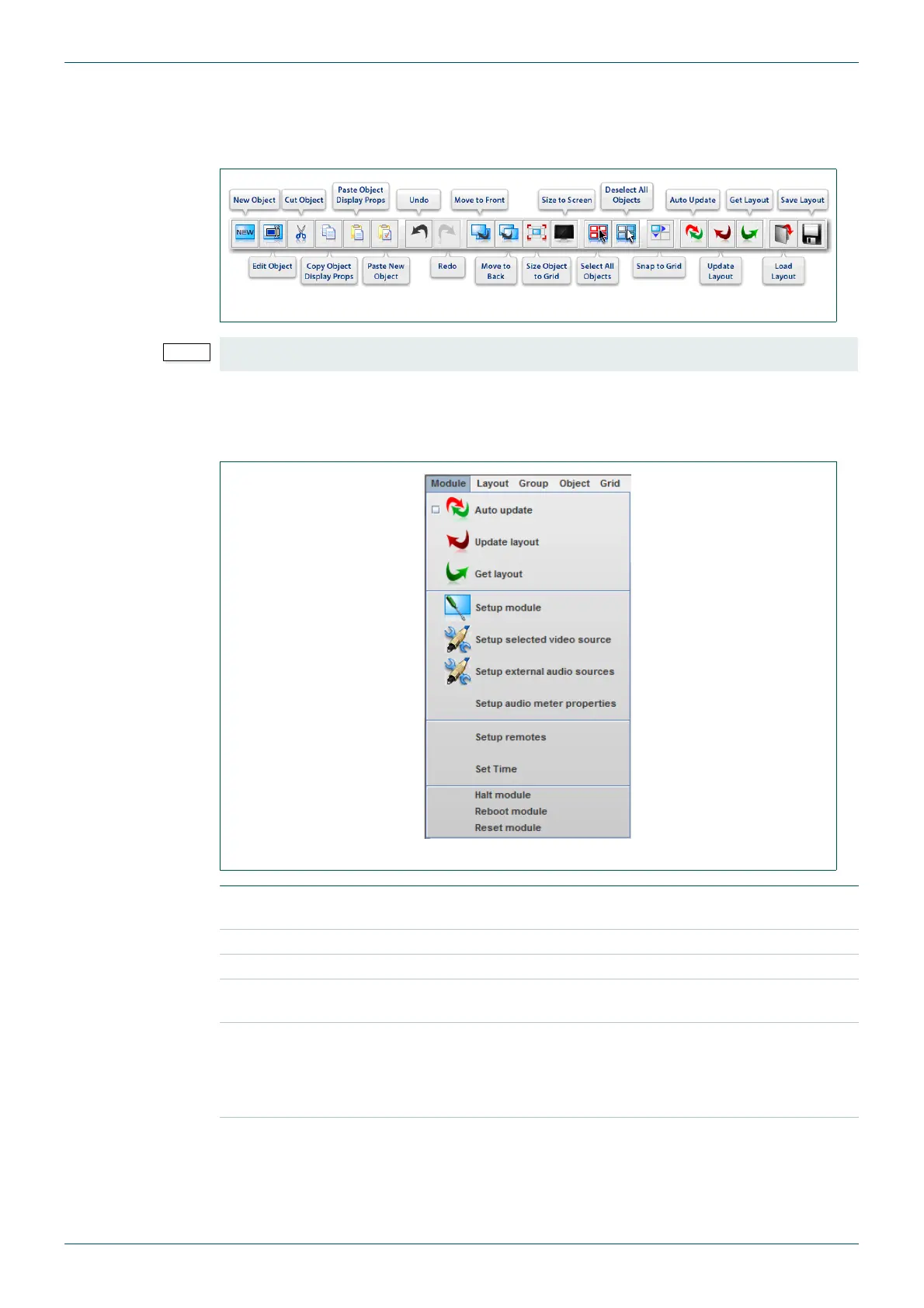
Settings for multiviewer objects can be accessed from the Module, Layout, Group and Object
menus, or by using the buttons on the toolbar.
4.3 Module Menu
The Module Menu allows a module's global settings to be configured.
Fig 17. Toolbar with Tooltips.
Some functions are only available from the toolbar.
Fig 18. Module Menu.
Auto update
Automatically update tile layout to the display output and preview
every time it is changed in the edit workspace.
Update Layout Transfer edit workspace layout to display output and preview.
Get Layout Transfer the current display layout to the edit workspace.
Setup Module
Opens the Module Properties dialog of the currently selected tile
object, see section 4.11.
Setup selected
video source
Opens the Source Properties dialog of the currently selected tile
object, see section 4.12.
Note: The error message, 'Selected object has no source', will appear
if the currently selected object is not an audio or video object.
Setup external
audio source
Opens the External Audio Source Properties dialog, see section 4.15.
Table 9. Module Menu Items.


 To Next Page