24 Wave User Manual
Version 4
6 The Basics – Inspection Screen
The Inspection Screen, among all the screens presented in the Main Screen Overview
section, remains the one that will be the most used by the inspector. Therefore, this
section presents the basics to know about the Inspection screen. For more detailed
explanations of ultrasonic parameters, please refer to Section 8.
6.1 The Menu Items
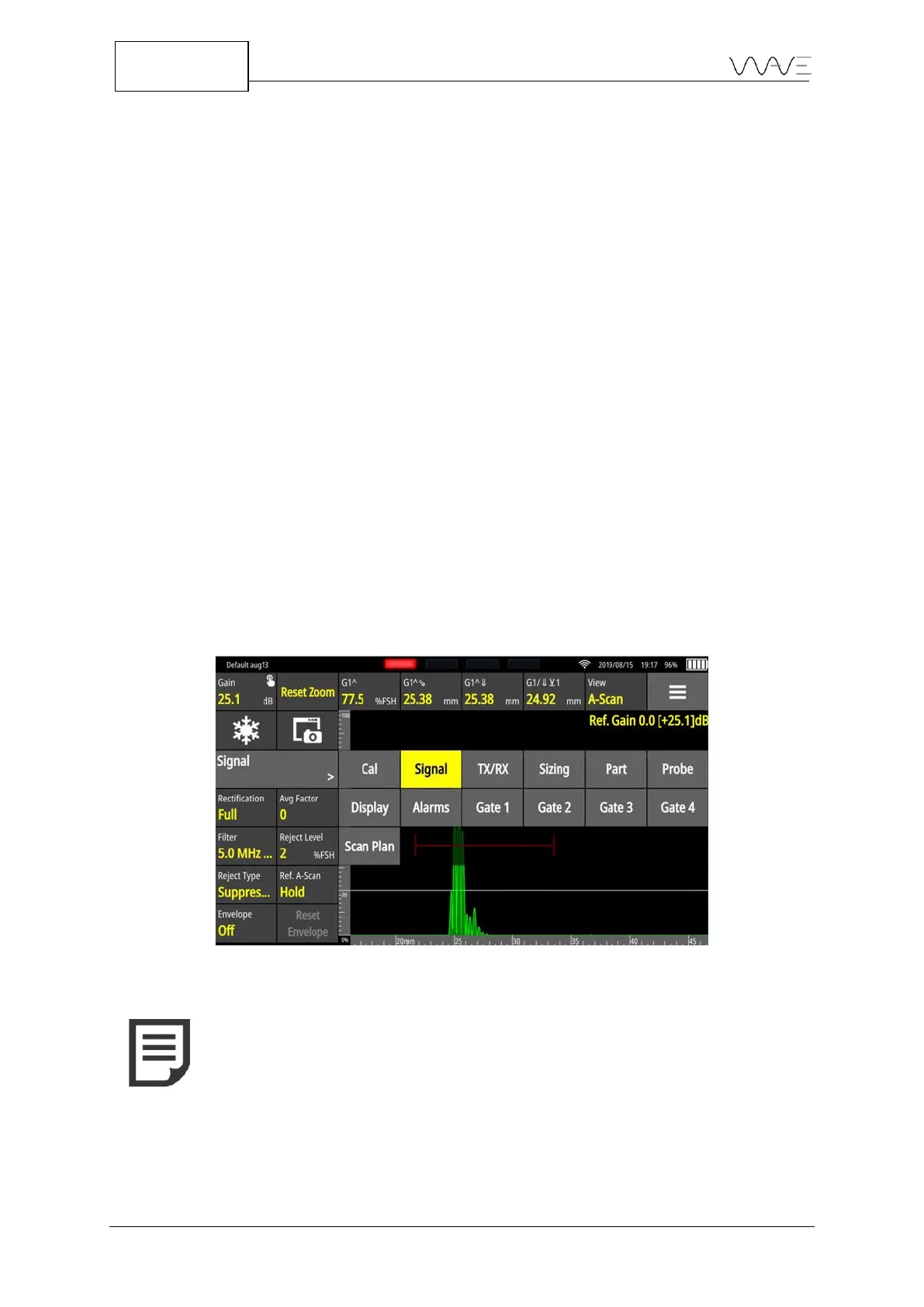
In the Inspection screen, the menu item selected appears with its associated parameters.
The Default and Default imperial apps have the following menus, which are considered
as the basic menus:
If an app has different menus, it means that they have been modified by the Wave
Companion.
To have access to a different menu (and its proper list of parameters), simply press the
displayed menu item to make a list of menus appear. Select the desired menu from that
list.
Figure 17 - List of Menu items
NOTE: A small hand and finger in the upper right corner of some
buttons indicates that a long press will trigger a specific action. For
example, on the Gain button, this will set the amplitude of the A-Scan
under the selected gate to a predetermined FSH, usually 80%.
To change the value of a parameter, press it to see editing tools appear.



 To Next Page