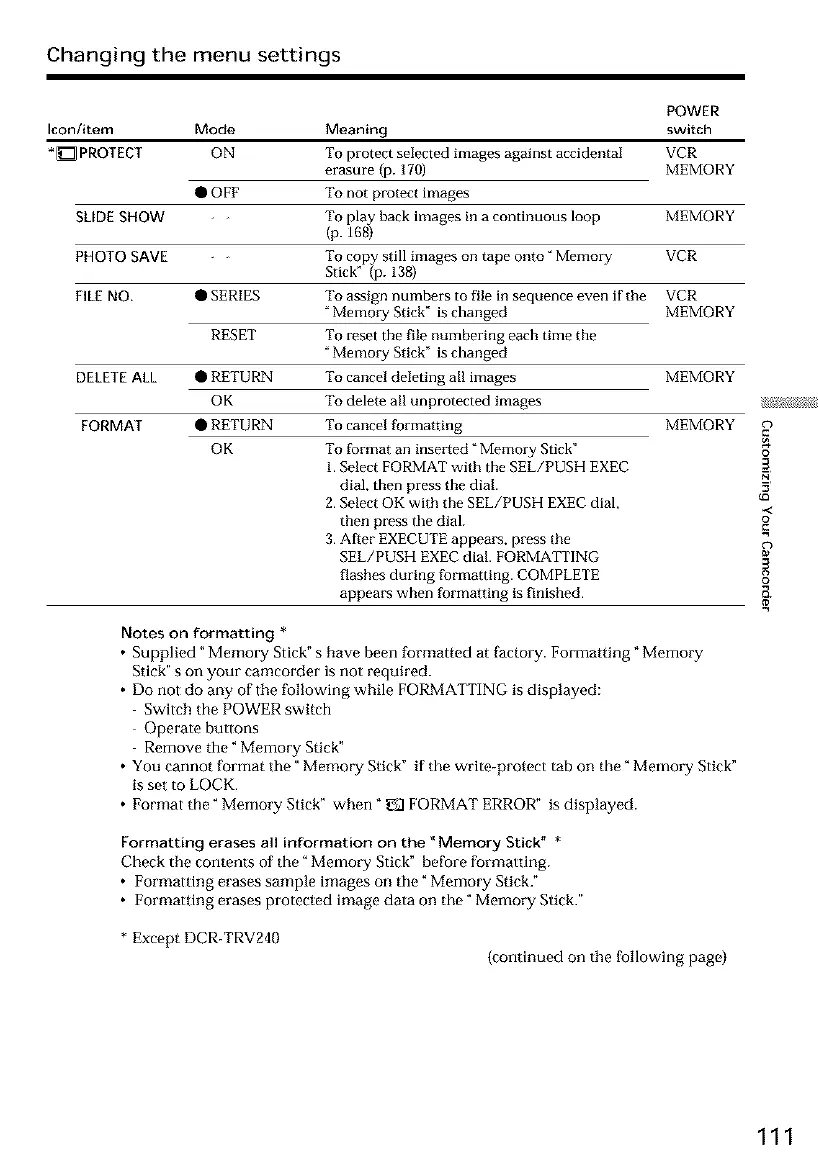
Changing the menu settings
POWER
Icon/item Mode Meaning switch
*[] PROTECT ON To protect selected images against accidental VCR
erasure {p. 170) MEMORY
To not protect images
To pla back images in a continuous loop
(p. 168_
To copy still images on tape onto" Memory
Stick" (p. 138)
To assign numbers to file in sequence even if the
"Memory Stick" is changed
To reset the file numbering each time the
"Memory Stick" is changed
To cancel deleting all images
To delete all unprotected images
To cancel formatting
To format an inse_ted "Memory Stick"
I. Select FORMAT with the SEL/PUSH EXEC
dial, then press the dial.
2. Sdect OK with the SEL/PUSH EXEC dial,
then press the dial.
3. After EXECUTE appears, press the
SEL/PUSH EXEC dial. FORMATTING
flashes during formatting. COMPLETE
appears when formatting is finished.
• OFF
SLIDE SHOW - - MEMORY
PHOTO SAVE - - VCR
FILE NO, • SERIES VCR
MEMORY
RESET
DELETEALL • RETURN MEMORY
OK
FORMAT • RETURN MEMORY
OK
Notes on formatting *
• Supplied "Memory Stick" s have been formatted at factory. Formatting" Memory
Stick" s on your camcorder is not required.
• Do not do any of the following while FORMATTING is displayed:
Switch the POWER switch
Operate buttons
Remove the" Memory Stick"
• You cannot format the" Memory Stick" if the write-protect tab on the" Memory Stick"
is set to LOCK.
• Format the" Memory Stick" when" _ FORMAT ERROR" is displayed.
Formatting erases all information on the _Memory Stick" *
Check the contents of the" Memory Stick" before formatting.
• Formatting erases sample images on the" Memory Stick."
• Formatting erases protected image data on the" Memory Stick."
* Except DCR-TRV240
(continued on the [bllowing page)
Q
{0
Q
111










 To Next Page