Viewing images recorded on " Memory Stick" s on your computer
Viewing images on Macintosh
QuickTime 3.0 or newer must be installed to play hack moving pictures in Macintosh
environment.
(1) Turn on your computer and allow Mac OS to load.
(2) Insert a" Memory Stick" into your camcorder, and connect tile AC power
adaptor to your camcorder and then to a wall outlet.
(3) Setthe POWER switch to MEMORY.
(4) Connect one end of the USBcable to tile _ (USB)jack on tile camcorder and tile
other end to the USBconnector on your computer.
USBMODE appears on the screen of your camcorder.
(5) Double click the newly recognized icon on tile desktop.
Tile folders inside the" Memory Stick" are displayed.
(6) Selectand double-click the desired image file from tile folder.
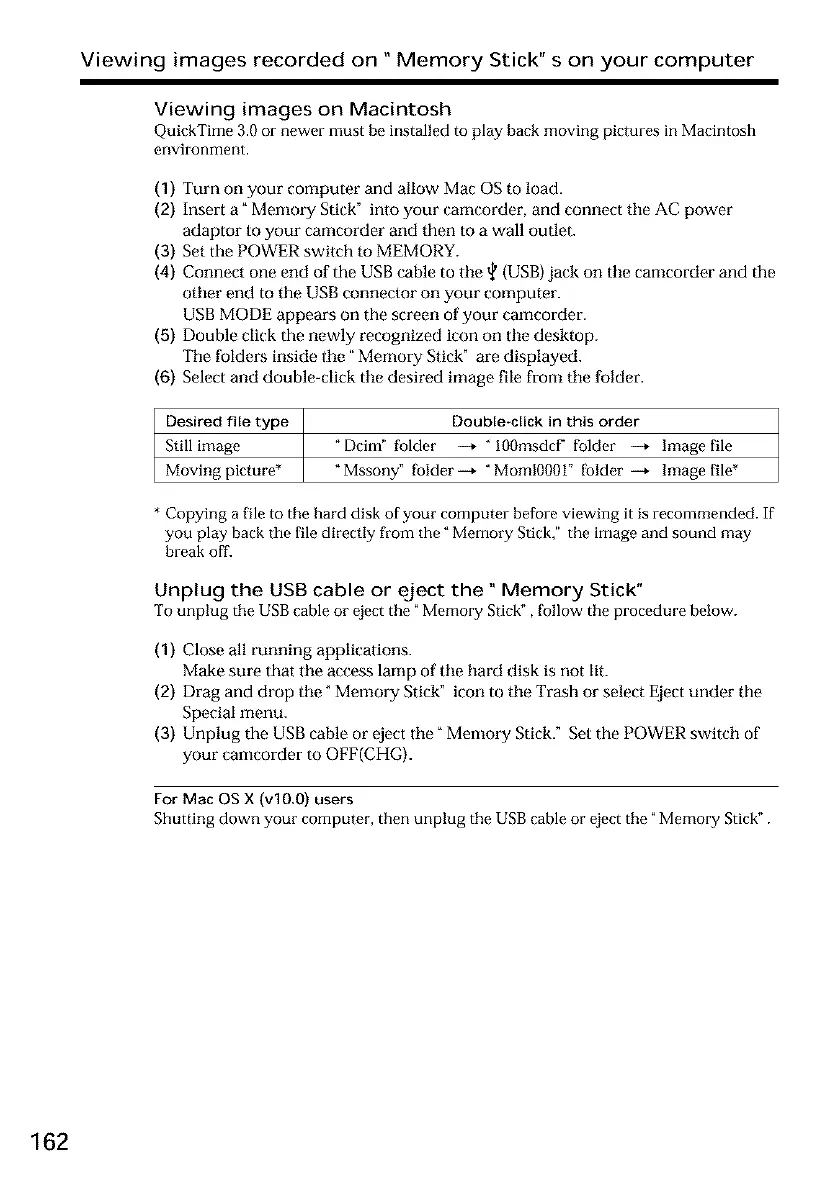
Desired file type Double-click in this order
Still image "Dcim" folder --+ " lOOmsdcff folder --+ Image file
Moving picture* "Mssony" lolder--+ "MomlO001 _ lolder--+ Image file*
* Copying a file to the hard disk of your computer before viewing it is recommended. If
you play back the file directly from the" Memory Stick," the image and sound may
break off.
Unplug the USB cable or eject the" Memory Stick"
To unplug the USB cable or eject the" Memory Stick", follow the procedure below.
(1) Close all running applications.
Make sure that tile access lamp of tile hard disk is not lit.
(2) Drag and drop tile" Memory Stick" icon to tile Trash or select Eject under the
Special menu.
(3) Unplug the USB cable or eject tile _ Memory Stick." Set the POWER switch of
your camcorder to OFF(CHG).
For Mac OS X (vlO,O) users
Shutting down your computer, then unplug the USB cable or eject the "Memory Stick".
162





 To Next Page