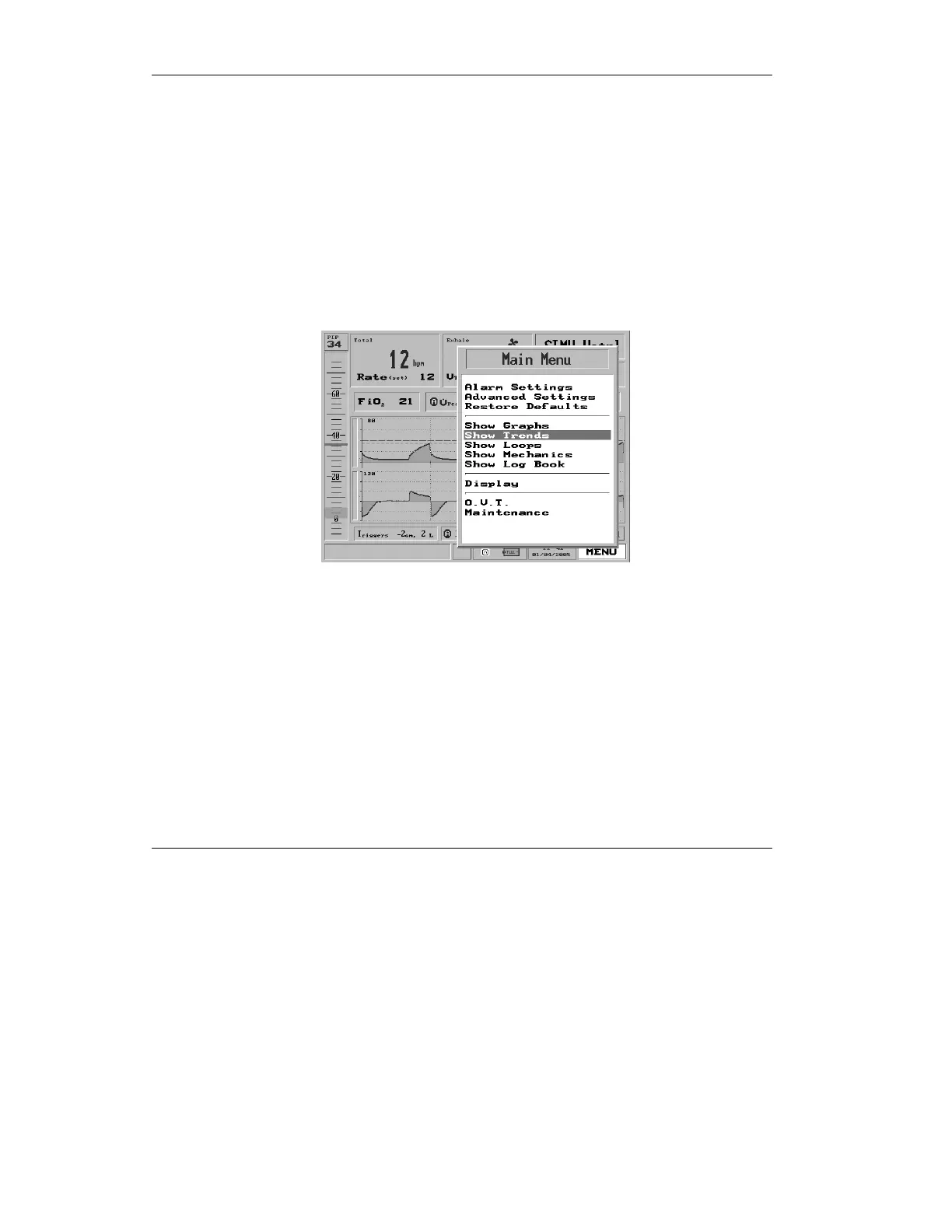
The Main Menu
164
To view trends:
1. Call up the Main Menu (dial the
control knob until the MENU
box on the lower right corner is
highlighted in blue, then press
the control knob).
2. Turn the control knob until
Show Trends is highlighted,
then press to select.
Figure 4.53 Show Trends highlighted on the Main Menu
3. If you have called up Show
Trends while the ventilator is in
Standby Mode, three Trends
(default Trends shown are Peak
Flow, Peak Pressure, and
Minute Volume) will appear in
a pop-up on the right side of the
screen:


 To Next Page