240 MRIdian® system L-0009 Release 4.5 ViewRay, Inc.
Chapter 6: Treatment Planning
6.23.2 Using 3-Point Landing
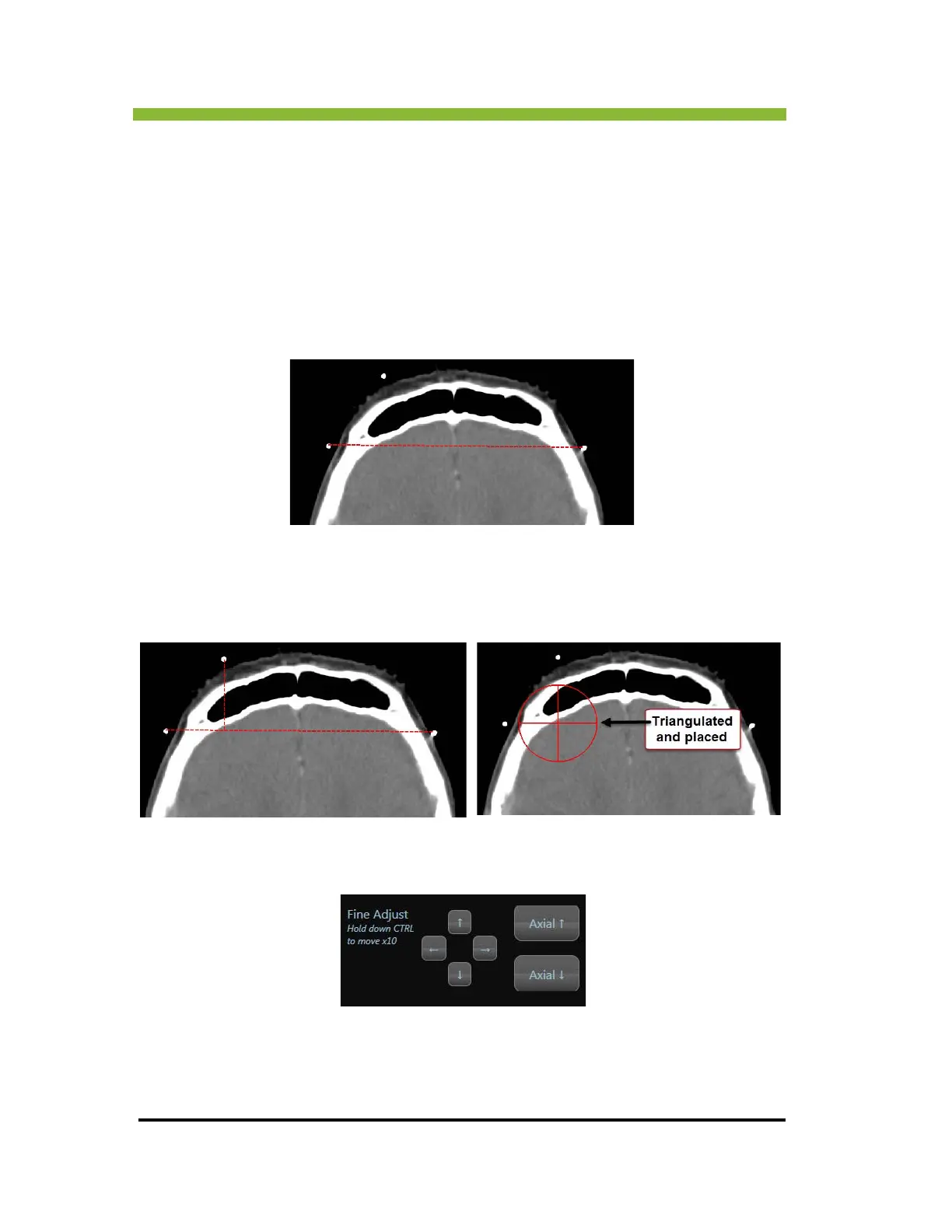
The 3-Point Landing tool places a point on the patient image based on the visible fiducials.
1. Make sure you are in the Axial view
.
2. Click >
3-Point Landing.
3. Click on a poin
t on the image based on fiducial placement, release the click and
move the mouse to the next fiducial placement and click.
A
dashed red line will be drawn between the two fiducials.
4. Click on a poin
t arising from the first line and drag it to the third fiducial and
release the click.
The first line you drew and the vertical line coming from that line will be triangulated
and a point placed.
6.23.3 Fine-tuning Point Placement
To move 0.01 cm at a time, use the directional arrows on the point placement box.
To move 0.1 cm at a time, hold down the Ctrl key when using the arrow keys.



 To Next Page