ViewRay Inc. MRIdian® system L-0009 Release 4.5 245
Chapter 6: Treatment Planning
6.24.1 Finding Valid Isocenters
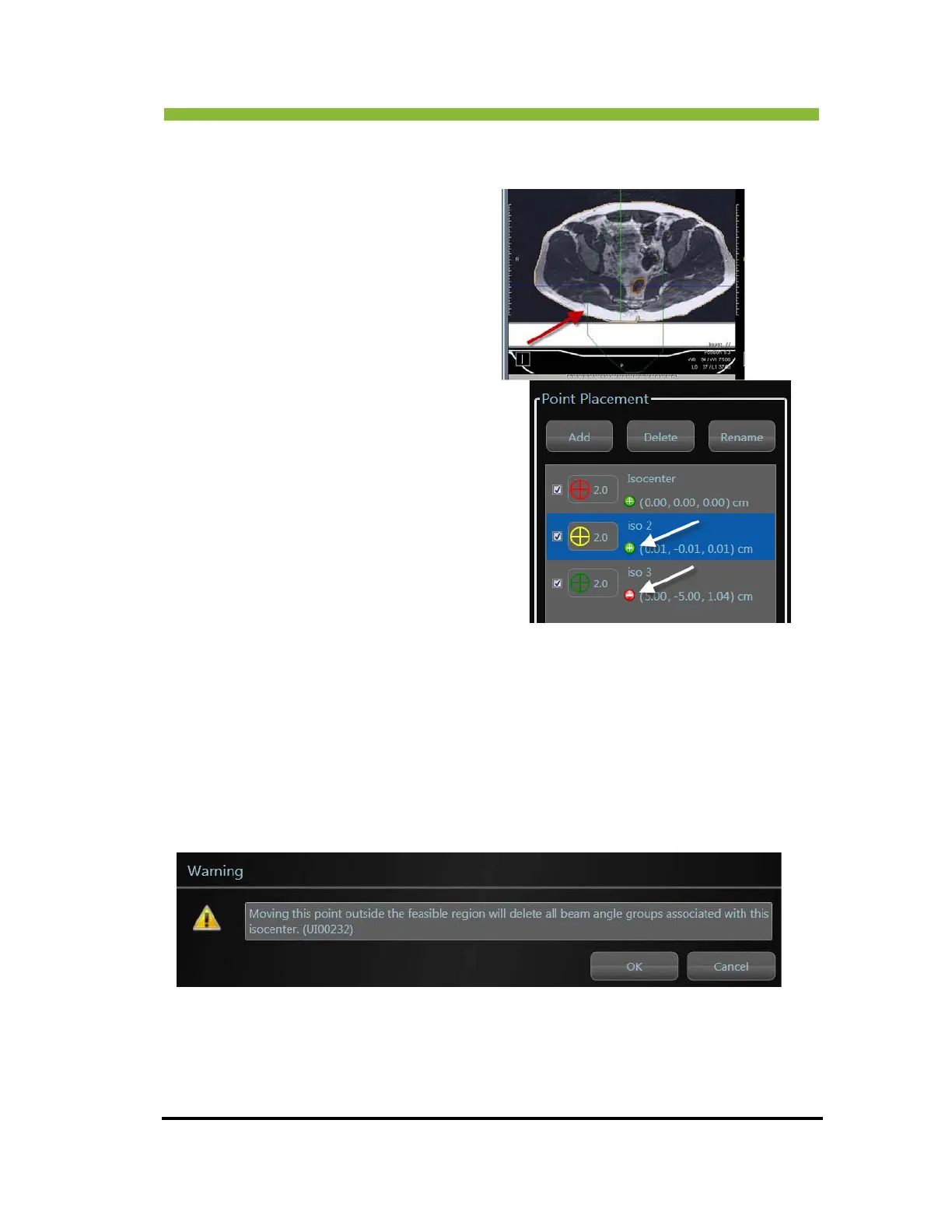
When you choose Show Valid Isocenters a
dashed green polygon is placed around the
ar
ea in which a valid isocenter can be
placed.
In the Point Placement box, valid
isocenters are indicated by a green circle with a
plus sign
inside the circle.
Points placed in areas that are not valid isocen-
ters are indicated by a red circle with a minus
si
gn inside the circle.
The blue color behind the isocenter information
indic
ates that the isocenter is selected.
At least one valid isocenter is required to proceed in planning.
Only valid isocenters may be used for beam placement.
If you have more than one isocenter, ensure that you select the correct
isocenter before setting the couch location.
If a valid point placement is moved to an invalid area, the user is warned that any beams
a
ttached to that isocenter will be deleted.



 To Next Page