7.2 Start VVSU
1. Start VVSU.
On a Windows Embedded Standard 7 VVS IPC:
● Click the VVSU tile:
On a Windows Embedded Standard 2009 VVS PC:
● Use the WINDOWS > START menu or double‑click on the desktop icon:
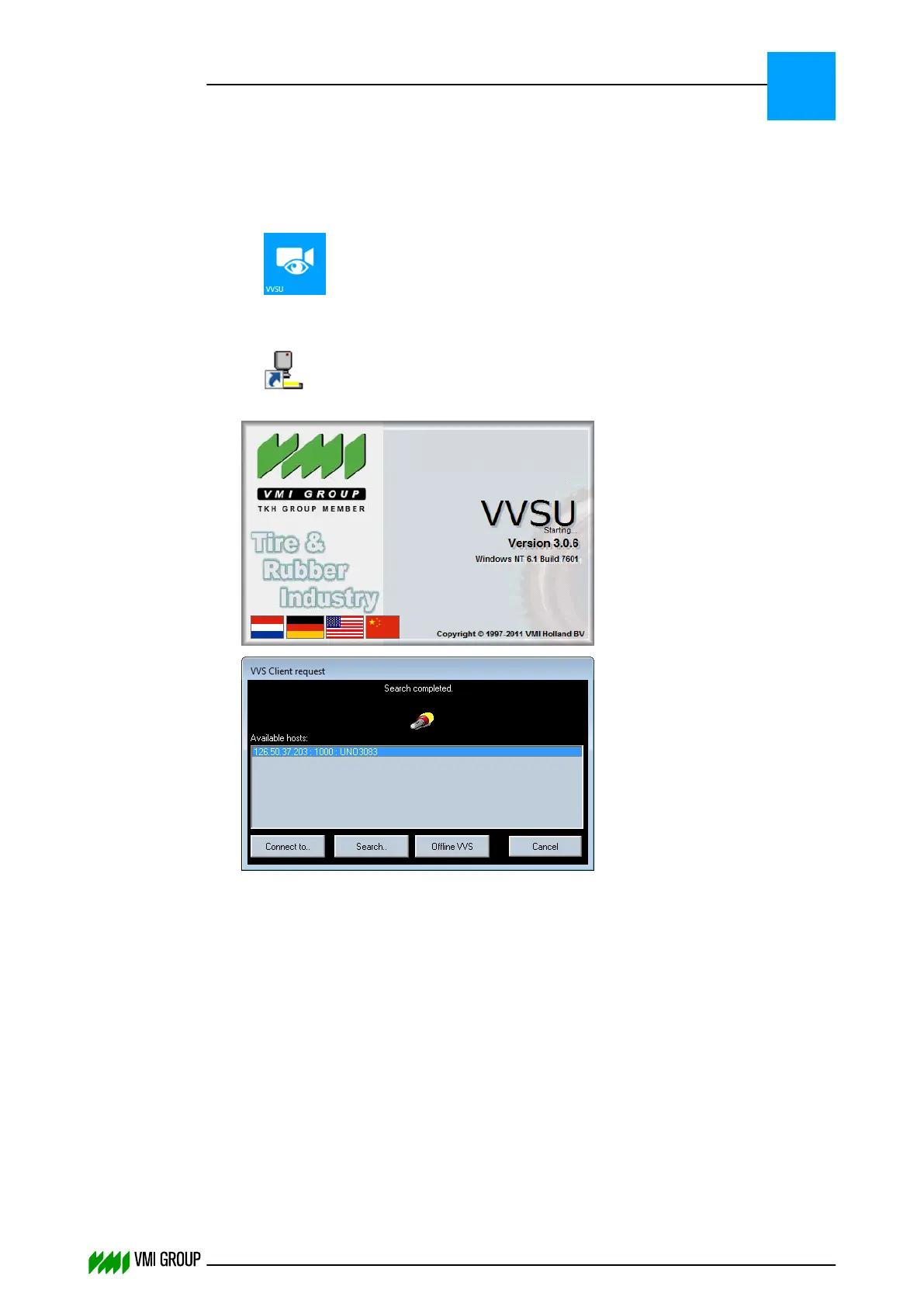
A splash screen appears:
2.
VVSU automatically performs a search and shows a list of available VVSX servers.
When no server is found, check your firewall settings, check your router settings, or
start the VVSX server. Click SEARCH to search for VVSX servers again.
3. Select the VVSX server to connect to from the available hosts.
4. Click CONNECT TO.
VVSU connects to the selected VVSX server and starts the main VVSU screen.
OFFLINE VVS offers the possibility of using VVSU without a connection to a VVSX
server.
VVSU OPERATION
Start VVSU
7
THINKING FORWARD
VMI Vision System VVS (OL82) VVSX 13.0.12.0, VVSU 3.0.6 / 4 / 2016-07-11 / pd#175592
7-4



 To Next Page