5.2 Connect to VVS
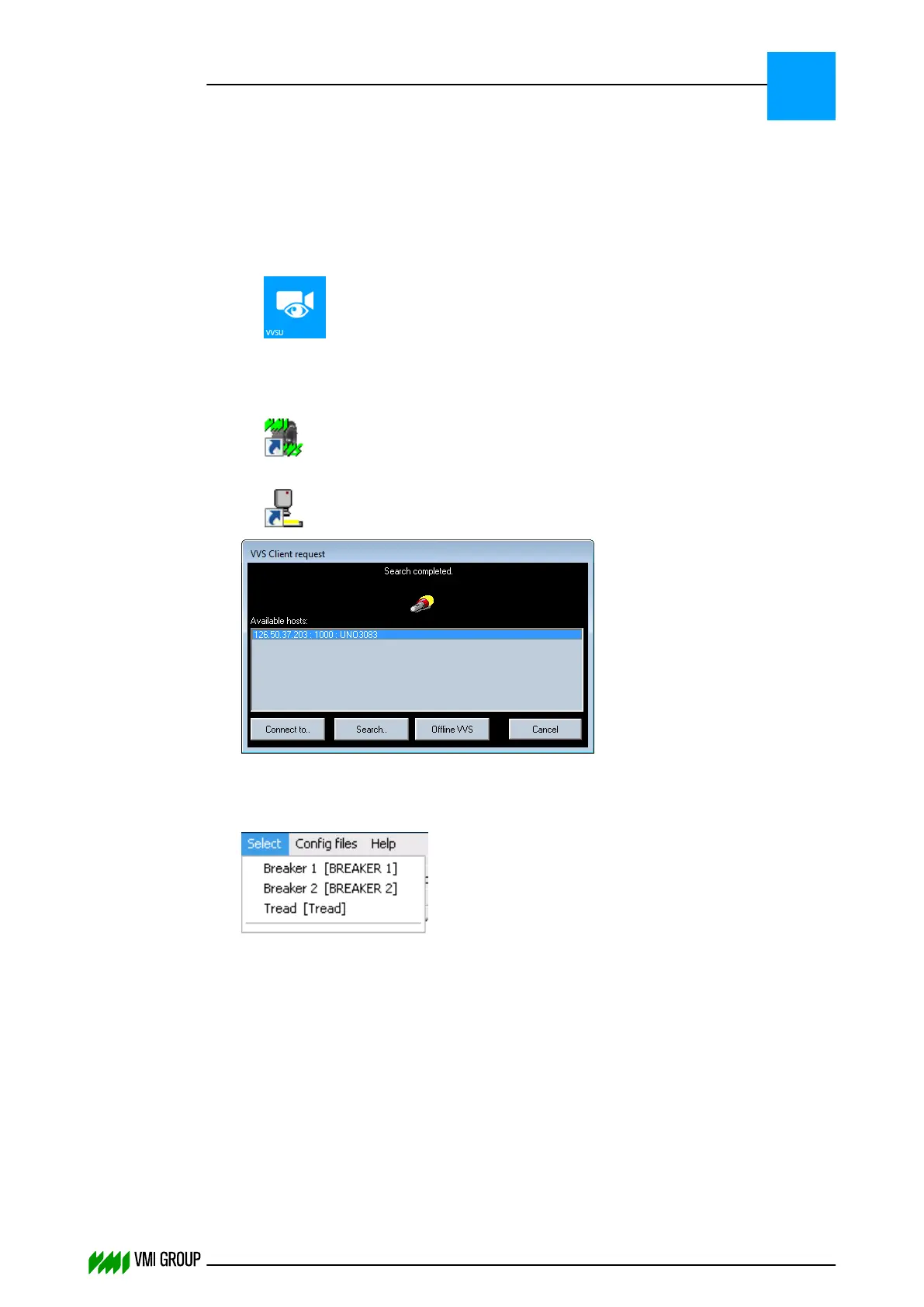
1. Connect to the VVS Controller and open VVSU.
On a Windows Embedded Standard 7 VVS IPC:
● Open a VNC session with the VVS IPC using TightVNC Viewer.
(the default VNC password is 1111)
● Open the VVSU user interface.
On a Windows Embedded Standard 2009 VVS PC:
● Open a remote desktop or a VNC session with the VVS PC.
● On the remote desktop open VVSX.
● Open the VVSU user interface.
2. Select the VVSX server to connect to from the available hosts.
3. Click CONNECT TO.
VVSU connects to the selected VVSX server and starts the main VVSU screen.
4. Go to the SELECT menu and select the correct camera position.
ALIGNMENTS, ADJUSTMENTS AND CALIBRATIONS
Connect to VVS
5
THINKING FORWARD
VMI Vision System VVS (OL82) VVSX 13.0.12.0, VVSU 3.0.6 / 4 / 2016-07-11 / pd#175592
5-4



 To Next Page