4. Enter the required values for the parameters that you want to modify.
5. Click TRANSMIT to transmit the parameters to the PLC.
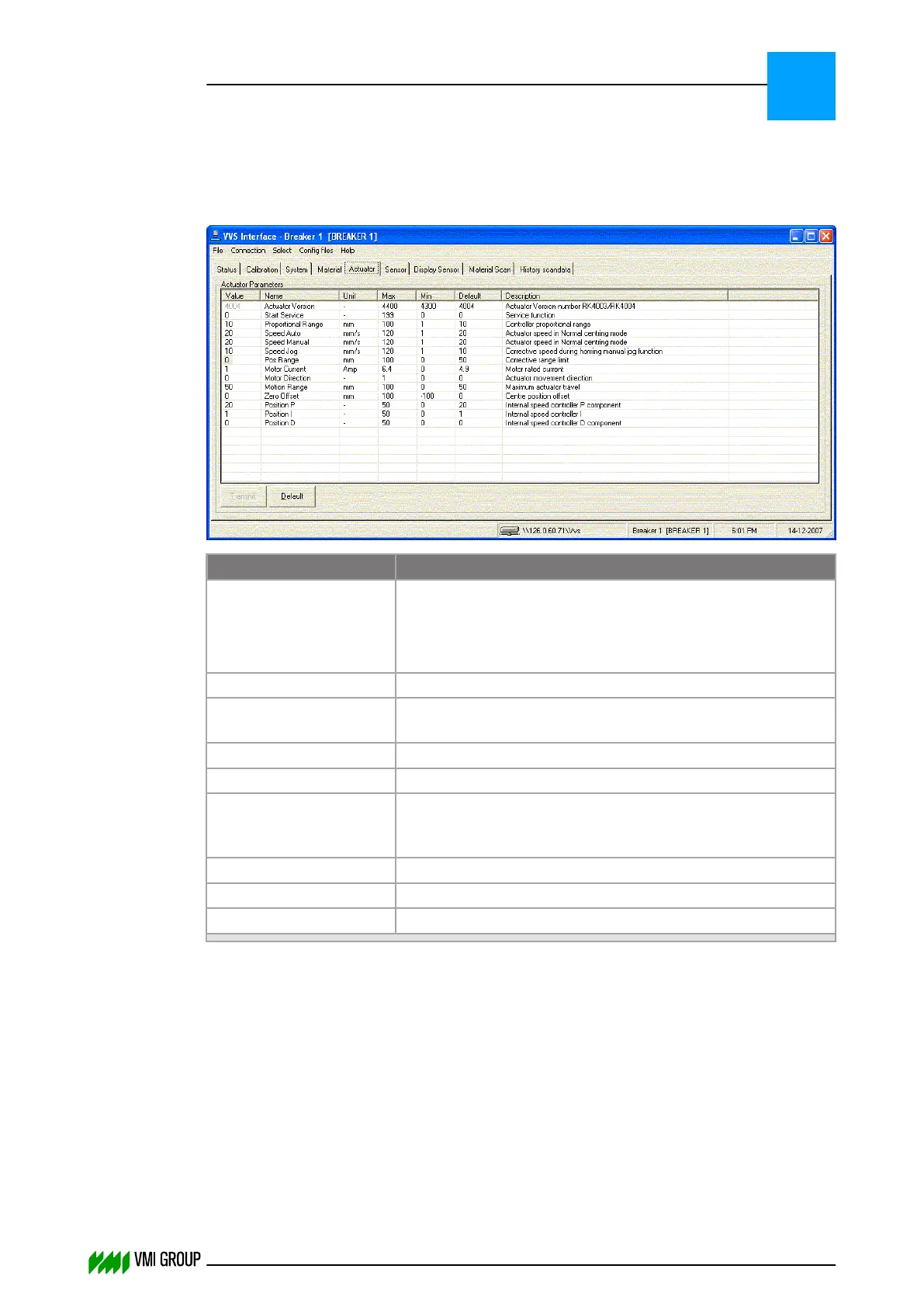
7.3.4.5 Actuator screen (only for advanced users)
Legend Description
Value The actual value of the parameter.
Click on the field to modify the value. On a touch-screen an
on‑screen numeric key panel appears.
The entered value is checked after pressing ENTER (or OK).
Name The name of the parameter.
Unit Specifies the unit in which Value, Max and Min are
expressed.
Max The maximum value of the parameter entered in Value.
Min The minimum value of the parameter entered in Value.
Default Contains default values for the parameters.
The default values can be copied into the Value field to get a
predefined situation.
Description A short description of the parameter.
Transmit Click to transmit the parameters.
Default Click to copy the default values into the Value field.
Refer to Actuator parameters on page 6
‑
26 for the description of the parameters.
To modify actuator parameters:
1. Click SELECT, in the VVSU menu bar.
2. Select the required material conveyor.
3. Select the ACTUATOR tab.
4. Enter the required values for the parameters that you want to modify.
5. Click TRANSMIT to transmit the parameters to the PLC.
VVSU OPERATION
Screen layout (generic)
7
THINKING FORWARD
VMI Vision System VVS (OL82) VVSX 13.0.12.0, VVSU 3.0.6 / 4 / 2016-07-11 / pd#175592
7-17



 To Next Page