7. Press and hold the RETURN [3] button until the system restore process starts
(after approximately 3 seconds).
NOTICE
It may look like you have to press RETURN again (the 'Press Return to start…'
screen appears), in that case just wait a few seconds until the upgrade starts.
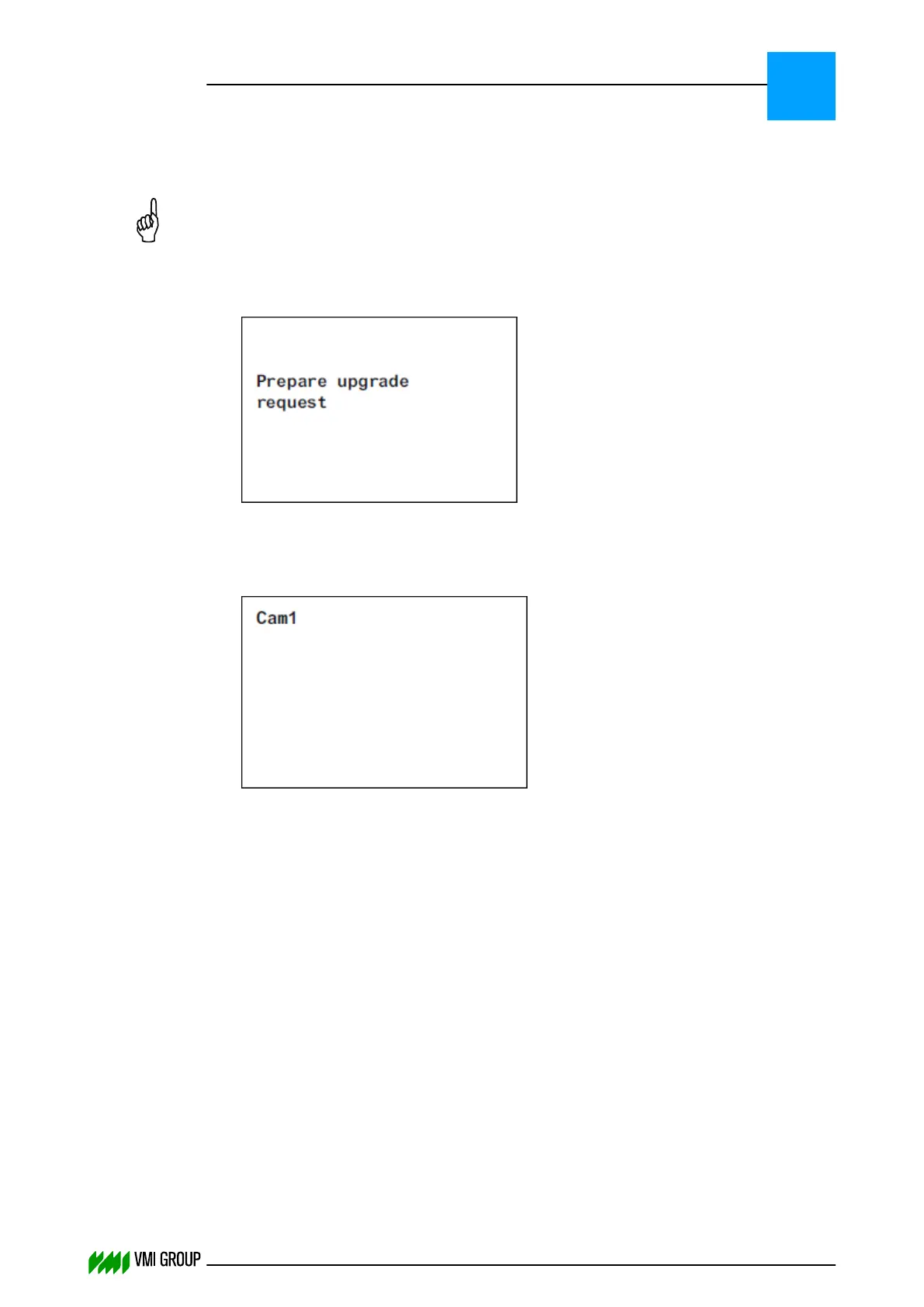
The following screen appears on the display [4]:
8. Follow the instructions on the screen.
During the upgrade process you will be prompted to disconnect the power supply for
5 seconds.
When the upgrade is finished the 'Cam1' screen appears on the display [4]:
9. Close the DO82 camera computer.
10. Set the cameras to the default settings (refer to Set cameras to default).
Applicable when the new firmware contains new default settings.
11. Calibrate the VVS camera system.
TROUBLESHOOTING
Upgrade camera firmware
8
THINKING FORWARD
VMI Vision System VVS (OL82) VVSX 13.0.12.0, VVSU 3.0.6 / 4 / 2016-07-11 / pd#175592
8-36



 To Next Page