R01.i RT System 2 v2.3 Deployment Guide 113
© 2010-2014 Wireless Seismic, Inc. All rights reserved.
5. Point-to-Multipoint Backhaul
Create Plan and Map
Table 5–3 Creating a Google Earth Elevation Profile
Step Instructions Example Image
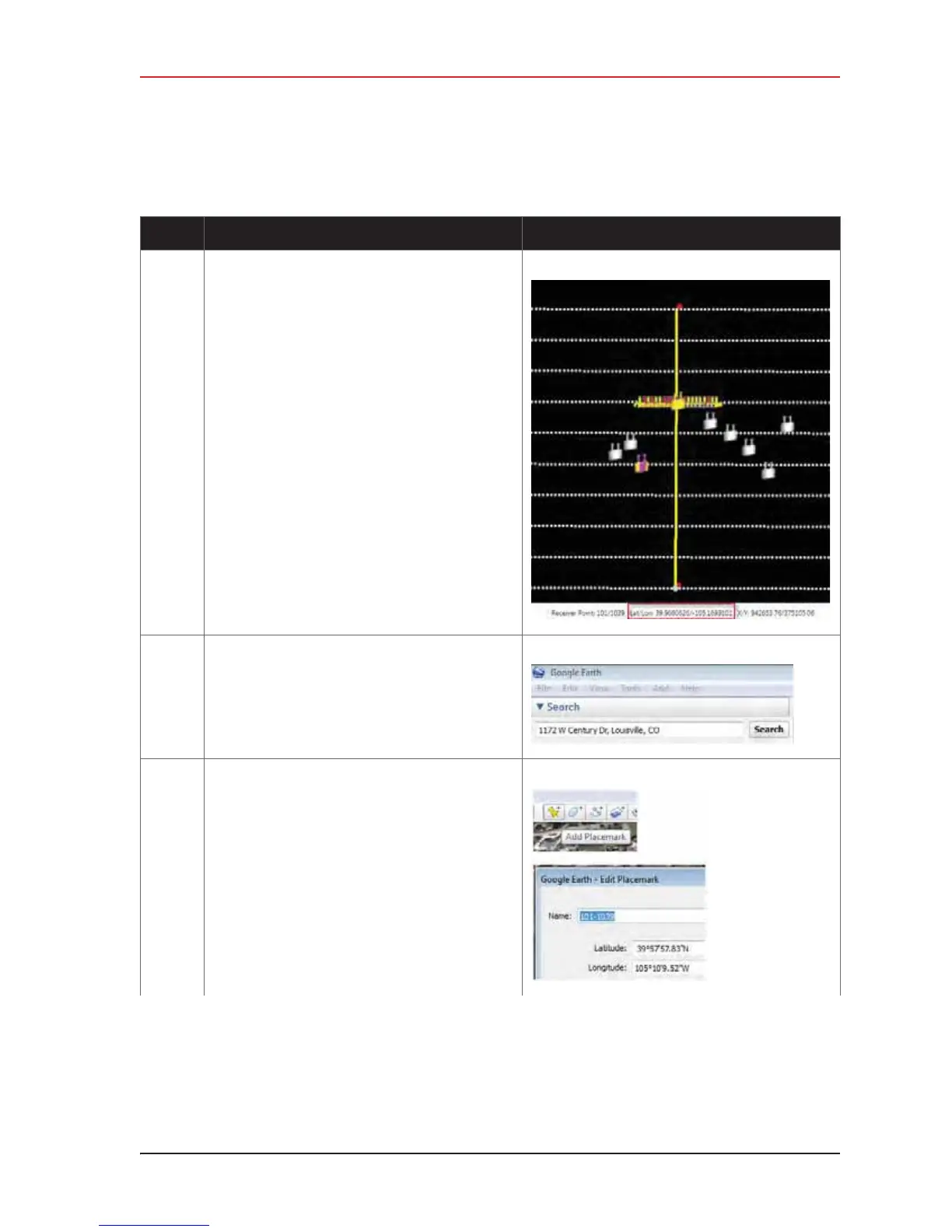
1 In the RT System 2 Spread Manager, make a note
of the Lat/Lon coordinates for the starting and
ending point of the planned backhaul.
For example:
• Line101, Receiver Point 1030
Lat/Lon = 39.9660626/-105.1693101
• Line 110, Receiver Point 1030
Lat/Lon = 39.9701155/-105.1692904
2 Open Google Earth and navigate to your survey
location. For example, type an address or Lat/Lon
coordinates in the text box and then click Search.
3 Add a placemark for the beginning and ending
points of the planned backhaul.
•Click Add Placemark.
•Type a Name, Latitude, and Longitude. The
decimal value entered is automatically
converted to degrees/minutes/seconds.
•Click OK.



 To Next Page