Paper and Media
− For 2-sided printing, load Letterhead and pre-printed paper face down with the top edge going
into the printer first.
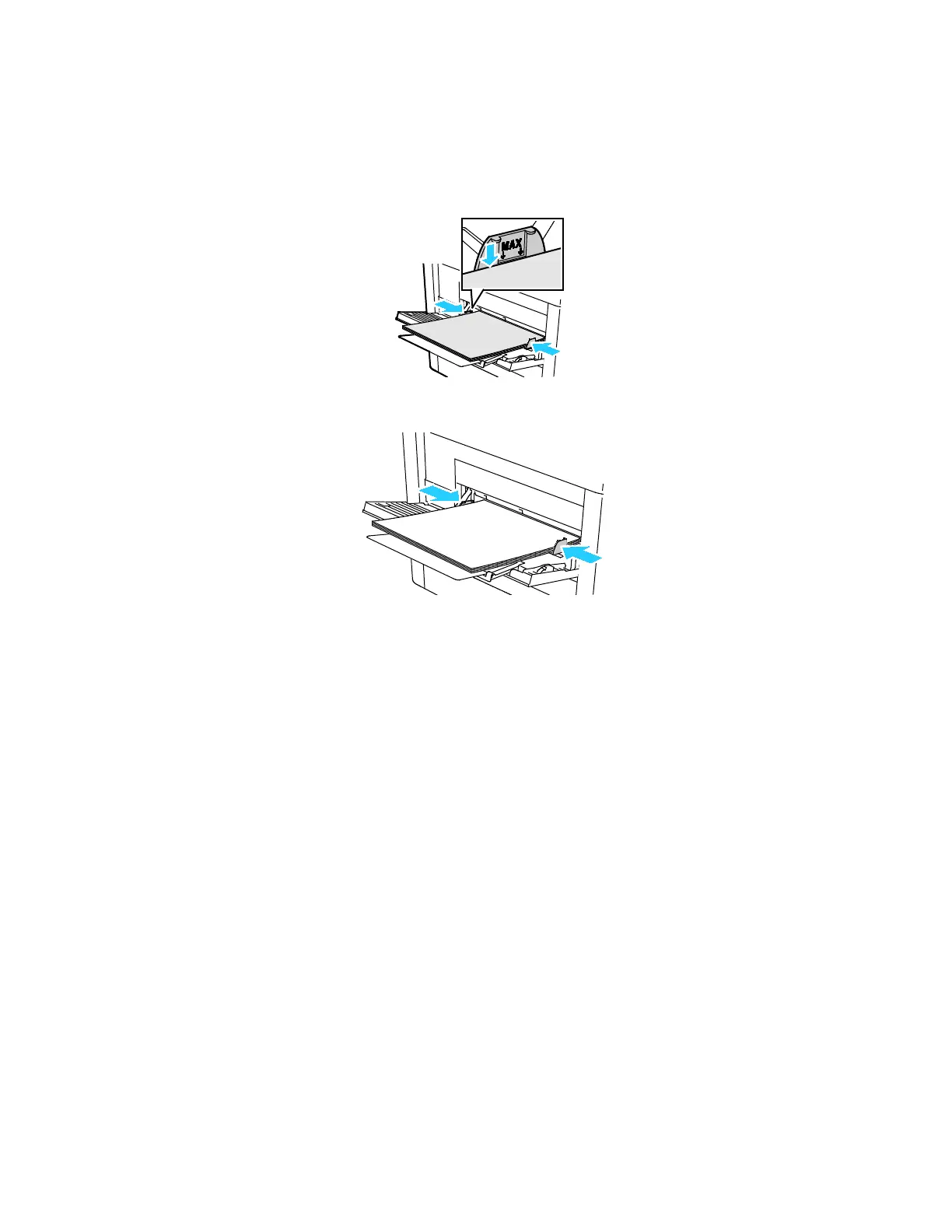
Note: Do not load paper above the maximum fill line on the width guides. Overfilling the tray can
cause the printer to jam.
6. Adjust the width guides until they touch the edges of the paper.
7. If the Tray Mode is set to Fully Adjustable, the printer prompts you to set the paper type and size.
a. If the paper size and type are correct, touch OK.
b. If the paper size or type are incorrect, change the settings.
• To select a sheet size, touch the current size setting, then from the list, select the size.
• To select a paper type, touch the current paper type, then from the list, select the type.
• To save the settings, touch OK.
8. If no prompt appears when paper is loaded, set the paper type and size.
a. At the printer control panel, press the Home button.
b. Touch Device > Paper Trays.
c. To open the Bypass Tray menu, touch the Bypass Tray icon. It is displayed in the top position,
before the numbered trays.
d. To select a paper or envelope size, touch the current size setting, then from the list, select a size.
e. To select a paper type, touch the current paper type, then from the list, select a paper type.
f. To save the setting, touch OK.
9. To return to the Home screen, press the Home button.
74 Xerox
®
WorkCentre
®
6515 Color Multifunction Printer
User Guide



 To Next Page