116
Genos2 Owner’s Manual
Formatting a USB ash drive or the internal User drive
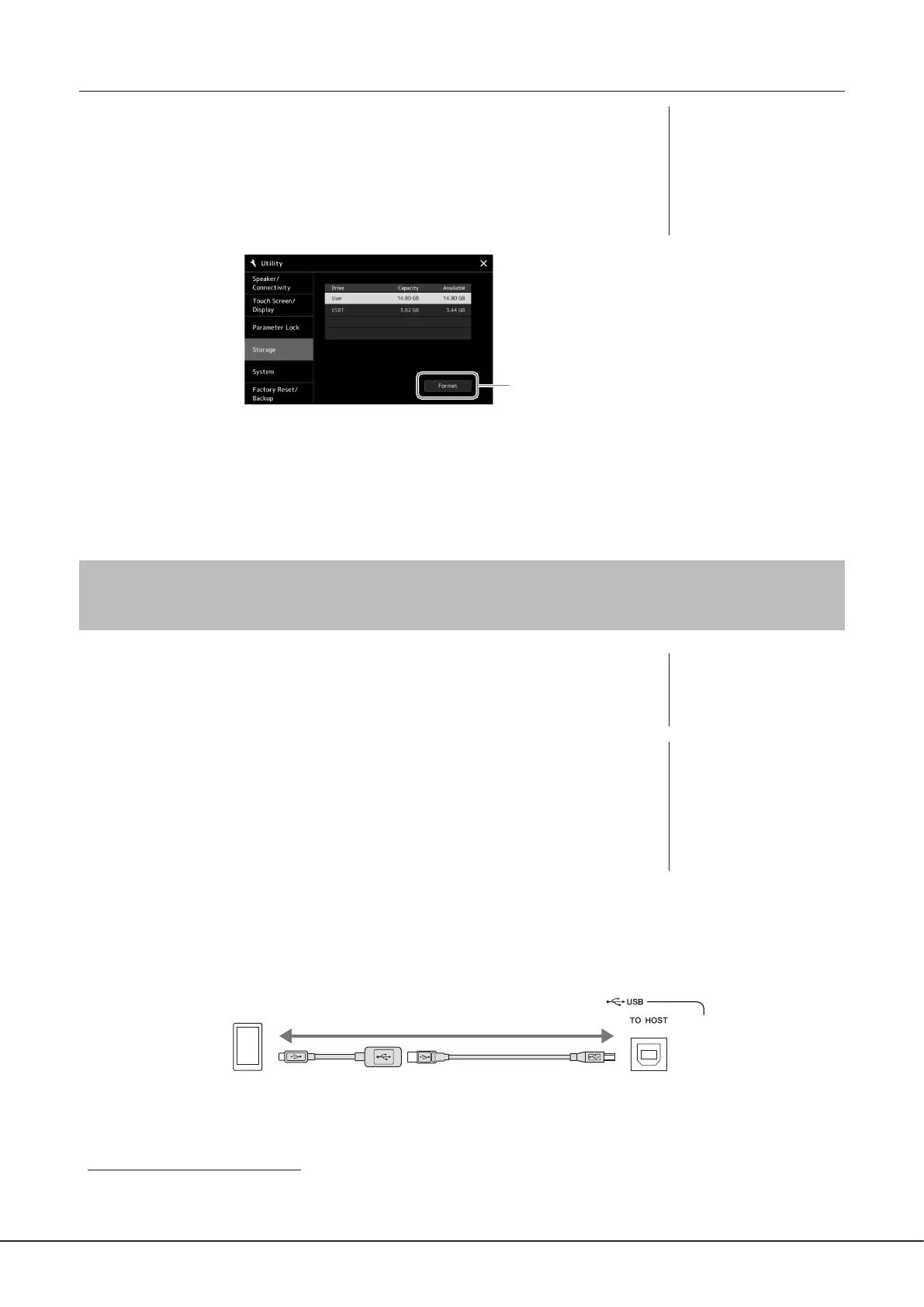
To format a USB ash drive or the internal User drive, execute the Format operation. In order to
format a USB ash drive, make sure that a USB ash drive is properly connected to the [USB TO
DEVICE] terminal beforehand.
1 Connect a USB ash drive for formatting to the [USB TO DEVICE] terminal.
2 Call up the operation display via [MENU] à [Utility] à [Storage].
4
3 Touch the name of the desired drive to be formatted in the device list.
The indications USB 1, USB 2, etc. are displayed, depending on the number assigned to the connected device.
4 Touch [Format] to execute the Format operation.
Connecting to a Smart Device (Wireless LAN function, [USB TO HOST],
or MIDI terminals)
You can use a smart device, such as an iPhone or iPad, with the instrument for a variety of musical
purposes by connecting it to the instrument. By using application tools on your smart device,
you can take advantage of convenient functions and get more enjoyment out of this instrument.
You can make connections by one of the following methods.
• Connecting via the wireless LAN function
*1
.
• Connect to the [USB TO HOST] terminal via a USB cable (using an USB conversion adaptor)
• Connect to the [USB TO HOST] terminal via a Wireless MIDI Adaptor: UD-BT01
*2
• Connect to the MIDI terminals via a Wireless MIDI Adaptor: MD-BT01
*2
*1 The wireless LAN function may not be included depending on your area.
*2 These accessories are sold separately, but may not be available depending on your area. Also, some Android
smart devices cannot be connected to the instrument using this method, since they do not support BLE
(Bluetooth Low Energy).
When connecting via a USB cable, digital audio data can be transmitted/received, using the built-in audio interface capabilities.
For details on connections, refer to the “Smart Device Connection Manual” and the Reference Manual on the website.
For information about the compatible smart devices and application tools, access the following page:
https://www.yamaha.com/kbdapps/
NOTICE
Do not place your iPhone/iPad
in an unstable position. Doing
so may cause the device to fall
and result in damage.
NOTE
When you use the instrument
along with an application
on your iPhone/iPad, we
recommend that you rst set
“Airplane Mode” to “ON” then
set “Wi-Fi” to “ON” on your
iPhone/iPad in order to avoid
noise caused by communication.
Smart device
USB conversion
adaptor
USB cable
Instrument
NOTICE
The Format operation deletes
any previously existing data.
Make sure that the USB ash
drive you are formatting
does not contain important
data. Proceed with caution,
especially when connecting
multiple USB ash drives.


 To Next Page