40
Genos2 Owner’s Manual
Entering Characters
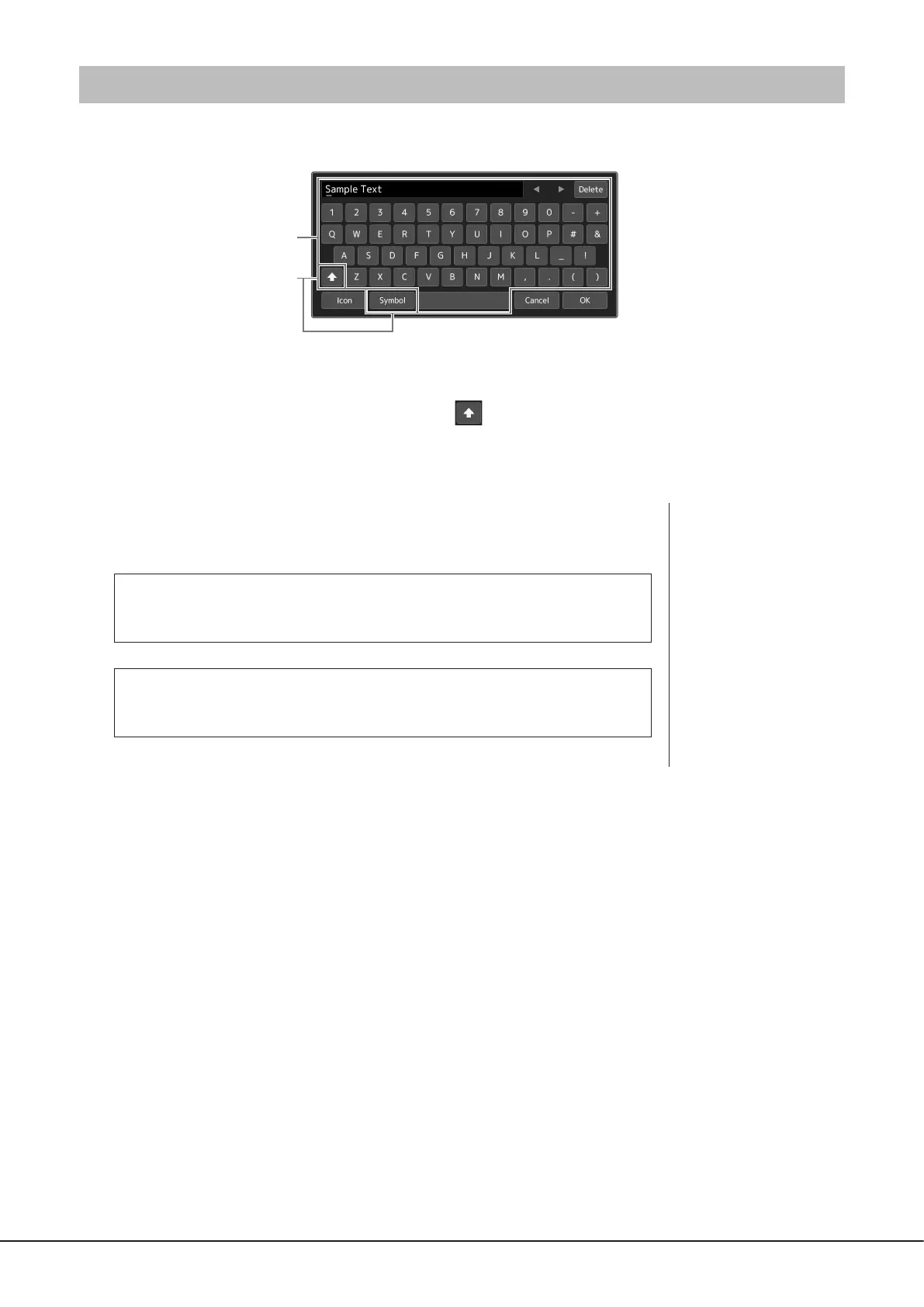
This section covers how to enter characters for naming your les/folders, inputting keywords on searching le, etc. Entering
characters is done in the display shown below.
1 Touch the character type.
Touching [Symbol] (or [abc]) switches between entering symbols or Roman letters (and numbers).
To switch between entering capital letters or small letters,
(Shift).
2 Touch [L]/[R], rotate the Data dial or the press [DEC]/[INC] buttons to move the cursor to the
desired location.
3 Input the desired character one by one.
To delete a single character, touch [Delete]; to delete all characters at once, touch and hold
[Delete]. To enter a space, touch the space key indicated in the illustration above.
To input letters with auxiliary symbols:
You can input letters with auxiliary symbols such as an umlaut by touching and holding a
letter to call up a list. For example, touch and hold “E” to enter “Ë” from the list.
To select custom icons for les (shown at left of le name):
You can select custom icons for the le. Touch [Icon] to call up the pop-up window, then
select the desired icon.
4 Touch [OK] to nalize the characters (name, keywords, etc.) you have
input.
NOTE
• Depending on the display
for character entry you are
working in, some types of
characters cannot be entered.
• A le name can contain up
to 41–46 characters (varies
by content type) and a folder
name can contain up to
50characters.
• The following characters (half
size) cannot be used: \ / : * ?
“ < > I
NOTE
To cancel this operation, touch
[Cancel] before going on to
step 4.


 To Next Page