37
Genos2 Owner’s Manual
Basic Operations
File Management
Data you have created such as recorded Song and edited Voice can be saved as les to the
instrument (referred to as “User drive”) and a USB ash drive. If you’ve saved a lot of les, you may
have trouble nding the desired le quickly. To make operation easier, you can organize your les
in folders, rename the les, delete unnecessary les, etc. These operations are done in the File
Selection display.
Restrictions for Preset Songs
Preset Songs are copy protected to prevent illegal copying or accidental erasure. These cannot be copied, moved, and saved to
any other place, and cannot be deleted.
Saving a le
You can save your original data (such as Songs you’ve recorded and Voices you’ve edited) as a le to the User drive or the USB
ash drive in the File Selection display (page32).
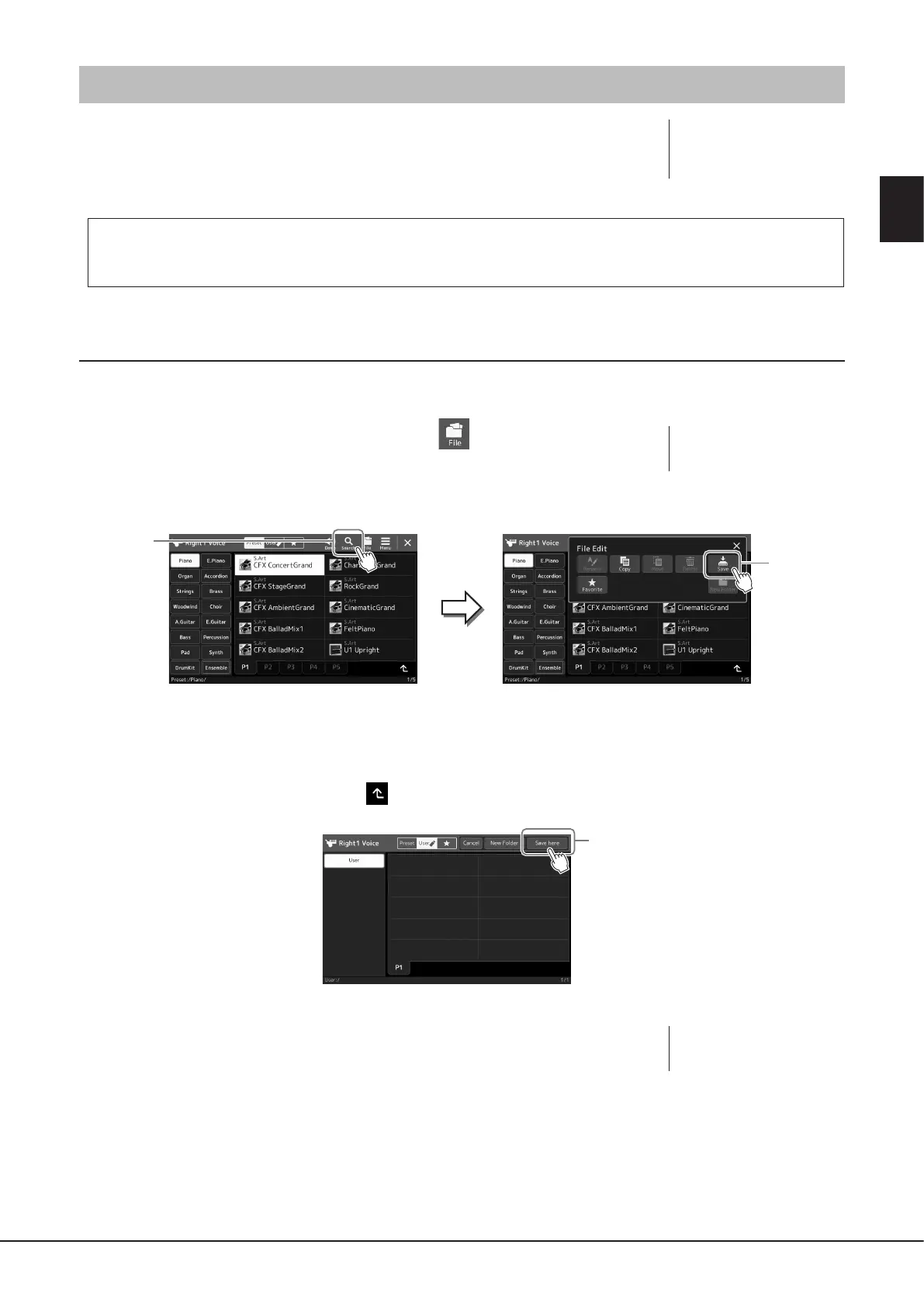
1 In the relevant File Selection display*, touch (File Edit) to call up the
File Edit pop-up window.
* For example, the display shown below (Voice Selection) is called up via VOICE SELECT
[RIGHT 1] button.
2 Touch [Save] to call up the display for selecting the saving destination.
3 Select the location to which you want to save the le.
To show the next higher level folder, touch (Up).
4 Touch [Save here] to call up the Character Entry window.
5 Enter the le name (page40).
Even if you skip this step, you can rename the le at any time (page38) after saving.
6 Touch [OK] in the Character Entry window to actually save the le.
The saved le will be automatically located at the appropriate position among the les in alphabetical order.
NOTE
To cancel the le operation,
press the [EXIT] button.
NOTE
To cancel this operation, touch
[Cancel].
NOTE
Before using a USB ash drive,
be sure to read “Connecting USB
Devices” on page115.


 To Next Page