80
Genos2 Owner’s Manual
Applying Eects to the Microphone Sound (Vocal Harmony)
You can automatically apply various Vocal Harmony eects to your voice as you sing, or you can
use Synth Vocoder to graft the unique characteristics of your voice onto synthesizer and other
sounds.
Using Vocal Harmony
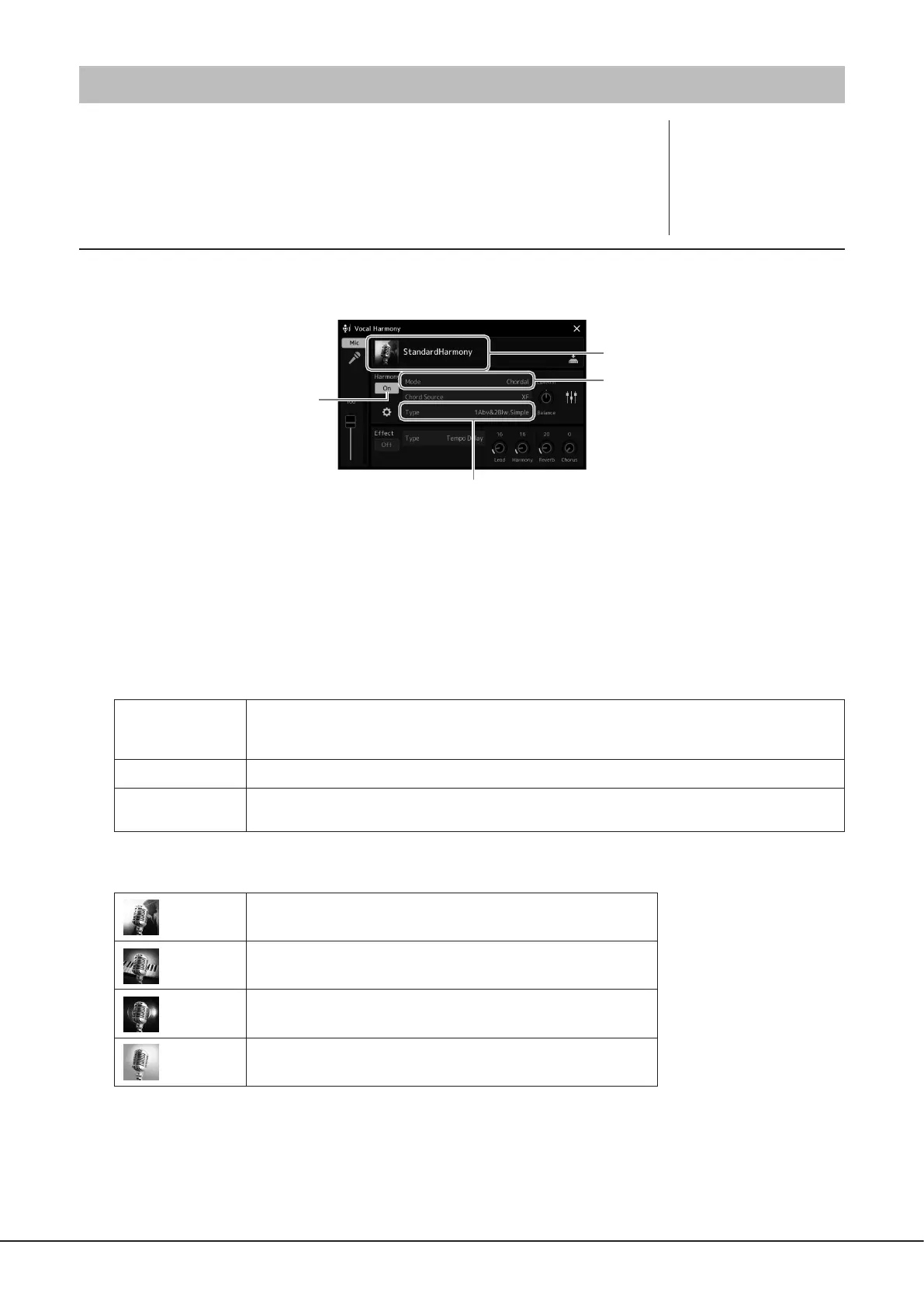
1 Call up the Vocal Harmony display via [MENU] button à [Vocal Harmony].
2
3
5
2 Make sure that Harmony is set to “On.”
If necessary, touch the display or press the [VOCAL HARMONY] button to turn the Harmony “On.”
3 Touch the Vocal Harmony type name to call up the Vocal Harmony Type Selection display.
4 Touch the desired Vocal Harmony Type to select it.
The Vocal Harmony features three dierent Modes which can be selected automatically by selecting a Vocal Harmony Type.
Vocal Harmony Modes
Chordal
The harmony notes are determined by the chords you play in the chord section (with [ACMP ON/OFF] turned
on), the left hand section (with [ACMP ON/OFF] turned o and the Left part turned on) or the chord data of a
Song.
Vocoder
The microphone sound is output via the notes you play on the keyboard or the Song playback notes.
Vocoder-mono
Basically the same as Vocoder; however, in this mode, only single-note melodies or lines can be played back
(with last-note priority).
Icons shown in the Vocal Harmony Type Selection display indicate the following usage cases.
(Blue)
Vocal Harmony Type of Chordal Mode
(Brown)
Vocal Harmony Type of Vocoder Mode
(Green)
Vocal Harmony Type having unusual eects, such as a robotic voice.
(Gray)
Vocal Harmony Type without any eect.
Vocal Harmony type name
Mode
(When the Mode is set to “Vocoder” or “Vocoder Mono”)
NOTE
Make sure to connect a
microphone before using Vocal
Harmony and Synth Vocoder.
For instructions on connecting
a microphone and making
necessary settings, refer to
page110.


 To Next Page