53
Genos2 Owner’s Manual
Playing with Styles—Setups
1
Creating Original Organ Flutes Voices
Genos2 uses advanced digital technology to recreate the legendary sound of vintage organs.
Just as on a traditional electronic organ, you can create your own sound by increasing and
decreasing the levels of the ute footages. The created Voice can be saved for future recall.
1 On the Voice Selection display, select the desired Organ Flutes Voice.
Touch the [Organ] in the sub categories, and then select the desired Organ Flutes Voice.
2 Return to the Home display, and then touch (Organ Flutes) located at the lower right of the
Voice name to call up the Organ Flutes Voice Edit display.
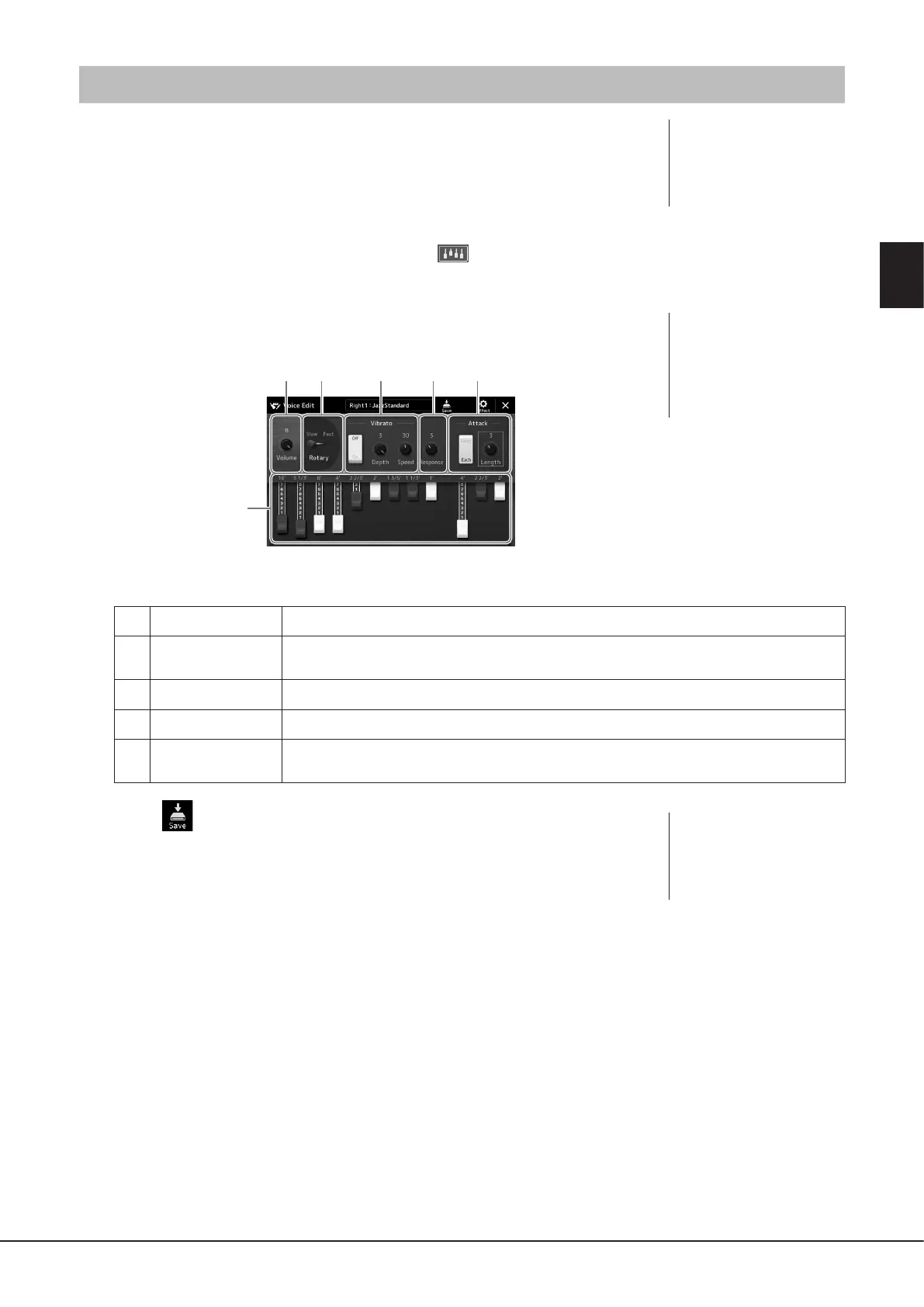
3 Slide the Footage levers to adjust the footage settings.
The footage settings determine the basic sound of the Organ Flutes.
21 3 4 5
3
You can also change other settings here, such as Rotary Speaker and Vibrato.
1
Volume
Determines the volume of the entire Organ Flutes sound.
2
Rotary Speaker
Alternately switches between the slow and fast rotary speaker speeds. This parameter is available only
when an eect which contains “Rotary” or “Rot” in its name is applied.
3
Vibrato
Turns the vibrato on or o, and allows you to adjust the vibrato depth and vibrato speed.
4
Response
Adjusts the response speed of both the Attack and Release portions of the sound.
5
Attack
Switches between two dierent Attack modes: First and Each, and determines the length of the Attack
sound.
4 Touch (Save) and save the created Organ Voice.
For instructions on saving, refer to “File Management” (page37).
NOTE
• The available parameters dier
depending on the Organ type.
• You can also make Eects and
EQ settings. For details, refer to
the Reference Manual on the
website (page10).
NOTICE
The settings will be lost if you
select another Voice or turn
the power to the instrument
o without executing the Save
operation.
NOTE
The term “footage” is a reference
to the sound generation of
traditional pipe organs, in which
the sound is produced by pipes
of dierent lengths (in feet).



 To Next Page