OPERATION
Axio Examiner Docking station with TFT display Carl Zeiss
M60-2-0003 e 05/2012 73
4.3.3 Home page
Initialization starts when the microscope is
switched on, and will take a few seconds.
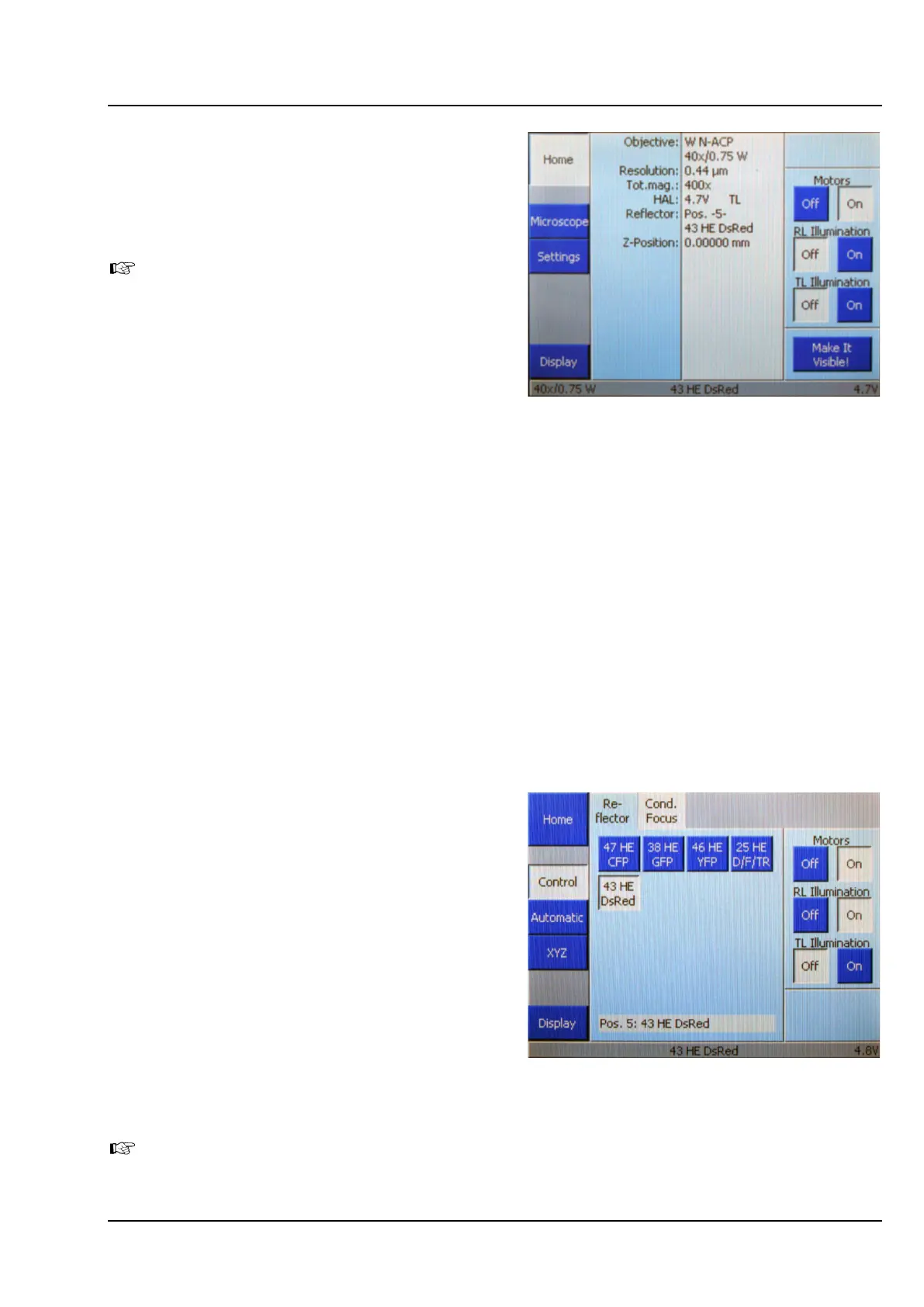
Normally, the Home page will be displayed
(Figure 4-12).
Whenever coded or motor-driven
components have been replaced or removed
in the switched-off condition, the operator
will have to set up the new configuration
after switching on.
The buttons located in the left-hand navigation bar
may be used to open all other pages.
The central operator control area displays the
configuration as detected. The status field shows all coded or motor-driven control elements which have
been detected during initialization. The control elements are sorted from top to bottom according to
their significance.
The following operator control elements appear at the right-hand border:
− Motors
Press the On or Off buttons to switch all motors or sensors of the microscope either on or off.
Motors and sensors will be grounded/earthed (potential free) when switched off, and the blue
indicator light (Figure 1-4/19) will go off at the lower microscope part.
− RL Illumination/TL Illumination
Press On or Off buttons to switch the reflected light (AL) illumination or the transmitted-light
illumination (DL) of the microscope either on or off.
− Make It Visible! button
This button is used to reset the microscope to its initial status.
4.3.4 Microscope
Press the Microscope button in the navigation bar
on the Home page to go to the Microscope page.
The Microscope page provides operator access to
the Control, Automatic and XYZ pages.
The Reflector (Figure 4-13) and Cond. Focus tabs
are displayed.
(1) Reflector
Five control elements appear for reflector positions
Pos. 1 to Pos. 5. Reflector modules already
configured are indicated by the button caption.
• Press the corresponding button to swing in the
desired reflector module.
The current reflector position is indicated at the screen bottom.
Figure 4-12 Home page
Figure 4-13 Microscope –> Control ->
Reflector page



 To Next Page