OPERATION
Axio Examiner Docking station with TFT display Carl Zeiss
M60-2-0003 e 05/2012 75
• Press a position button to save the current position. A safety prompt asking whether the
corresponding memory space should be overwritten will appear if a value has already been assigned to
the position button before.
• Press the Cancel button to close the window.
To delete a value, press the Delete button, select the position button, and acknowledge the safety
prompt by pressing Yes.
Press the Unit button to select the desired unit (e.g., millimeters).
(3) Moving to a saved position
Five buttons are located in the position area at the bottom. When a button is pressed, the coordinate
position saved under that button is approached. To save coordinate positions, see (2) Save position
above.
4.3.6 Settings
Press the Settings button in the navigation bar on the Home page, to go to the Settings page.
From the Settings page, you can go to the Components, User, Tools or About pages.
Components 4.3.6.1
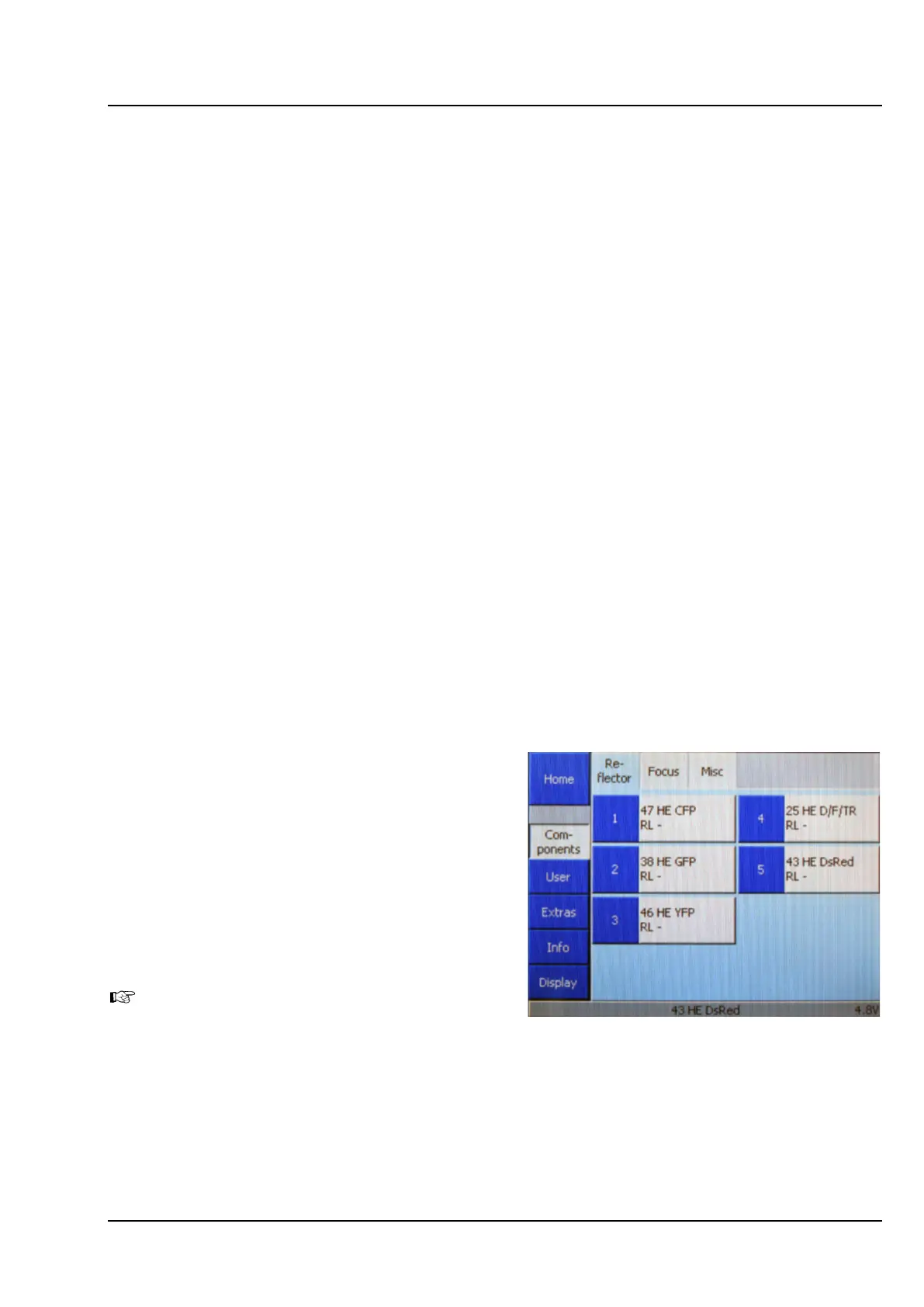
The Settings -> Components page contains three tabs: Reflector, Focus and Miscellaneous.
(1) Reflector
You can use this tab for configurating the reflector
turret (Figure 4-16).
Five buttons are displayed. These buttons only
show the turret position number as long as no
reflector has been configured.
The following features will be indicated after a
reflector has been assigned: Designation (type),
reflected-light module (AL), transmitted light
module (DL).
When a new reflector is assigned, the
corresponding reflector button will contain
the appropriate information on the
Microscope -> Control page.
• To configure a turret position, press the
corresponding button.
Figure 4-16 Settings –> Components ->
Reflector page



 To Next Page