To manually align two partial images
To manually align two partial images:
1. Click the Alignment button.
Figure 142: Alignment button
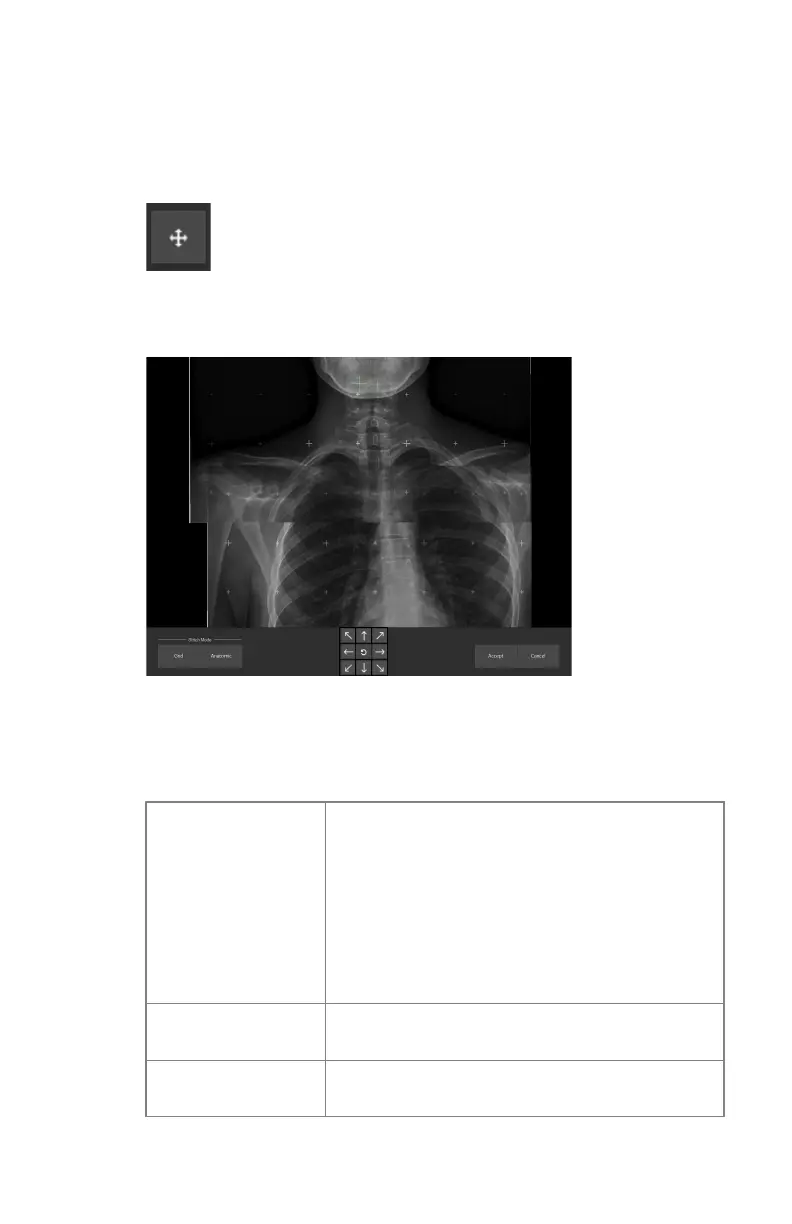
A detail of the overlapping area is displayed.
Figure 143: Detail overlapping area
2. Align the two partial images:
Table 17: Manual alignment
Adjusting the posi-
tion of the lower im-
age
Right click-hold the image and drag the mouse
arrow to any direction.
Press the SHIFT or CTRL button while dragging
the mouse arrow to adjust the vertical or horizon-
tal alignment only.
Use the arrow keys on the keyboard.
Click the arrow buttons on the screen.
Roaming over the
images
Left click-hold the image and drag the mouse ar-
row to any direction.
Zooming in/out on
the images
Use the scroll wheel on the mouse.
180 | DR 800 | Full Leg Full Spine
0392C EN 20210309 1049


 To Next Page