5.2.2.2. VLAN
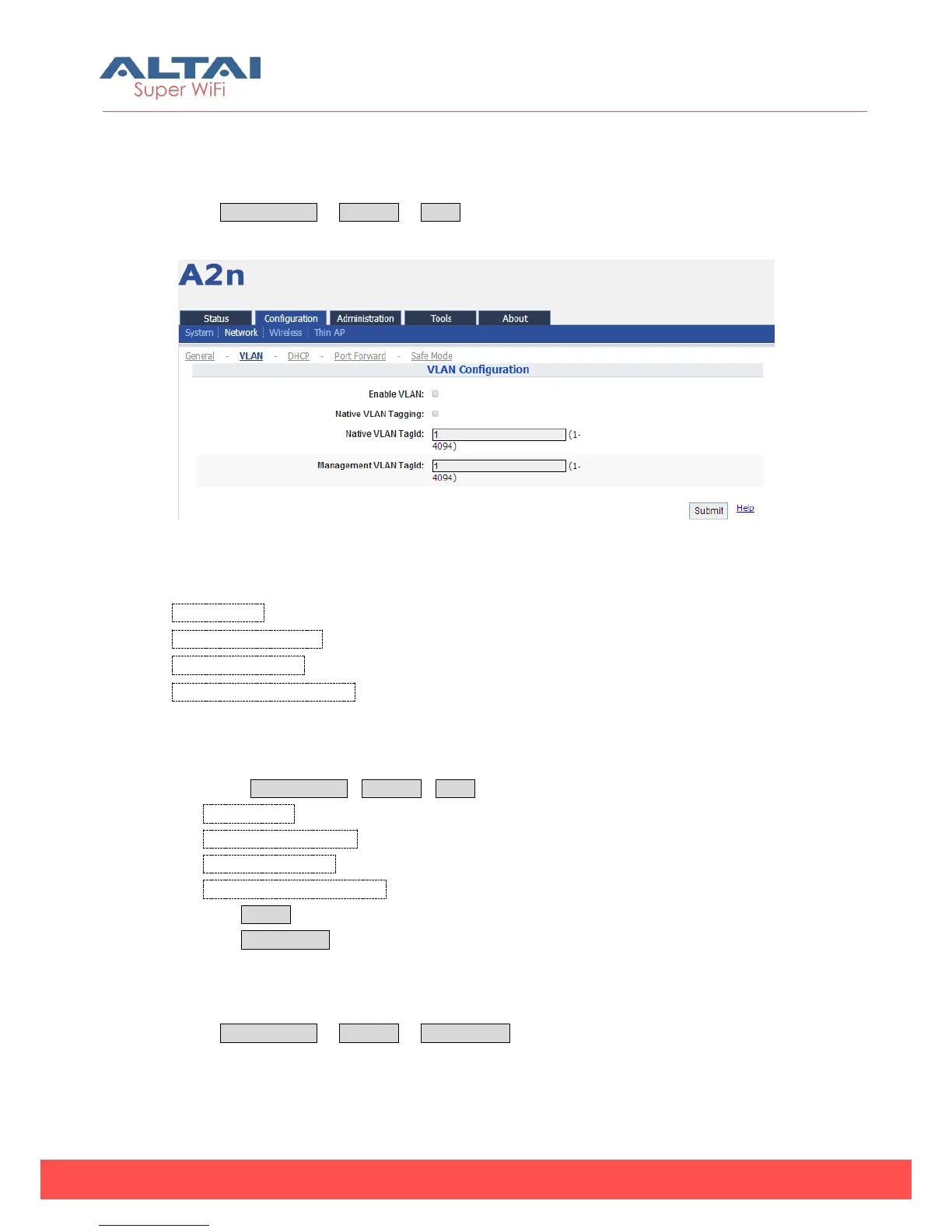
Select Configuration -> Network -> VLAN to access to VLAN configuration page.
Figure 5-15 VLAN Settings
By default, A2n VLAN setting is disabled.
Enable VLAN:Enable or Disable VLAN function
Native VLAN Tagging:By default, it is not selected.
Native VLAN TagId:Native VLAN ID
Management VLAN TagId:Management VLAN ID
Procedures:
1. Select Configuration->Network->VLAN
2. Enable VLAN Enable or disable VLAN
3. Native VLAN Tagging : Enable or disable native VLAN tagging
4. Native VLAN TagId: input Native VLAN ID
5. Management VLAN TagId: input management VLAN ID
6. Click Submit
7. Click Save&Apply to apply
5.2.2.3. DHCP Server
Select Configuration -> Network -> DHCP Server to access to DHCP configuration
page. And there are two options, Disable and DHCP Server. Please note that you
have to set the network mode as gateway mode before configuring DHCP server.



 To Next Page