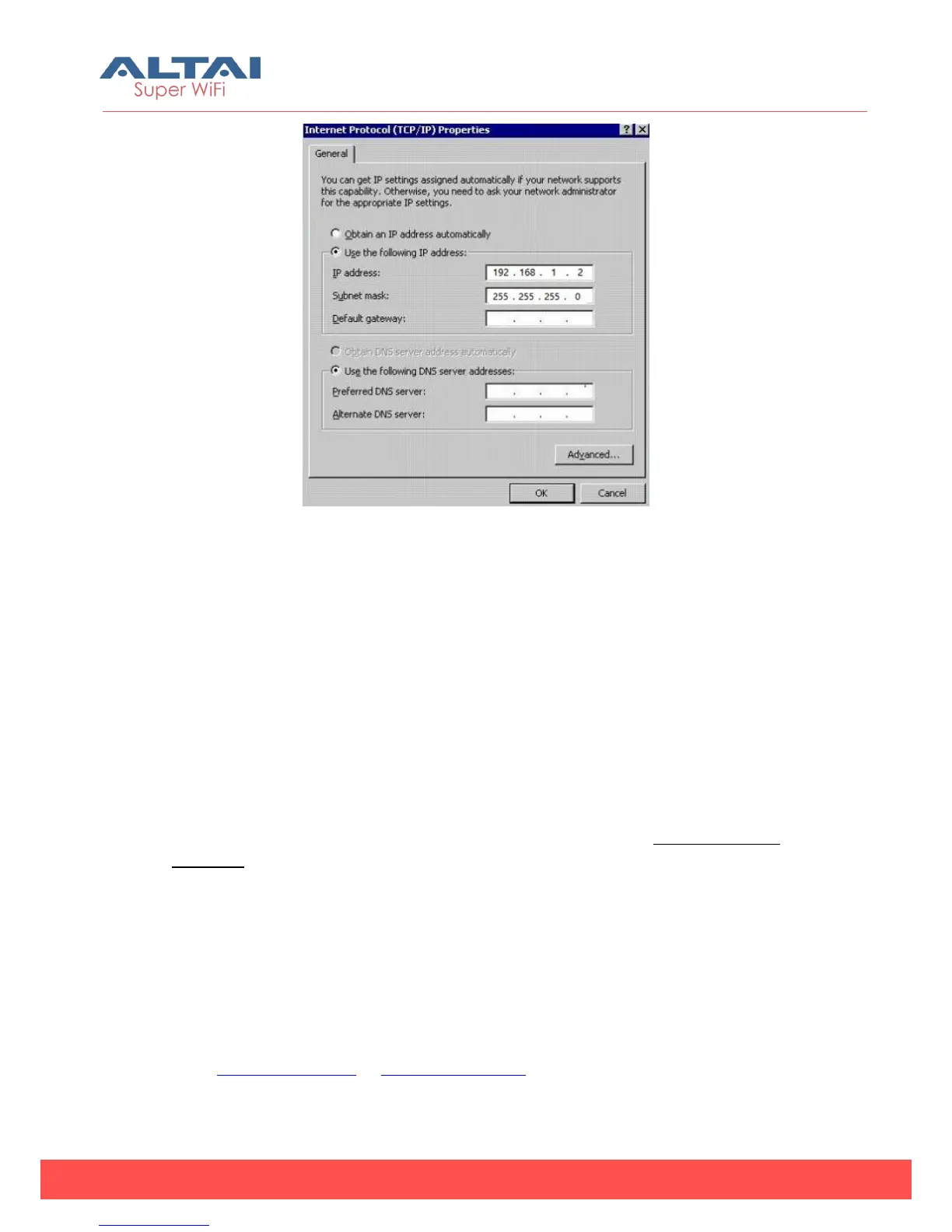
Figure 3-4 Internet Protocol (TCP/IP) Properties in Windows XP
3.2. Check Access
“Ping” utility of Command Prompt is a handy tool to check the access to the A2n
Access Point.
1. Go to the Command Prompt by typing “cmd” in “Run”.
2. Type command:
Ping 192.168.1.222
The A2n Access Point shall respond to your ping request if A2n Access Point and
your PC have a correct connection.
NOTE: Using the same PC to ping different A2n Access Point may cause ping failure.
This is because A2n Access Point has the same default IP address but different MAC
addresses. You need to type command “arp –d” in Command Prompt to clear ARP
table on PC before each ping.
3.3. Configuration with Web-Admin
The A2n can be accessed through a Web Browser, for example, Internet Explorer
(IE).
1) Open an IE session and type the IP address of the A2n Access Point. Example:
http://192.168.1.222 or https://192.168.1.222, where 192.168.1.222 is the A2n’s
IP address. The default IP Address is 192.168.1.222.



 To Next Page