Artec Leo
1. In the Project screen, tap Settings.
2. Ensure that your scanner is connected to the Internet.
3. Select the Support section.
4. Tap Send report.
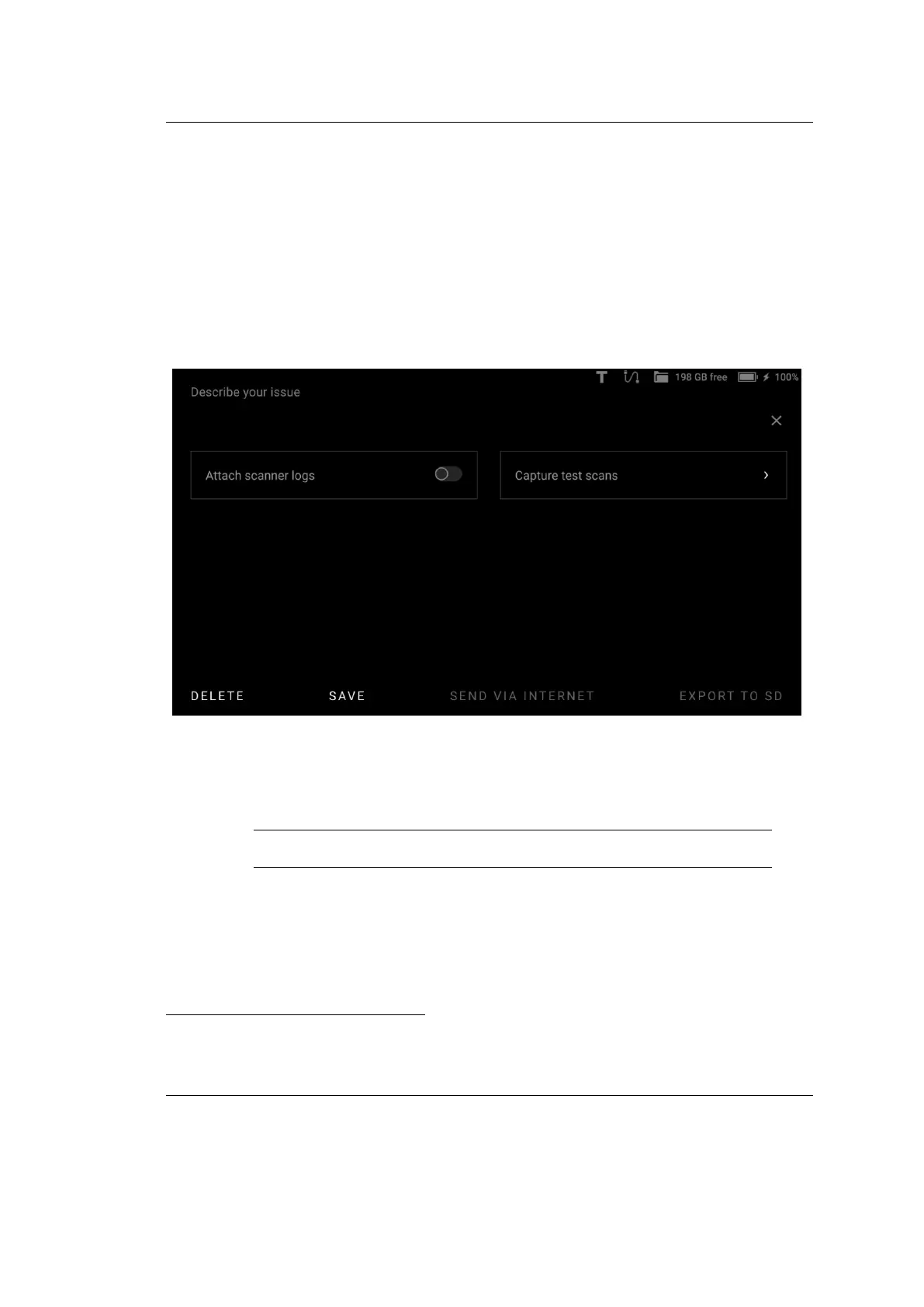
5. Type detailed information related to the issue you experienced.
6. Tap Next.
1
Figure 53: Sending report.
7. Turn on the Attach scanner logs toggle.
Important: Leo won’t send any stored scans from your projects.
8. Tap Capture test scans, if your issue relates to scanning.
a. Warm up the scanner in ‘Preview’ mode for at least 20 minutes before-
hand.
b. Tap Capture test scans and direct the scanner at a wall.
1
You can store your entered text and continue editing the report later. Tap the Save button
to this end.
104 Chapter 8. Get Support


 To Next Page