Conguring Client Settings
Conguring Network Settings
94
1. On Atrust Client Setup, click Network > Ethernet.
2. Under the DNS section, click the drop-down menu to select Dynamic DNS (via DHCP) for the DNS type eld.
3. Click Save to apply.
Specifying DNS Server Addresses Manually
To specify DNS Server addresses manually, please do the following:
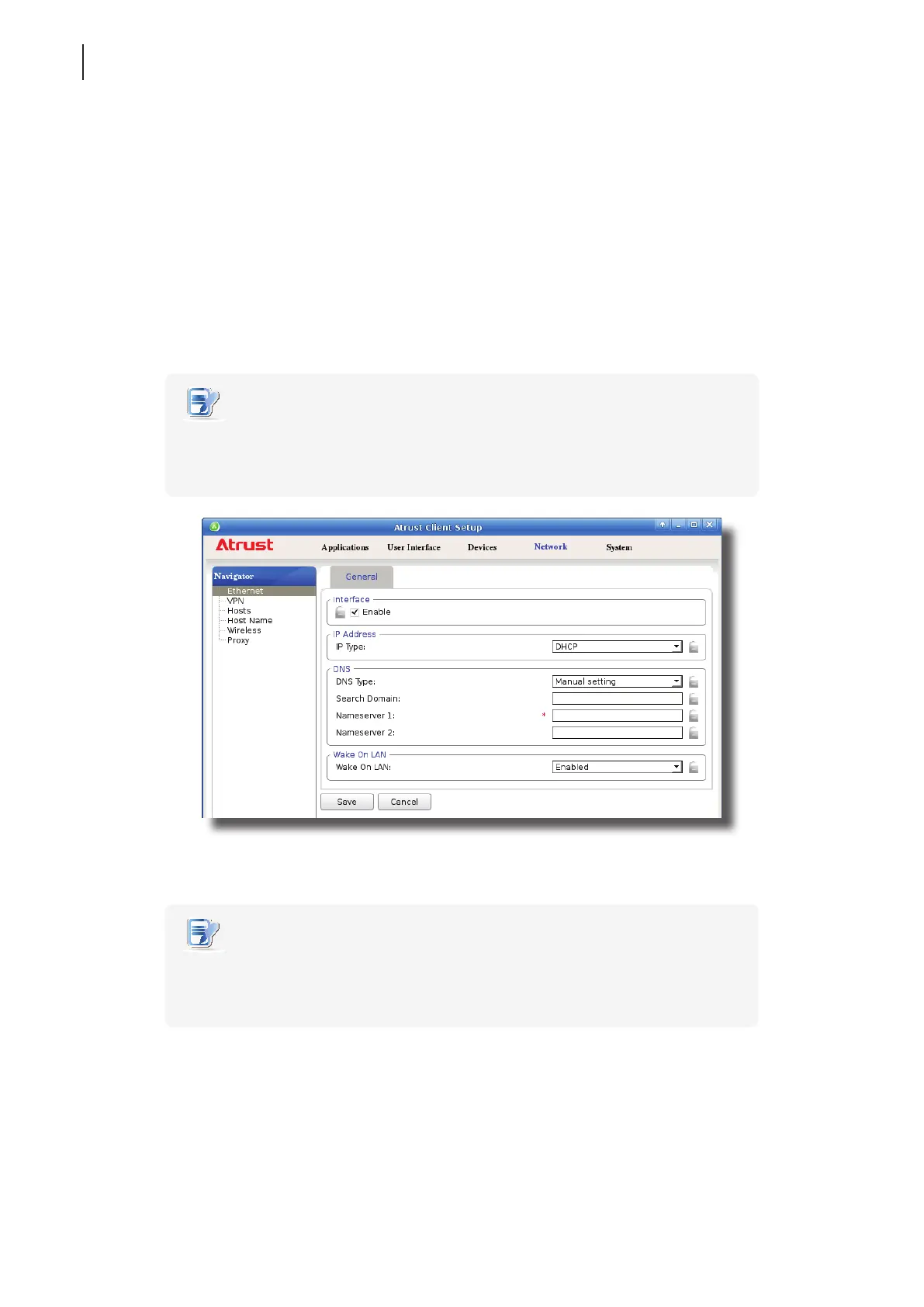
1. On Atrust Client Setup, click Network > Ethernet.
2. Under the DNS section, click the drop-down menu to select Manual setting.
3. The Search domain, Nameserver 1, and Nameserver 2 elds appear in the DNS section.
NOTE
• If you choose to use a static IP address for your t180L/t180LB thin client, then you
need to specify DNS server addresses manually. In this case, the DNS type eld will
not appear for you to select Manual setting or Dynamic DNS (via DHCP).
4. Type in the preferred DNS server address in the Nameserver 1 eld and the alternate DNS server address in
the Nameserver 2 eld if any.
NOTE
• Specifying a domain name in the Search Domain eld will enable your system to
discover a computer in that domain simply with its computer name rather than its
FQDN (Fully Qualied Domain Name).
5. Click Save to apply.



 To Next Page